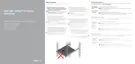
Front view
You can access the components such as power button, NMI button, appliance identification tag,
appliance identification button, and USB ports from the front of the appliance. The diagnostic
LEDs are prominently located on the front panel. The hot swappable hard drives are accessible
from the front panel.
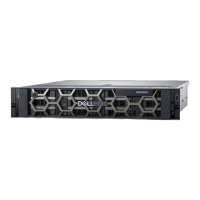
Figure 1 Front view of 10 x 2.5 inch hard drive chassis
Item 1 is the left control panel, contains appliance health and appliance ID, status LED, and optional
iDRAC Quick Sync 2 (wireless) indicators. The status LED enables you to identify any failed
hardware components. The Quick Sync 2 enables management of the appliance by using mobile
devices. Item 2 is the optical drive (optional), contains one optional slim SATA DVD-ROM drive or
DVD+/-RW drive. Item 3 is the USB port (optional), is USB 3.0 compliant. Item 4 is the video
connector, enables you to connect a display device to the appliance. Item 5 is right control panel,
contains the power button and USB port, iDRAC Direct micro port, and the iDRAC Direct status
LED. Item 6 is hard drive slots, enables you to install hard drives that are supported on your
appliance.
Table 1
Front panel features
Item Ports, panels,
and slots
Icon Description
1 Left control panel N/A Contains the appliance health and appliance ID,
status LED.
l
Status LED: Enables you to identify any
failed hardware components. There are up
to five status LEDs and an overall appliance
health LED (Chassis health and appliance
ID) bar. For more information, see the
Status LED indicators section.
2 VGA port Enables you to connect a display device to the
appliance. For more information, see the
Technical specifications section.
3 Right control
panel
N/A Contains the power button, USB port, iDRAC
Direct micro-USB, and the iDRAC Direct status
LED.
4 Drive slots N/A
Enable you to install drives that are supported
on your appliance. For more information about
drives, see the Technical specifications section.
Overview
6 Dell EMC VxRail Appliances on PowerEdge Servers E Series Owner's Manual




 To Next Page