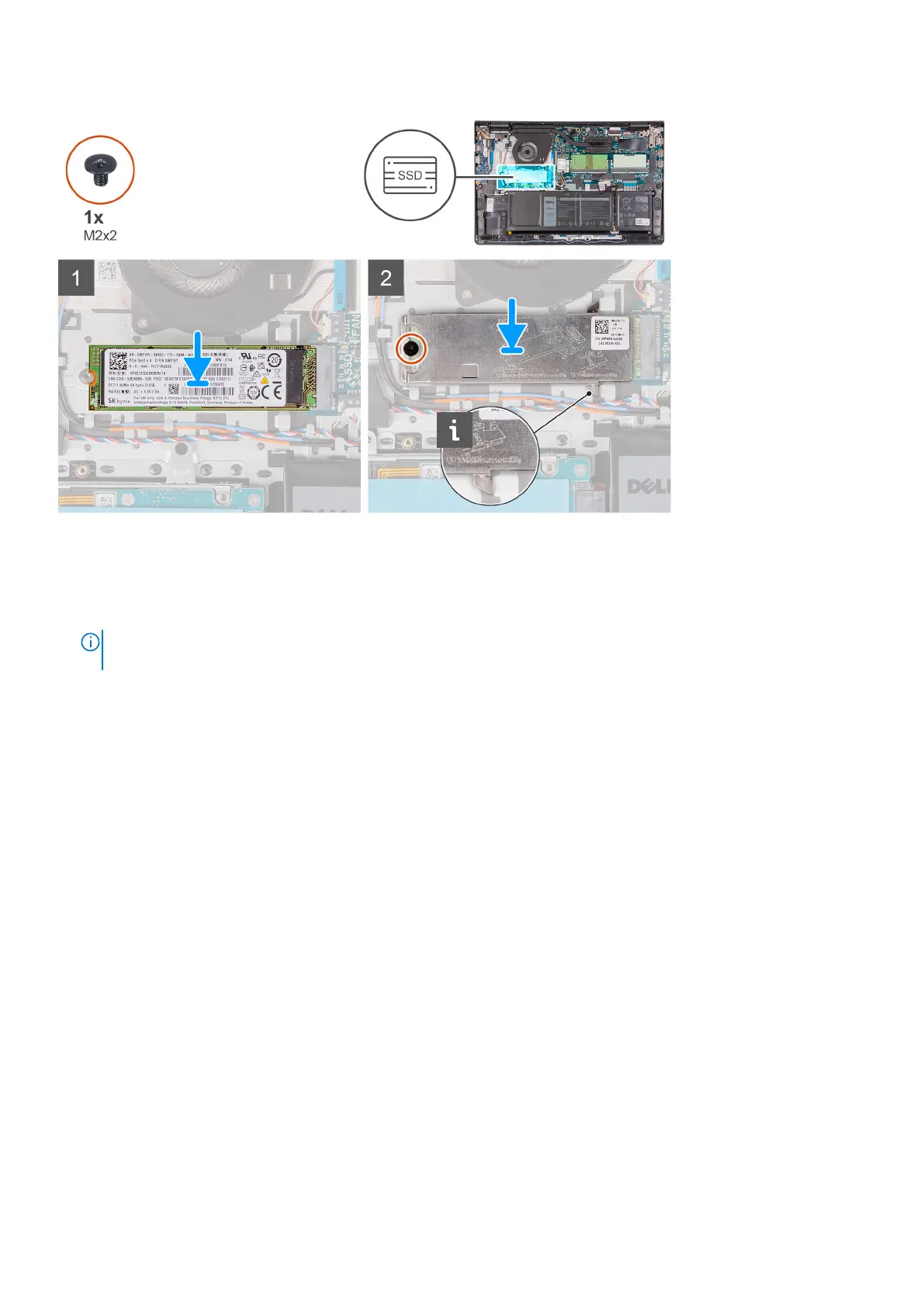
Steps
1. Align the notch on the M.2 2280 solid-state drive with the tab on the M.2 card slot on the system board.
2. Slide the M.2 2280 solid-state drive into the M.2 card slot on the system board.
3. Place the thermal plate on the M.2 2280 solid-state drive.
NOTE:
While installing the M.2 2280 solid-state drive on the system, tuck the tabs on the thermal plate under the hooks
on the palm rest.
4. Replace the screw (M2x2) that secures the thermal plate to the palm-rest and keyboard assembly.
Next steps
1. Install the base cover.
2. Exit service mode.
3. Install the SD card.
4. Follow the procedure in after working inside your computer.
Hard drive
Removing the hard drive
Prerequisites
1. Follow the procedure in before working inside your computer.
2. Remove the SD card.
3. Enter service mode.
4. Remove the base cover.
5. Remove the battery.
About this task
The following images indicate the location of the hard drive and provides a visual representation of the removal procedure.
Removing and installing components
35





 To Next Page