To Next Page


K
Katrina BoothAug 28, 2025
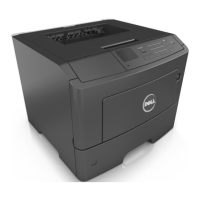
How to resolve 'Close front door' message on Dell B5460dn Mono Laser?
- SSamuel AdkinsAug 28, 2025
If your Dell printer displays 'Close front door', simply close the front door of the printer.

How to resolve 'Close front door' message on Dell B5460dn Mono Laser?
If your Dell printer displays 'Close front door', simply close the front door of the printer.
What to do if Dell printer says 'Complex page, some data may not have printed'?
If your Dell printer displays 'Complex page, some data may not have printed', reduce the number and size of fonts, the number and complexity of images, and the number of pages in the print job. Alternatively, cancel the print job or install additional printer memory.
How to fix 'Disk full' error on Dell B5460dn Mono Laser Printer?
If your Dell printer displays 'Disk full', you can press on the printer control panel to clear the message and continue printing. You can also delete fonts, macros, and other data stored on the printer's hard disk, or install a printer hard disk with a larger capacity.
What causes 'Cartridge, imaging unit mismatch' in Dell Printer?
To resolve a 'Cartridge, imaging unit mismatch' error on your Dell printer, check if the toner cartridge and imaging unit are both MICR (Magnetic Imaging Content Recording) or non-MICR supplies. If they don't match, change either the toner cartridge or imaging unit so that both are either MICR or non-MICR supplies.
What to do if Dell Printer shows 'Defective flash detected'?
If your Dell printer displays 'Defective flash detected', replace the defective flash memory card. Alternatively, you can press on the printer control panel to ignore the message and continue printing, or cancel the current print job.
What to do if my Dell Printer says 'Non-Dell [supply type]'?
To resolve a 'Non-Dell [supply type]' message on your Dell printer, you have two options. First, you can accept the risks of using non-genuine supplies by pressing and holding certain buttons simultaneously for 15 seconds to clear the message. Alternatively, you can remove the non-genuine supply and install a genuine Dell supply or part.
How to resolve 'Too many disks installed' error on Dell B5460dn Mono Laser Printer?
If your Dell printer displays 'Too many disks installed', turn off the printer, unplug the power cord, remove the extra printer hard disks, connect the power cord, and then turn the printer back on.
How to fix 'Too many flash options installed' error on Dell B5460dn Mono Laser Printer?
If your Dell printer displays 'Too many flash options installed', turn off the printer, unplug the power cord, remove the extra flash memory, connect the power cord, and then turn the printer back on.
What does 'Cartridge nearly low' mean on Dell B5460dn Mono Laser?
If your Dell printer displays 'Cartridge nearly low', press on the printer control panel to clear the message and continue printing, if necessary.
What to do if Dell B5460dn Mono Laser Printer says 'Cartridge very low'?
If your Dell printer displays 'Cartridge very low', you may need to replace the toner cartridge very soon. If necessary, press to clear the message and continue printing.
General safety precautions and warnings for printer operation and handling.
Guidelines for choosing an optimal and safe placement for the printer.
Steps for installing optional hardware like memory cards and hard disks.
Instructions for installing various hardware upgrades and accessories.
Procedures for installing printer drivers and software on Windows and Macintosh.
Steps for wireless network setup using WPS or Embedded Web Server.
Configuring the printer for different paper sizes, types, and custom settings.
Instructions for properly loading paper into the 550-sheet tray.
Step-by-step guide for loading paper into the 2100-sheet tray.
Procedures for replacing consumables like toner cartridges and imaging units.
Troubleshooting steps for issues related to paper jams and misfeeds.
Solutions for common print quality issues like jagged text and clipped images.
 General
| Print Technology | Laser |
|---|---|
| Print Resolution | 1200 x 1200 dpi |
| Standard Memory | 512 MB |
| Output Capacity | 500 sheets |
| Processor Speed | 800 MHz |
| Weight | 52.9 lbs |
| Monthly Duty Cycle | 275, 000 pages |
| Input Capacity | 650 sheets |
| Connectivity | USB 2.0, Ethernet |
| First Page Out Time | 4.4 seconds |
| Maximum Paper Size | A4, Legal |
| Operating System Compatibility | Windows, Linux, Mac OS |
| Duplex Printing | Standard |