30 Hard Drive(s)
Replacing the Hard Drive(s)
1
Follow the instructions in "Before You Begin" on page 9.
2
Remove the new hard drive from its packaging.
Save the original packaging for storing or shipping the hard drive.
3
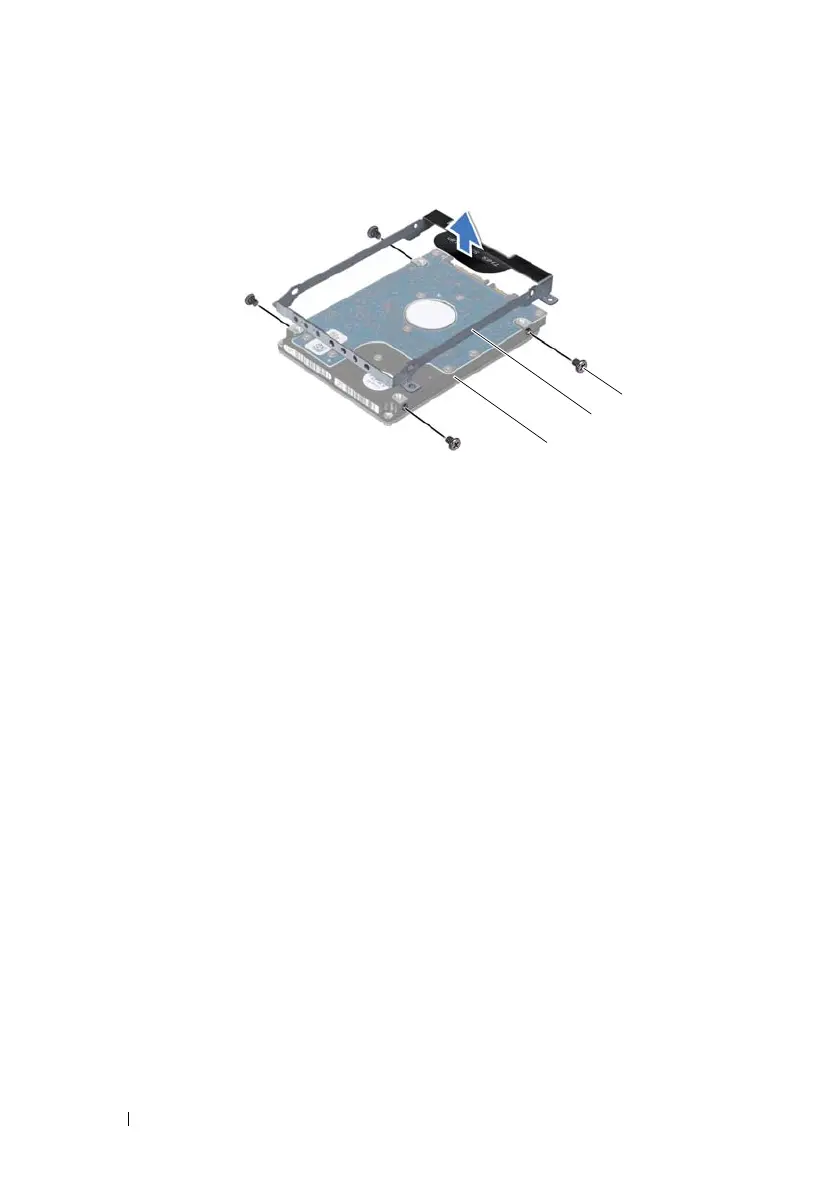
Place the hard-drive bracket on the hard drive.
4
Replace the four screws that secure the hard-drive bracket to the hard
drive.
5
Replace hard drive 1 and/or hard drive 2 in the computer base:
• Place the hard-drive assembly in the computer base.
• Using the pull-tab, slide the hard-drive assembly into the connector
on the system board.
• Replace the four screws that secure the hard-drive assembly to the
computer base.
6
Replace the module cover (see "Replacing the Module Cover" on page 16).
1 hard drive 2 hard-drive bracket
3 screws (4)
book.book Page 30 Wednesday, April 25, 2012 2:11 PM



 To Next Page