Operating the monitor | 83
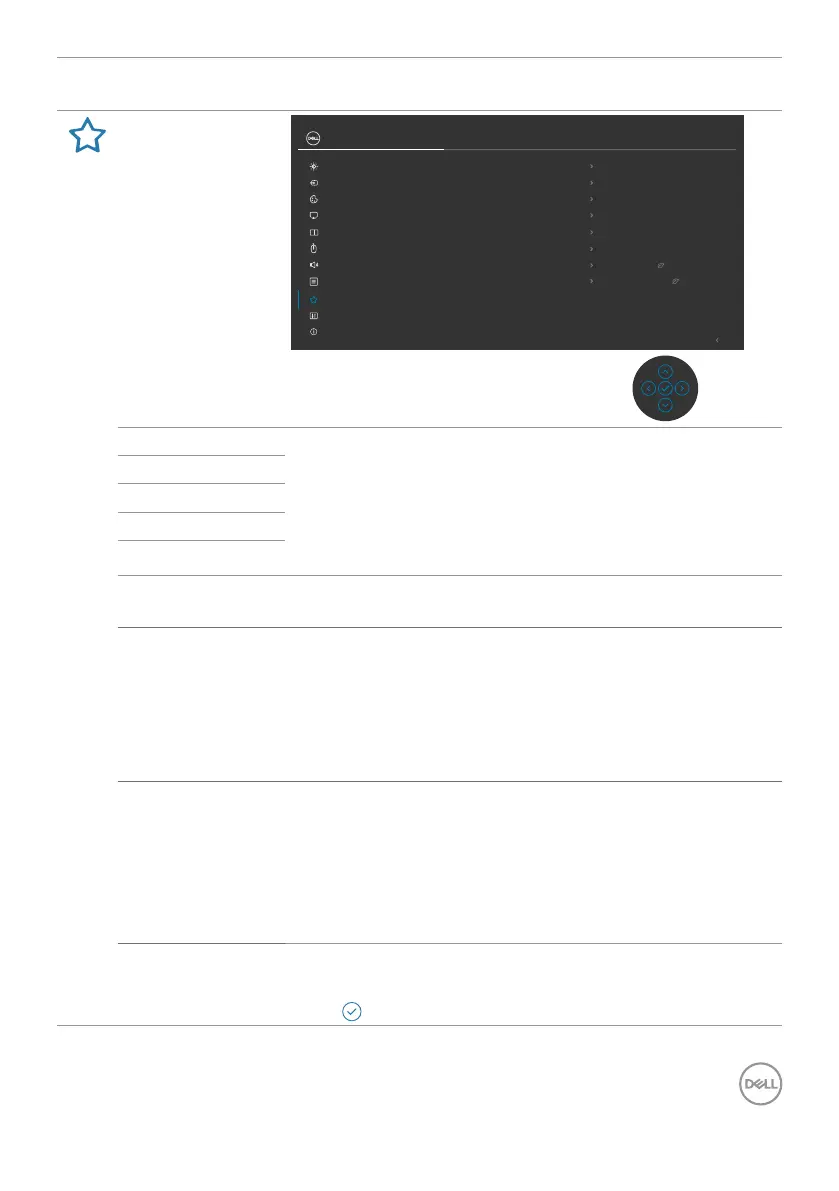
Icon Menu and
Submenus
Description
Personalize
Exit
Input Source
Color
Brightness/Contrast
Display
PIP/PBP
Personalize
Others
Menu
USB
Shortcut Key 1
Display Info
Shortcut Key 2
Input Source
Shortcut Key 3
Preset Modes
Reset Personalization
Power Button LED
On in On Mode
Other USB Charging
O in Standby Mode
USB-C Charging (140W)
O in O Mode
Shortcut Key 4
Brightness/Contrast
Shortcut Key 5
Auto Brightness
UltraSharp 40 Monitor
More Information
Audio
Shortcut key 1 Select from Preset Modes, Brightness/Contrast,
Auto Brightness, Auto Color Temp., Input Source,
Aspect Ratio, Volume, Speaker, PIP/PBP Mode, USB
Switch, Ethernet Switch, Video Swap, Smart HDR,
Display Info, or Screen Partition and set as shortcut
key.
Shortcut key 2
Shortcut key 3
Shortcut key 4
Shortcut key 5
Power Button
LED
Allows you to set the state of the power light to save
energy.
USB-C
Charging
(140W)
Allows you to enable or disable USB-C Charging (140W)
charging function during monitor power off mode.
NOTE: When this function is enabled, you can
charge your notebook or mobile devices through the
Thunderbolt
TM
cable even when the monitor is powered
Off.
Other USB
Charging
Allows you to enable or disable Other USB Charging
function during monitor Standby mode.
NOTE: When this function is enabled, you can charge
your mobile devices through the USB-A, USB-C
®
, and
Thunderbolt
TM
downstream port with the appropriate
cable even when the monitor is in standby mode.
Reset
Personalization
Resets all settings under the Personalize to the factory
defaults.
Press to select this function.







 To Next Page