Pairing your wireless keyboard and mouse │ 16
Pairing your wireless keyboard and
mouse using Swift Pair
1. In Windows Search, type Bluetooth.
2. Click Bluetooth and other devices settings. The Settings window appears.
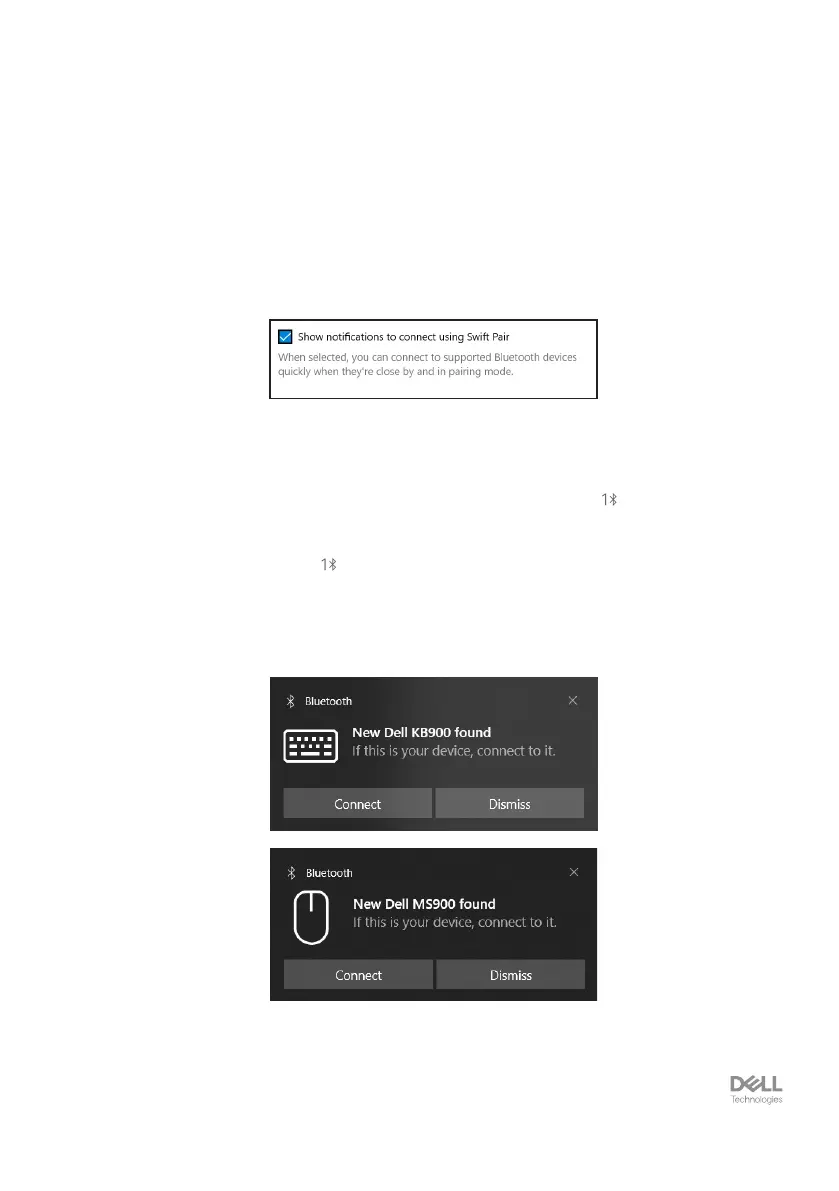
3. Ensure that the Show notications to connect using Swift Pair check box is
selected.
4. Ensure that the Bluetooth is turned on.
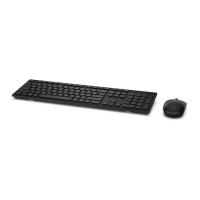
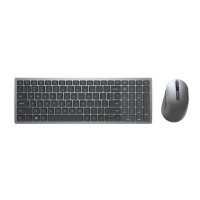
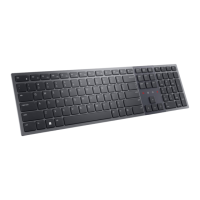
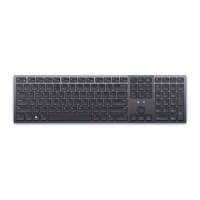
5. Place your wireless keyboard and mouse near your computer. Then press the
connection-mode button to switch to the rst pairing mode ( ).
6. Press the connection-mode button for three seconds. Ensure that the rst
Bluetooth channel LED ( ) blinks white, indicating the Bluetooth pairing is initiated.
7. The New Dell KB900 found (for keyboard) and New Dell MS900 found
(for mouse) window appears. Click Connect and conrm the pairing process of both
wireless keyboard and mouse with your computer.


 To Next Page