Pairing your wireless keyboard and mouse │ 17
Pairing your wireless keyboard and
mouse using Bluetooth
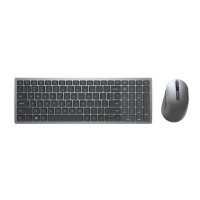
Your Dell wireless keyboard and mouse can be paired with your Bluetooth enabled
computer. You can pair and switch between a laptop, desktop, and a compatible mobile
device.
NOTE: You can connect up to two devices with your wireless keyboard and wireless
mouse using Bluetooth.
NOTE: Before pairing your wireless keyboard or mouse using Bluetooth, ensure that
you unpair the inactive devices on your computer, and update the Bluetooth driver
on your Dell computer to the latest version. For more information, see Drivers &
Downloads at Dell.com/support.
NOTE: Ensure that the distance between your computer and keyboard or mouse is
within the Bluetooth reception range.
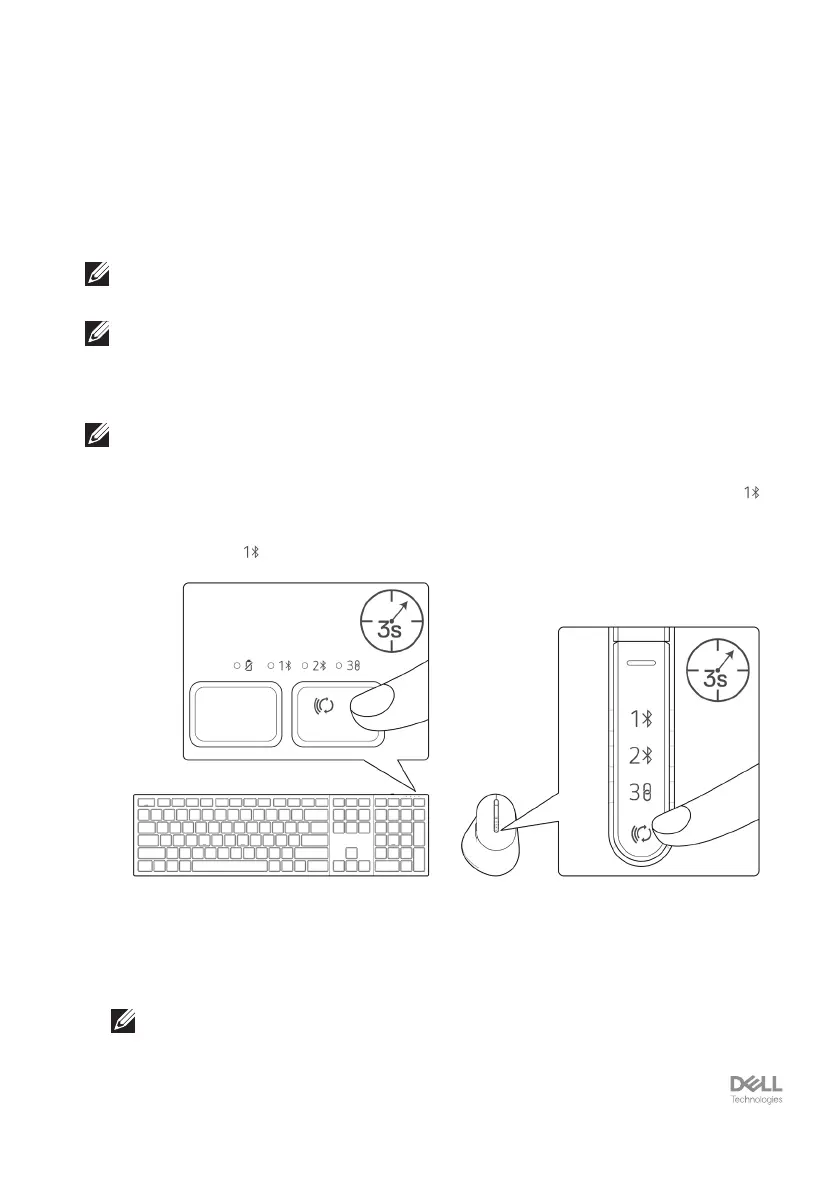
1. Press the connection-mode button to switch to the rst Bluetooth pairing mode ( ).
2. Press the connection-mode button for 3 seconds. Ensure that the rst Bluetooth
channel LED ( ) blinks white, indicating the Bluetooth pairing is initiated.
3. Pair your wireless keyboard or mouse with your Bluetooth-enabled computer.
1) Select Start > Settings > Bluetooth & other devices > Add Bluetooth or
other device > Bluetooth.
2) Select Dell KB900 (for keyboard) or Dell MS900 (for mouse) and then Done.
NOTE: If Dell KB900 or Dell MS900 is not listed, ensure that the pairing mode is
enabled on the keyboard or mouse.


 To Next Page