ineo 4050/4750 2-11
2.3 Control Panel
2
2.3 Control Panel
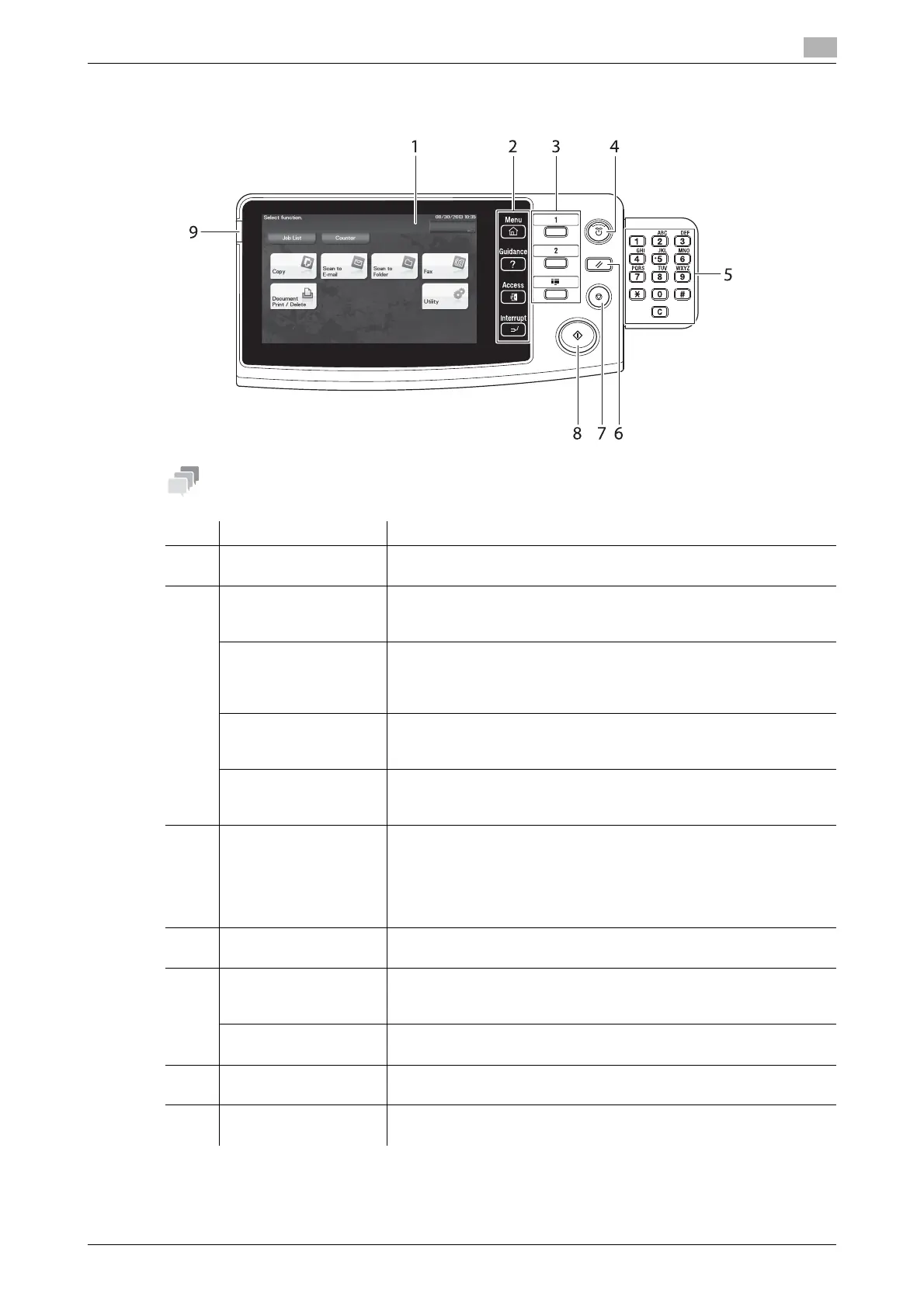
This figure shows the Control Panel with an optional Keypad installed.
No. Name Description
1 Touch Panel Displays setting screens and messages.
Directly press this panel to carry out operations.
2 [Menu] Tap this key to display the Main Menu. The [Menu] lights up in blue
when the Main Menu is displayed.
For details on the Main Menu, refer to page 2-15.
[Guidance] Tap this key to display the help screen. The [Guidance] lights up in
blue when the Help Menu is displayed.
This function displays the explanation and operation procedure of a
function on the Touch Panel, enabling you to view them.
[Access] Tap this key to perform authentication on the Login screen if user au-
thentication or account track is employed on this machine.
Tap [Access] under the login condition to log out.
[Interrupt] Tap this key to interrupt active jobs on this machine and deal with a
quick copy job.
[Interrupt] lights up in blue during interrupt processing.
3 Register Key 1 to Reg-
ister Key 3
Press each key to switch the display of the Touch Panel to a function
assigned to a Register key.
• The default function assigned to the Register key varies depend-
ing on the region the machine is used in.
• A function to be assigned to a Register key can be changed to suit
your environment. For details, refer to [User's Guide Introduction].
4 Power key Press this key to switch this machine to Power Save mode.
For details, refer to page 2-9.
5 Keypad Use this keypad to enter numeric values such as the number of copies
or zoom ratio. This keypad is also used to select a numbered setting
key.
C (Clear) All the numeric values (number of copies, magnification, size, etc),
which have been entered by keypad, are canceled.
6 Reset Press this key to reset the settings you entered or changed on the
Control Panel.
7 Stop Press this key to temporarily stop an active copy, scan, or print job.
To restart, press the Start key.











 To Next Page