ineo 4050/4750 2-15
2.5 Main Menu
2
2.5 Main Menu
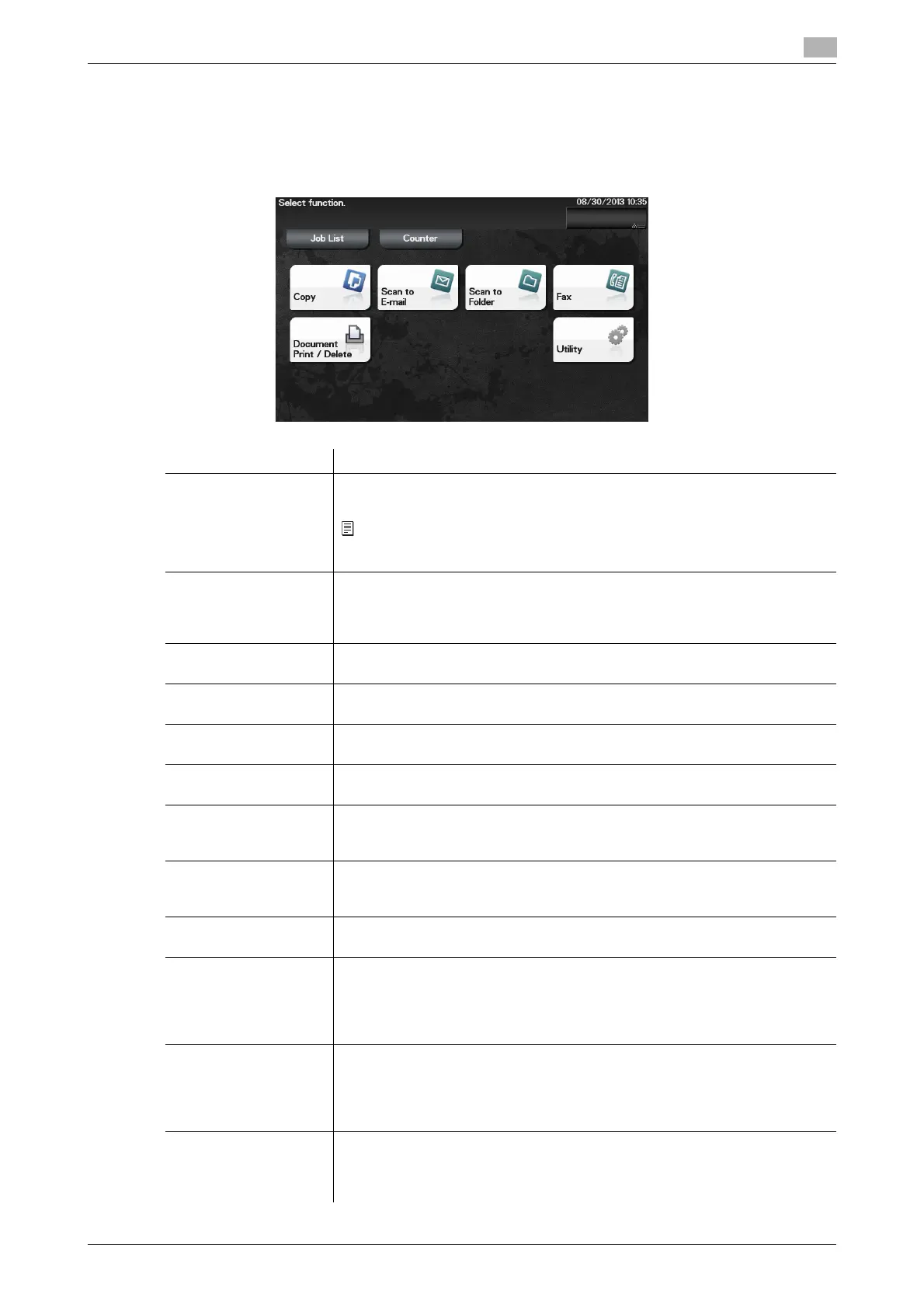
Tap [Menu] on the Control Panel to display the Main Menu.
The Main Menu is a basic screen to perform operations of this machine. Switch from the Main Menu to each
function mode.
Item Description
[Job List] Tap this button to check active jobs or job logs. If necessary, you can perform
job operations such as deleting a standby job.
A job refers to an individual operation unit such as printing, sending, receiving,
or saving.
[Counter] Tap this button to display the total number of pages printed on this machine
on a function basis.
This information will help you gain an understanding of the usage status of this
machine.
[Copy] Tap this button to display the main screen in copy mode.
For details on the copy mode, refer to page 5-15.
[Scan to E-mail] Tap this button to display the main screen in Scan to E-mail mode.
For details on the Scan to E-mail mode, refer to page 5-8.
[Scan to Folder] Tap this button to display the main screen in Scan to Folder mode.
For details on the Scan to Folder mode, refer to page 5-8.
[Fax] Tap this button to display the main screen in Fax mode.
For details on the Fax mode, refer to page 5-11.
[Document Print/De-
lete]
Tap this button to operate files on this machine's HDD or on the USB memory
device connected to this machine.
For details on how to print a file on the USB memory device, refer to page 5-18.
[Utility] Tap this button to configure settings of this machine, register destinations, and
check the status of consumables.
For details on Utility, refer to [User's Guide Description of Utility Keys].
[APP] Displayed when an application that is supported by OpenAPI is registered on
this machine.
[Web Browser] Tap this button to display the main Web browser screen.
This function is available when the optional i-Option LK-101 v3 is installed
while the Web browser is enabled.
For details on the Web browser function, refer to [User's Guide: Advanced
Functions].
[Quick Security] Tap this button to display [Quick Security Setting].
This function is available when a setting is configured to display the [Quick Se-
curity Setting] shortcut key on the main menu.
For details on settings, refer to [Quick Security Setting] in [User's Guide: De-
scription of Utility Keys].
[QR Code Display] Tap this button to display the QR code in which the network information of this
machine is recorded.
This function is available when a setting is configured to display the [QR Code
Display] shortcut key on the main menu.











 To Next Page