77
Chapter 7 Intel AMT Settings
Chapter 7
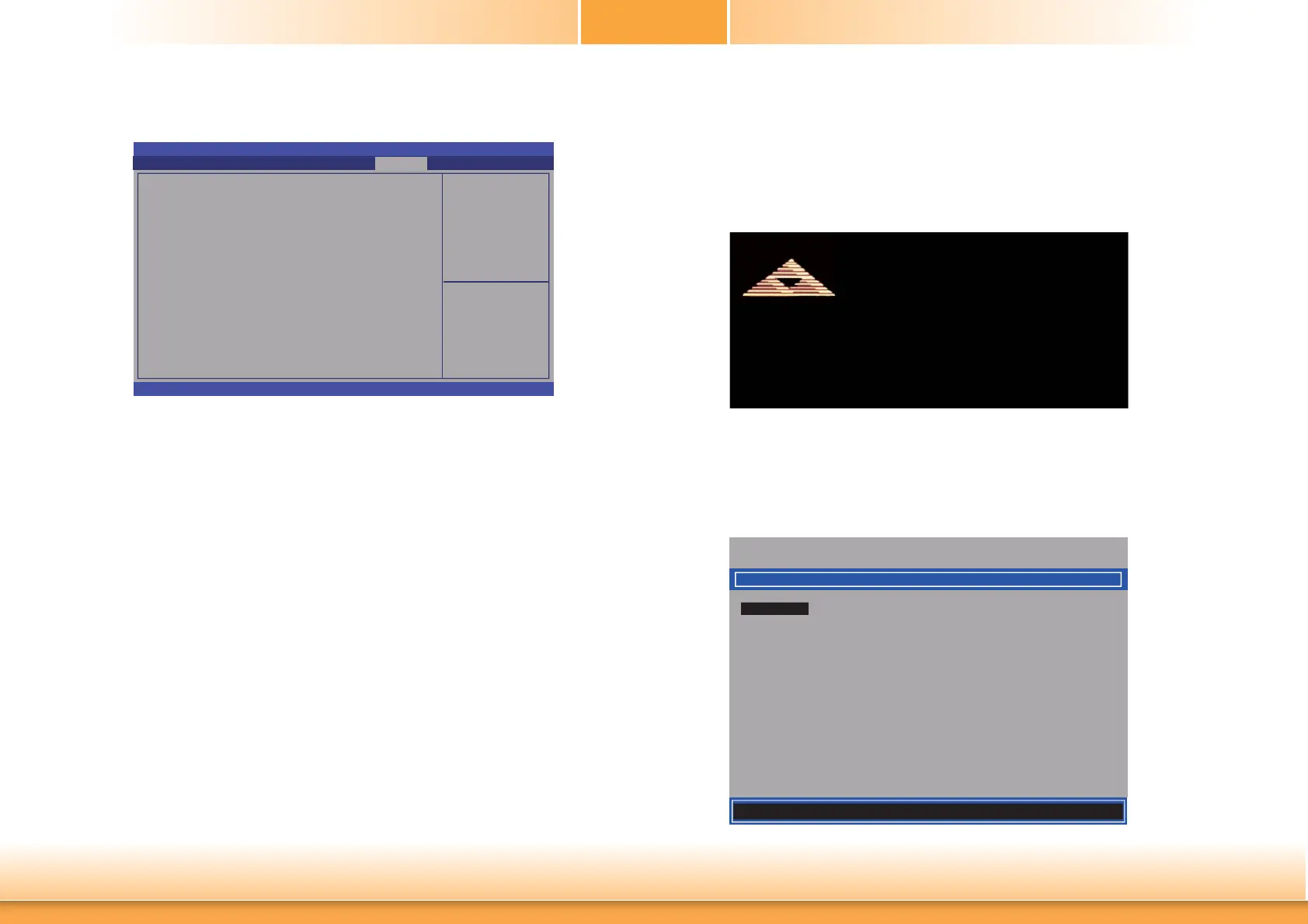
4. In the Save & Exit menu, select Save Changes and Reset then select OK.
Enable Intel
®
AMT in the Intel
®
Management
Engine BIOS
Extension (MEBX) Screen
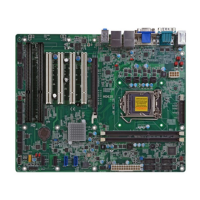
1. When the system reboots, the following message will be displayed. Press <Ctrl-P> as
soon as the message is displayed; as this message will be displayed for only a few sec-
onds.
Version 2. 15. 1236. Copyright (C) 2012 American Megatrends, Inc.
BIOS Date: 12/17/2013 21:22:35 Ver: 1AQQW025
Press <Ctrl+P> to enter MEBX setup menu
Press <Ctrl+Alt+F1> Remote Assistance
Press <Del> to enter setup
American
Megatrends
2. You will be prompted for a password. The default password is “admin”. Enter the default
password in the space provided under Intel(R) ME Password then press Enter.
Intel(R) Management Engine BIOS Extension v9.0.0.0029/Intel(R) ME v9.5.30.1808
Copyright(C) 2003-13 Intel Corporation. All Rights Reserved.
MAIN MENU
MEBx Login
> Intel (R) ME General Settings
> Intel (R) AMT Confi guration
MEBx Exit
Intel(R) ME Password
[] = Move Highlight [Enter] = Select Entry [Esc]= Exit
Exit system setup after
saving the changes
Aptio Setup Utility - Copyright (C) 2012 American Megatrends, Inc.
Version 2.15.1236. Copyright (C) 2012 American Megatrends, Inc.
Save Changes and Exit
Discard Changes and Exit
Save Changes and Reset
Discard Changes and Reset
Save Options
Save Changes
Discard Changes
Restore Defaults
Save as User Defaults
Restore as User Defaults
Boot Override
P1: ST160LT007-9ZV14D
UEFI: TOSHIBA TransMemory 1.00
Launch EFI Shell from fi lesystem device
Chipset
Advanced
Main
Boot Security Save & Exit
Select Screen
Select Item
Enter: Select
+/
-:
Change Opt.
F1: General Help
F2: Previous Values
F3: Optimized Defaults
F4: Save & Exit
ESC: Exit


 To Next Page