78
Chapter 7 Intel AMT Settings
Chapter 7
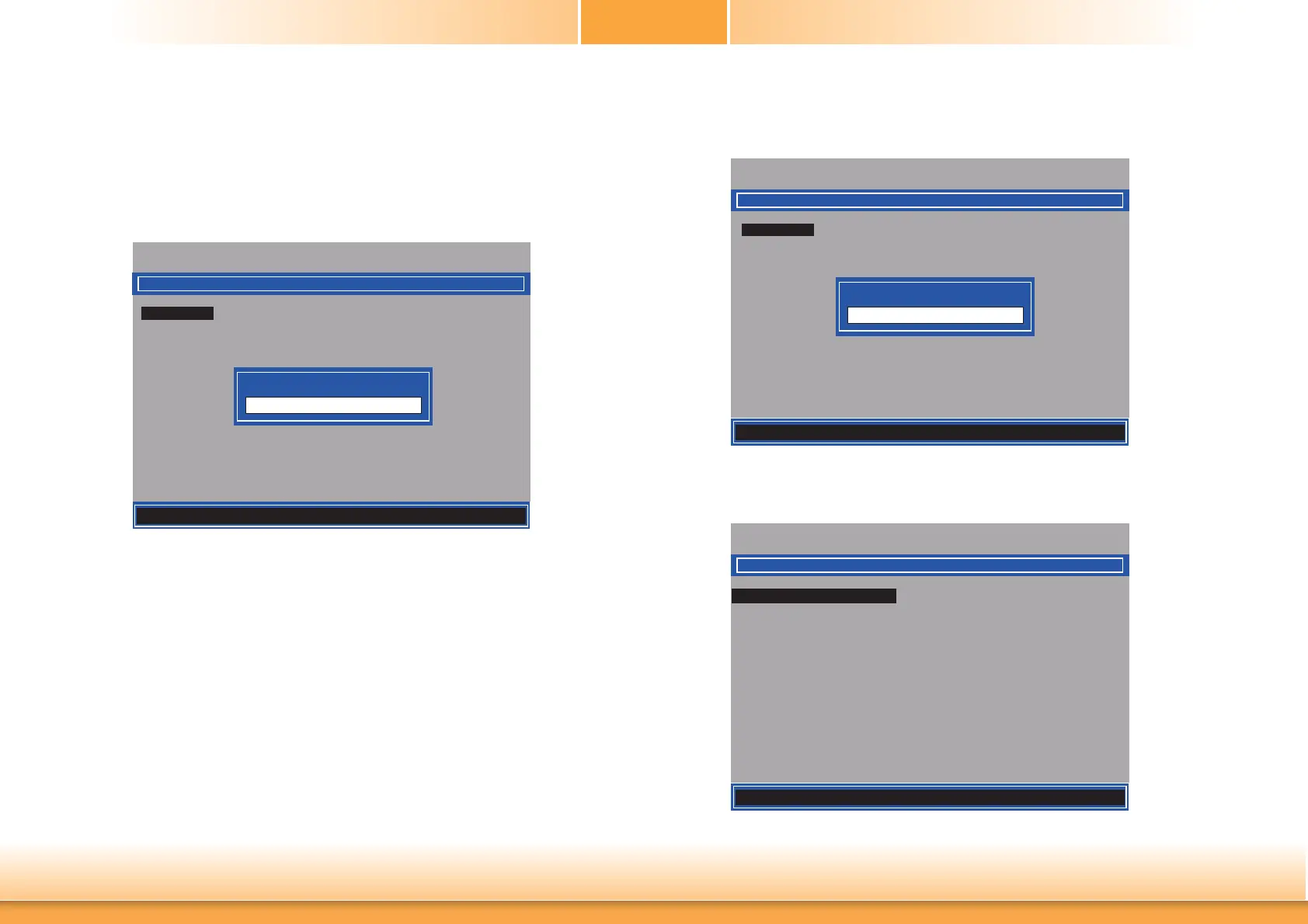
3. Enter a new password in the space provided under Intel(R) ME New Password then press
Enter. The password must include:
• 8-32 characters
• Strong 7-bit ASCII characters excluding : , and ” characters
• At least one digit character (0, 1, ...9)
• At least one 7-bit ASCII non alpha-numeric character, above 0x20, (e.g. !, $, ;)
• Both lower case and upper case characters
Intel(R) Management Engine BIOS Extension v9.0.0.0029/Intel(R) ME v9.5.30.1808
Copyright(C) 2003-13 Intel Corporation. All Rights Reserved.
MAIN MENU
MEBx Login
> Intel (R) ME General Settings
> Intel (R) AMT Confi guration
MEBx Exit
Intel(R) ME Password
[] = Move Highlight [Enter] = Select Entry [Esc]= Exit
Intel (R) ME New Password
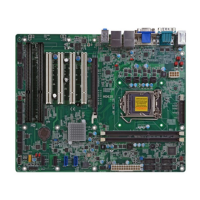
4. You will be asked to verify the password. Enter the same new password in the space pro-
vided under Verify Password then press Enter.
Intel(R) Management Engine BIOS Extension v9.0.0.0029/Intel(R) ME v9.5.30.1808
Copyright(C) 2003-13 Intel Corporation. All Rights Reserved.
MAIN MENU
MEBx Login
> Intel (R) ME General Settings
> Intel (R) AMT Confi guration
MEBx Exit
Intel(R) ME Password
[] = Move Highlight [Enter] = Select Entry [Esc]= Exit
Verify Password
5. Select Intel(R) ME General Settings then press Enter.
Intel(R) Management Engine BIOS Extension v9.0.0.0029/Intel(R) ME v9.5.30.1808
Copyright(C) 2003-13 Intel Corporation. All Rights Reserved.
MAIN MENU
> Intel (R) ME General Settings
> Intel (R) AMT Confi guration
MEBx Exit
[] = Move Highlight [Enter] = Select Entry [Esc]= Exit


 To Next Page