79
Chapter 7 Intel AMT Settings
Chapter 7
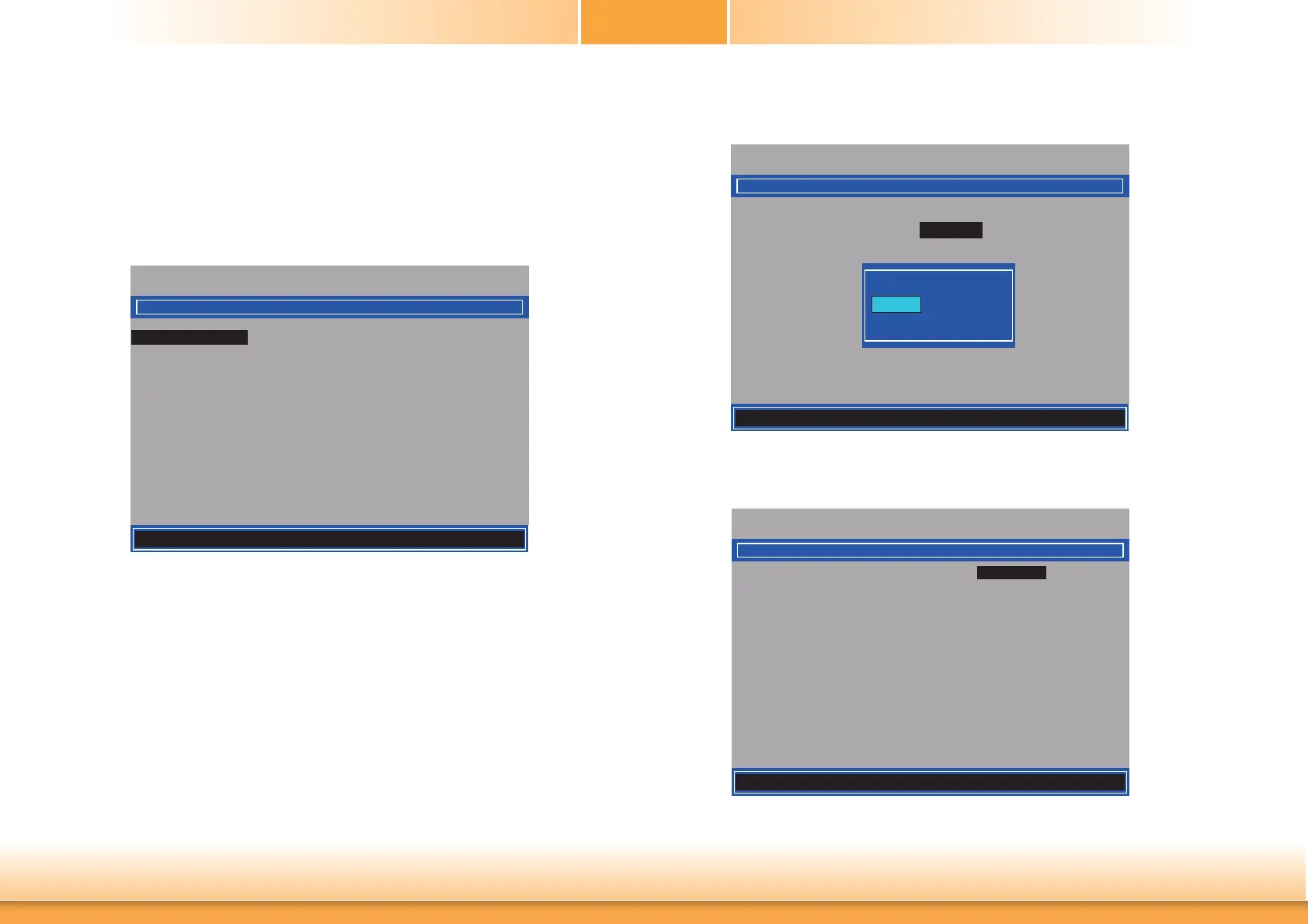
6. Select Change Intel(R) ME Password then press Enter.
You will be prompted for a password. The default password is “admin”. Enter the default
password in the space provided under Intel(R) ME New Password then press Enter.
• 8-32 characters
• Strong 7-bit ASCII characters excluding : , and ” characters
• At least one digit character (0, 1, ...9)
• At least one 7-bit ASCII non alpha-numeric character, above 0x20, (e.g. !, $, ;)
• Both lower case and upper case characters
Intel(R) Management Engine BIOS Extension v9.0.0.0029/Intel(R) ME v9.5.30.1808
Copyright(C) 2003-13 Intel Corporation. All Rights Reserved.
INTEL (R) ME PLATFORM CONFIGURATION
Change ME Password
Local FW Update <Enabled>
Intel (R) ME New Password
[] = Move Highlight [Enter] = Select Entry [Esc]= Exit
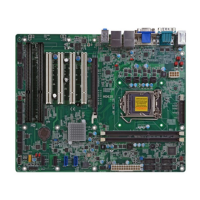
7. Select Local FW Update then press Enter. Select Enabled then press Enter.
Intel(R) Management Engine BIOS Extension v9.0.0.0029/Intel(R) ME v9.5.30.1808
Copyright(C) 2003-13 Intel Corporation. All Rights Reserved.
Change ME Password
Local FW Update
<Enabled>
[] = Move Highlight [Enter] = Complete Entry [Esc]= Discard Changes
Disabled
Enabled
Password Protected
8. Select Previous Menu until you return to the Main Menu. Select Intel(R) AMT Con-
figuration then press Enter.
Intel(R) Management Engine BIOS Extension v9.0.0.0029/Intel(R) ME v9.5.30.1808
Copyright(C) 2003-13 Intel Corporation. All Rights Reserved.
INTEL (R) AMT CONFIGURATION
[] = Move Highlight [Enter] = Select Entry [Esc]= Exit
Manageability Feature Selection < Enabled>
> SOL/ IDER/ KVM
> User Consent
Password Policy <Anytime>
> Network Setup
Unconfi gure Network Access <Full Unprovision>
> Remote Setup And Confi guration
> Power Control
INTEL (R) ME PLATFORM CONFIGURATION


 To Next Page