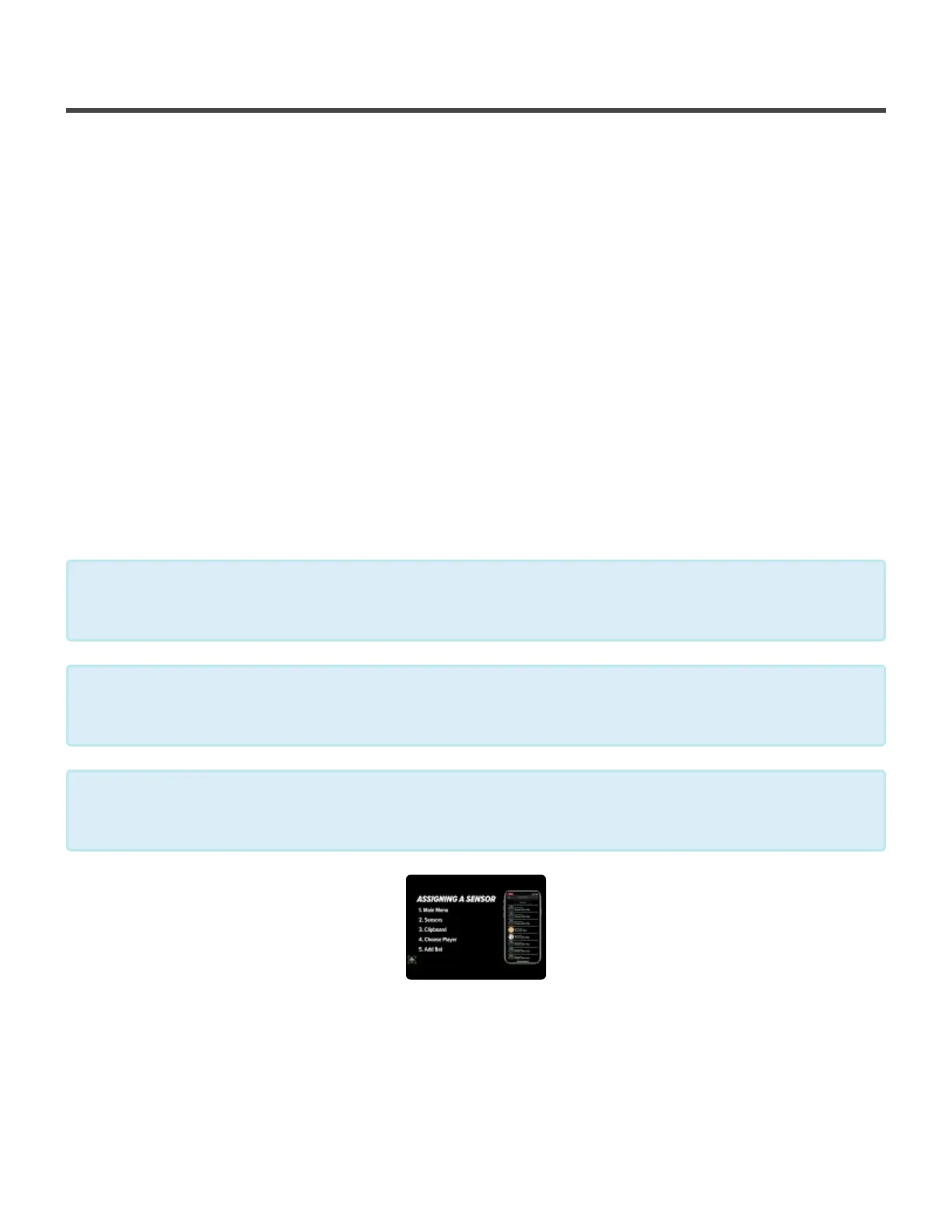
Assigning Sensors
Assigning a sensor to a player enables the app to know which player bulk
transferred swings should go into. This process only has to happen once. After a
sensor is assigned to a player the sensor will remember who it is assigned to and
any other device you log into will keep that assignment. Follow the steps below to
learn how to assign sensors:
1. Make sure the sensor you want to assign is on and ready to pair
2. Open the SENSORS page from the main menu in the app
3. Click the icon on the left of the sensor you want to assign to a Player (will appear as a clipboard)
4. On the next page you’ll see Assign at the top of the page and a list of your groups below, select the
group that contains the Player you want to assign the sensor to
5. Click on the Player’s name
6. You will be prompted to select a bat, select (or create) a bat that matches what they commonly use
7. You will be taken back to the Sensor Management page and the sensor assignment will be saved (the
Player’s initials or profile picture will appear where the clipboard was)
Although the sensor will remember who it is assigned to for transfering disconnect swings, it
can be reassigned to a new account by repeating the process.
*
Assigning a sensor does not prohibit you from using that sensor in another player’s
account. The assignment only takes effect when doing a bulk transfer
*
If at any point you would like to update a player’s bat, repeat the sensor assignment
process and you will have an option to re-select a bat for that player.
*
Diamond Kinetics SwingTracker - 1
Page 25 of 107


 To Next Page