Chapter 6: C|24 Pro Tools Controls 45
Sends Switches
The Sends switches (A-E, F-J) are used to focus a
single Send position in the LCD displays, across
all tracks. The switches light to indicate the cur-
rently focused Send.
Channel Bar Scroll Switches
The Channel Bar Scroll switches are used to
bank the display of parameters, sends, memory
locations, window configurations, or groups in
the LCD displays.
The Channel Bar Scroll switches light when ad-
ditional parameters are available in the corre-
sponding direction.
Miscellaneous Controls
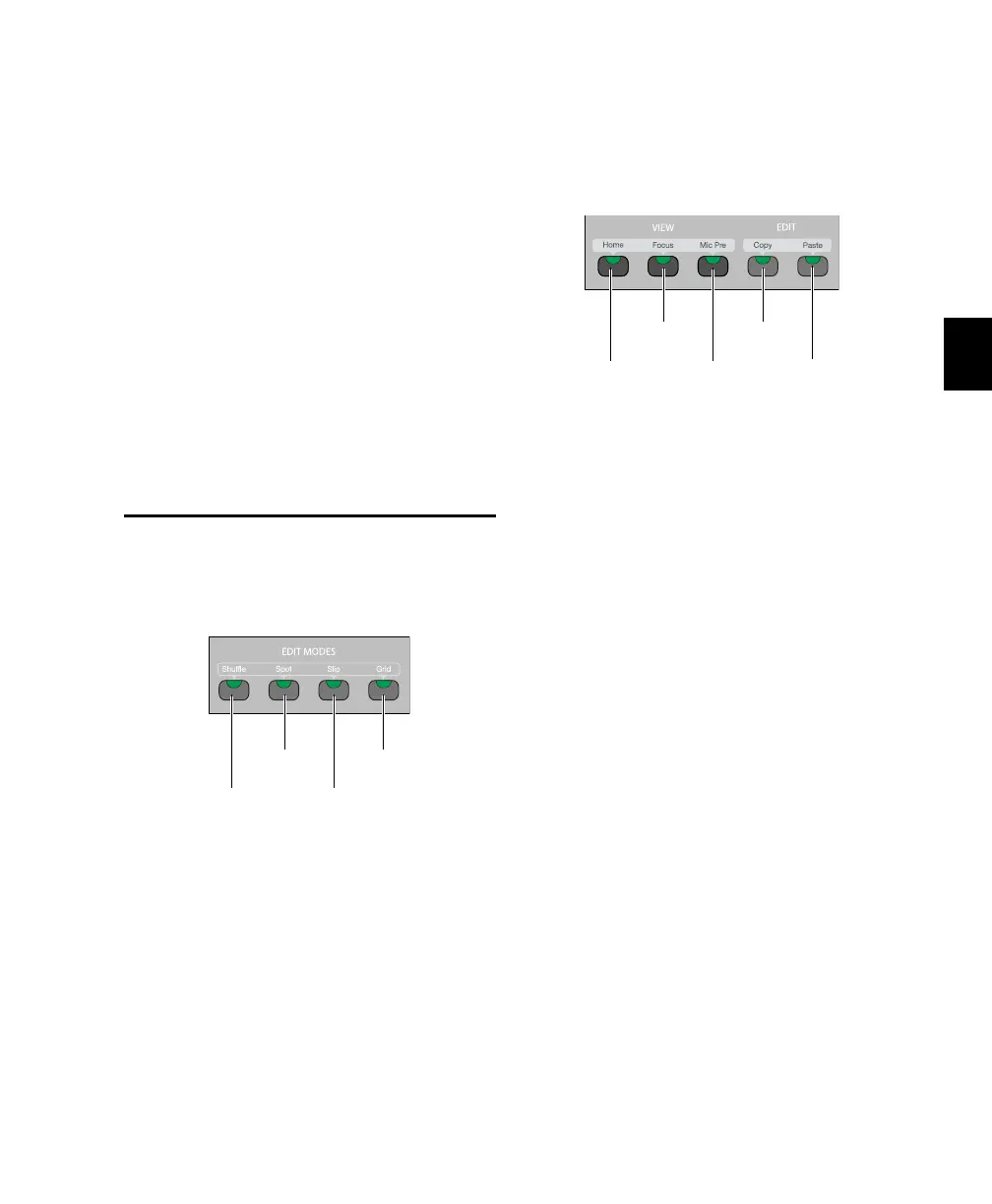
Edit Mode Switches
The Edit Mode switches place Pro Tools directly
in the corresponding Edit mode. The switch
lights to indicate the current mode.
Shuffle Switch Places Pro Tools in Shuffle mode.
Spot Switch Places Pro Tools in Spot mode.
Slip Switch Places Pro Tools in Slip mode.
Grid Switch Toggles Pro Tools between Absolute
and Relative Grid mode.
View and Edit Switches
View Switches
Home Switch
The Home switch puts C|24 into Pan/Console
view, which is the default view. In this view, fad-
ers control channel volume, rotary encoders
control channel pan.
See “Pan Console View” on page 67.
Focus Switch
The Focus switch returns C|24 to the previously
focused view (Parameter view, Expanded Send
view, Expanded Pan view, or Mic Pre view) after
you change to a Console view. The Focus switch
lights to indicate that it is possible to return to a
focused view.
Mic Pre Switch
The Mic Pre switch toggles C|24 into Mic Pre
view, which shows the controls of any con-
nected Digidesign PRE.
See “Mic Pre View” on page 78.
Edit Mode switches
Shuffle
switch
Spot
switch
Slip
switch
Grid
switch
View and Edit switches
Home
switch
Focus
switch
Mic Pre
switch
Copy
switch
Paste
switch



 To Next Page