Chapter 10
76
Setting Up Audio Output
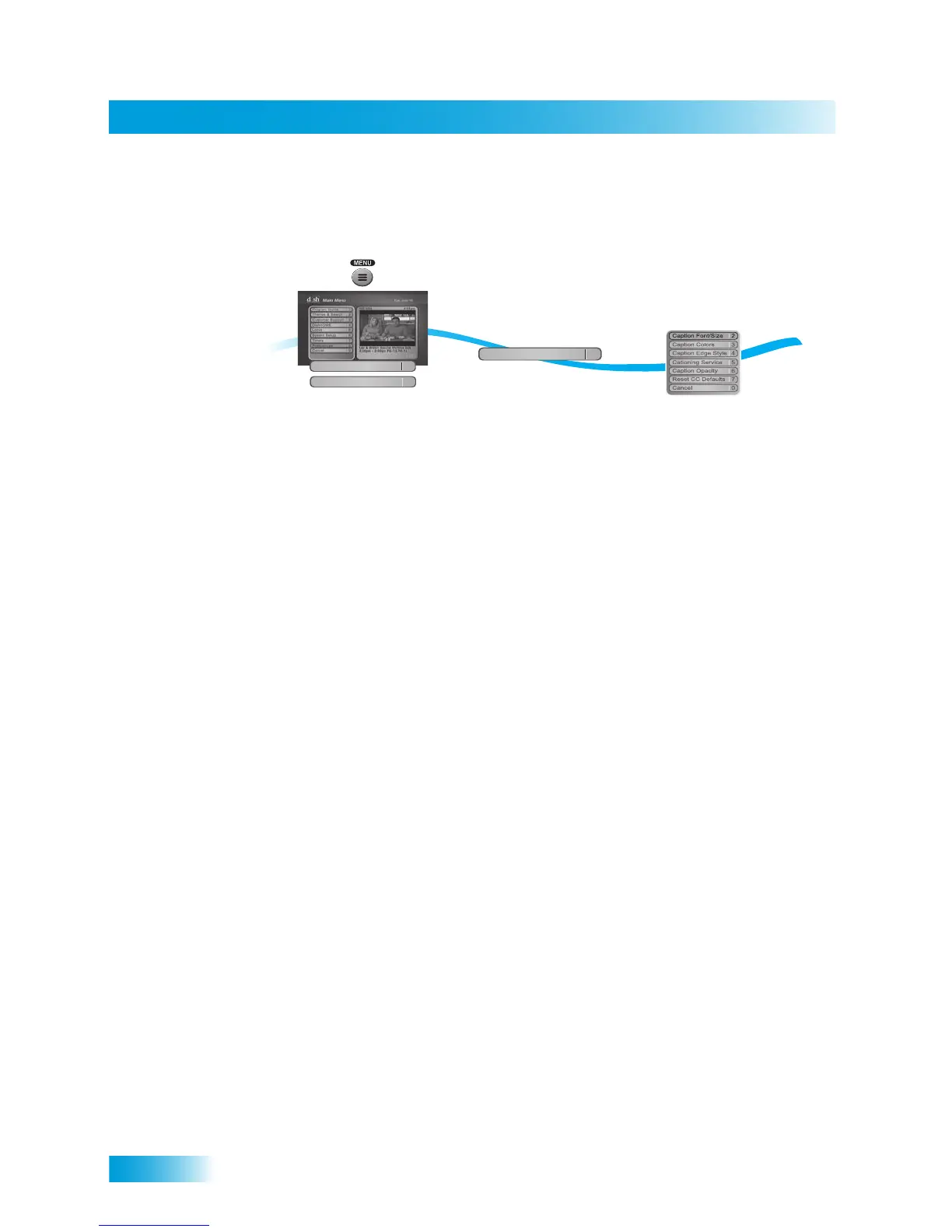
To enable or disable closed captions and adjust how they are displayed, use the following
steps:
1 Press MENU. Select Preferences, then select Closed Captions.
2 Select Captions On/Off.
3 Select CC is On (to turn captions on) or CC is Off (to turn captions off), then select Done.
4 Choose the display options that match your preferences, then select Done.
• Caption Font/Size—select a comfortable font and size.
• Caption Colors—sets the background, letter, and edge colors. Choose the color
combinations that makes the captioning easy to see.
• Caption Edge Style—sets the edge style of the CC available text.
• Captioning Service—selects the service you want to use.
• Caption Opacity—choose from Provider, Transparent (see-through), Translucent
(semi-see-through), Solid, and Flashing.
• Reset CC Defaults—reset all closed captions settings to the default setting.
SETTING UP AUDIO OUTPUT
This receiver uses HDMI or an optical port for outputting digital audio. The HDMI or optical
output can provide two audio data types—Dolby® Digital and Linear PCM (only Dolby
Digital can provide full 5.1-channel sound). Dolby Digital gives you the capability to enjoy
programs in surround sound. Since decoders are usually built into A/V receivers or other
Home Theater equipment, an external decoder is required to enjoy this feature. Refer to
your decoder user’s guide.
2
3
Turn Captions
On
(or Off)
Caption On/Off
1
Select from
the list of
options
1
Press MENU and select
Preferences, then
Closed Captions
Closed Caption
6
Preferences
8








 To Next Page