70
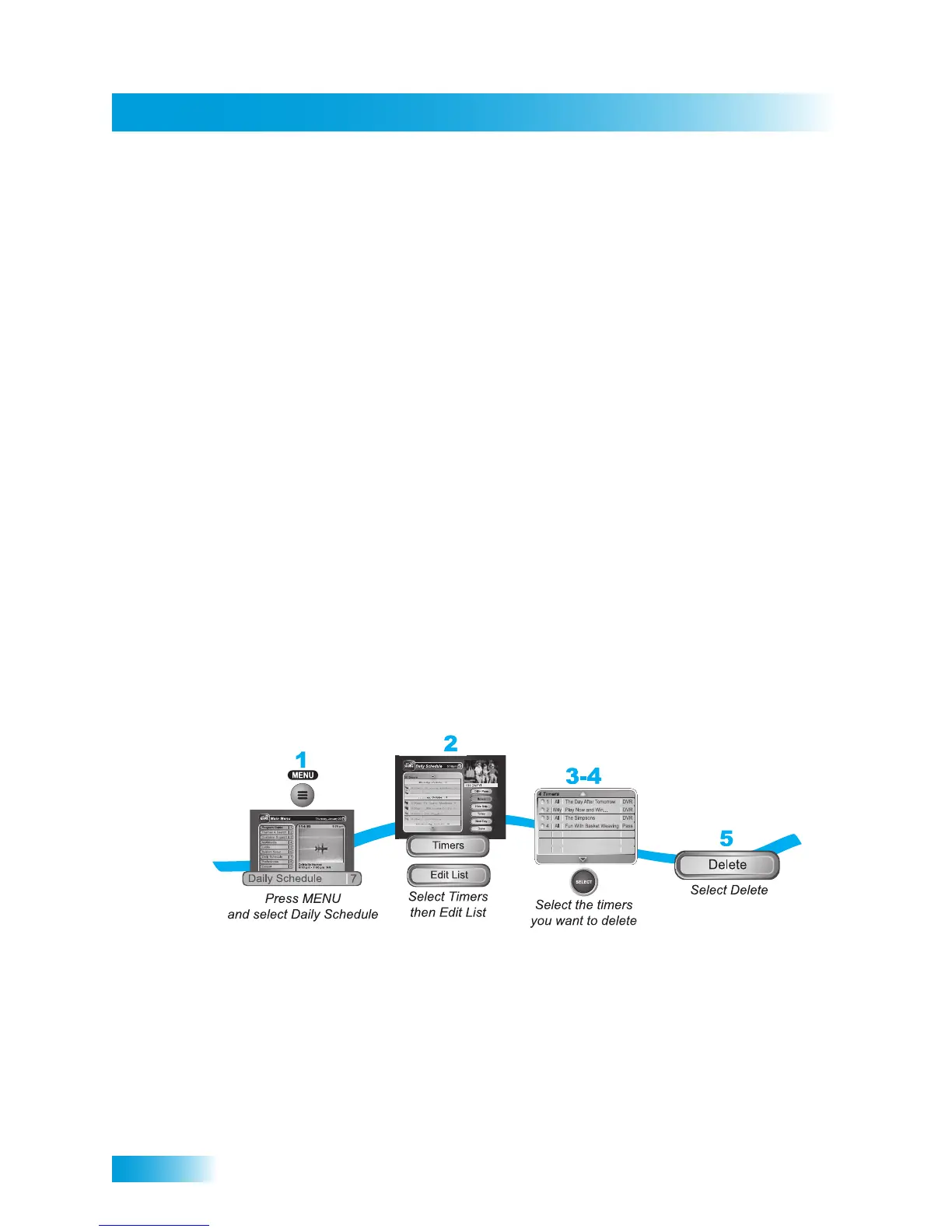
Deleting a Timer
5 Enter your search criteria. You can use the virtual on-screen keyboard, or you can use the
letters above the NUMBER PAD buttons on the remote control (similar to texting on cer-
tain mobile phones) while the highlight is in the Enter Search Criteria field. See Using Text
Fields on page 23 for instructions.
6 Select any Options as described on page 65, if applicable.
7 Select Create Timer. When the receiver has completed your search, the Timer Schedule
screen will display the results.
Note: After entering your search words and selecting Create Timer, be sure to review the
timers that DishPASS has created—some may not be what you are expecting. You can:
• Choose any selected events you want to Skip. Review timers for future events often.
• Adjust your search terms and/or method. Select Set Priority to change the priority of
your DishPASS. To adjust your search further, delete the unwanted DishPASS timer
and try the following:
— Change your DishPASS search term(s) to be more specific.
—Select Exact Match with the Title or Info.
— Choose DishPASS when you select a future program within the Program Guide,
Browse Banner, or Search results. This will enter the program's exact title for you.
8 Select Done when finished with your new DishPASS timer.
DELETING A TIMER
1 Press the MENU buton and then select Daily Schedule.
2 Select Timers.
3 Select Edit List.
4 Select the timers you wish to delete.
5 Select Delete. A pop-up window asks you to confirm your choice(s).
6 Select Yes on the pop-up screen. The timer(s) you selected are now deleted.



 To Next Page