Finding Programs to Watch
31
Using Picture-In-Picture
USING PICTURE-IN-PICTURE
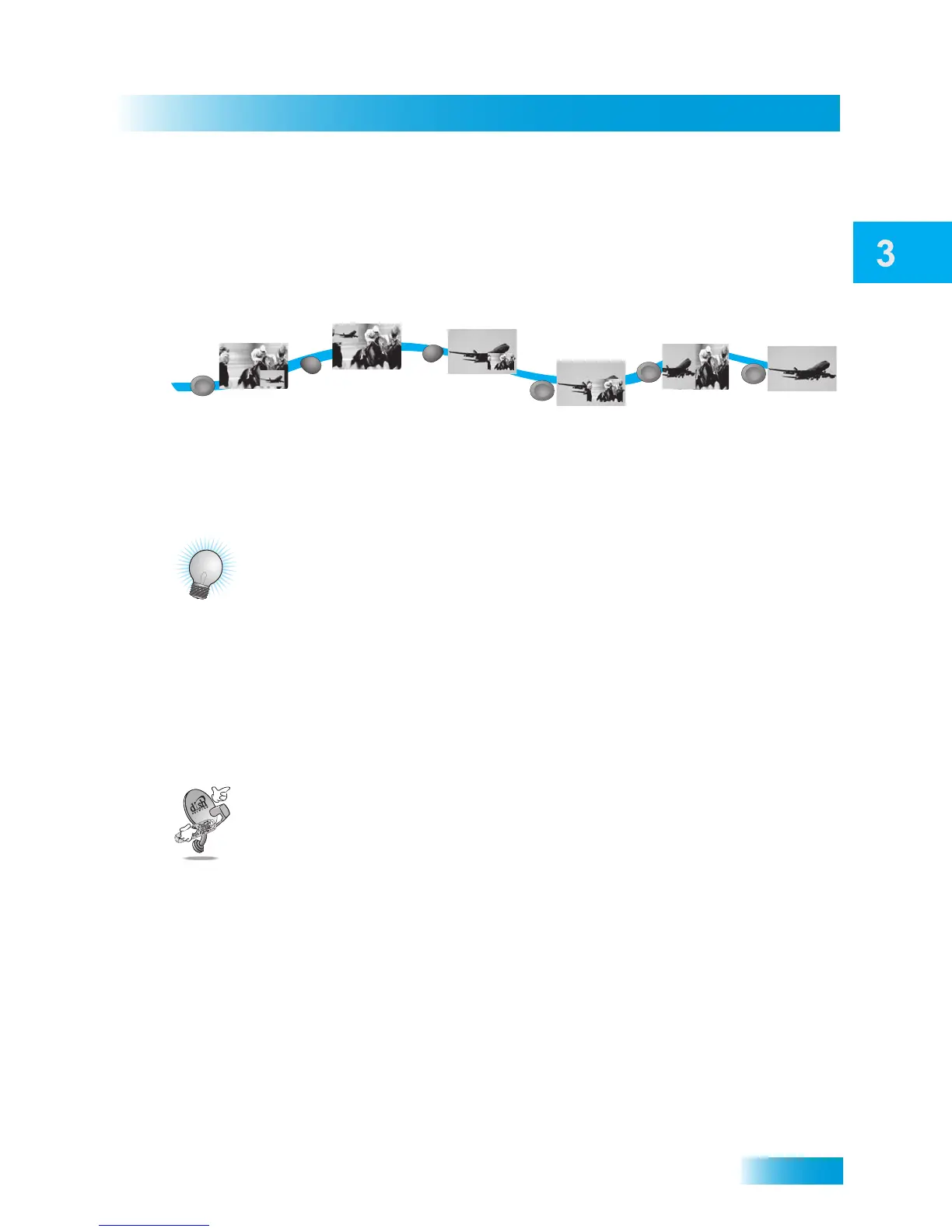
Picture-In-Picture (PIP) lets you watch two programs at once while the receiver is in Single
Mode. The following instructions describe how to use PIP (see page 15 for instructions on
changing from Dual to Single Mode).
TIPS
• Press INFO to view more information about a program or event you have highlighted.
• Press VIEW LIVE TV to cancel almost any menu or screen and return to watching TV.
• Press SWAP, without pressing the PIP button first, to switch between your receiver’s
two tuners while in Single Mode.
• Press POSITION, without pressing PIP first, to display side-by-side programs.
QUESTIONS
• How can I customize the Program Guide? You can set up a Favorites List as
described on page 41. You can change how the Program Guide is displayed (such as
size of text, or number of programming hours displayed) as described on page 97.
• Why does my Program Guide show only two days of programming? Your
receiver may not be connected to a signal from the 119°W or 72.7° satellite. Refer to
Point Dish and Check Switch on page 122 to see if you’re receiving the signal(s).
• Why are some of my channels missing?
– Parental controls may be set to lock or hide the channels. See Chapter 6: Locks
on page 51 for information on locking and unlocking the receiver.
– The Program Guide may be displaying the wrong list of channels. Press the
GUIDE button to access the Program Guide. Press GUIDE again to select the
next available Favorites List. Press GUIDE repeatedly to scan through all the
available lists. See Favorites Lists on page 39 for more information.
1
2
3
4
5
Press PIP
to Display
Picture-In-Picture
(PIP)
Press
POSITION
to move the PIP
Press SWAP
to swap
programs in the
PIP and full screen
Press PIP again
to show both
programs side-by-side
Press PIP
again to enlarge
the PIP
PIP
PIP
PIP
P
A
W
S
P
O
S
I
T
I
O
N
6
Press PIP again
to go back to
normal viewing
PIP



 To Next Page