58
Wally User Guide
10
Troubleshooting
Running Check Switch
The Diagnostics screen allows you to test your installation using a Check Switch test, the results of which are often
helpful when you call the DISH Customer Service Center.
WARNING: Do not run a Check Switch test unless directed to do so by a DISH Customer Service representative,
authorized technician, or one of the troubleshooting steps in this chapter. Running the Check Switch test while your
satellite dish is having signal issues can result in incorrect satellite receiver settings and cause you to lose channels.
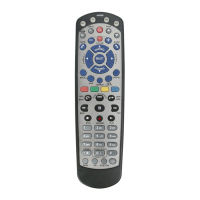
1 Double-press on the remote to display the Menu screen.
2 Select Settings, then Diagnostics.
3 On the Diagnostics screen that displays, select Dish from the list on the left.
4 On the right, select Test Installation. A popup displays your Check Switch Status.
5 When nished, you can use the information on the screen to diagnose your satellite signal. The bar at the bottom
of the screen indicates the signal strength as follows:
• Green – A good signal
• Yellow – A marginal signal
• Red – A weak, unacceptable signal that may be from the wrong satellite transponder or orbital location
Other Help Resources
• Access information about your Wally by double-pressing on the remote and selecting Help.
• For support information, visit mydish.com/support.
• For more user documentation, visit mydish.com/manuals.
• To chat live with a DISH Customer Service representative, visit mydish.com/chat.
• To call the DISH Customer Service Center, dial 1-800-333-DISH (3474).







 To Next Page