17
Wally User Guide
3
Wally Receiver and Remote Control
Batteries
Low-Battery Warning
When you see a low-battery warning on your screen, the batteries in your remote control are low and will need to be
replaced. You can also check the health of your batteries on the System Info screen by double-pressing on the
remote and selecting Settings, then Diagnostics. Alternately, you can press the SYSTEM INFO button on the front
of your Wally.
Replacing the Batteries
The remote control comes with two AA batteries. When you replace old batteries, you should replace
both batteries at the same time and use batteries of the same type (for example, all alkaline or all
carbon zinc batteries). Alkaline batteries last longer.
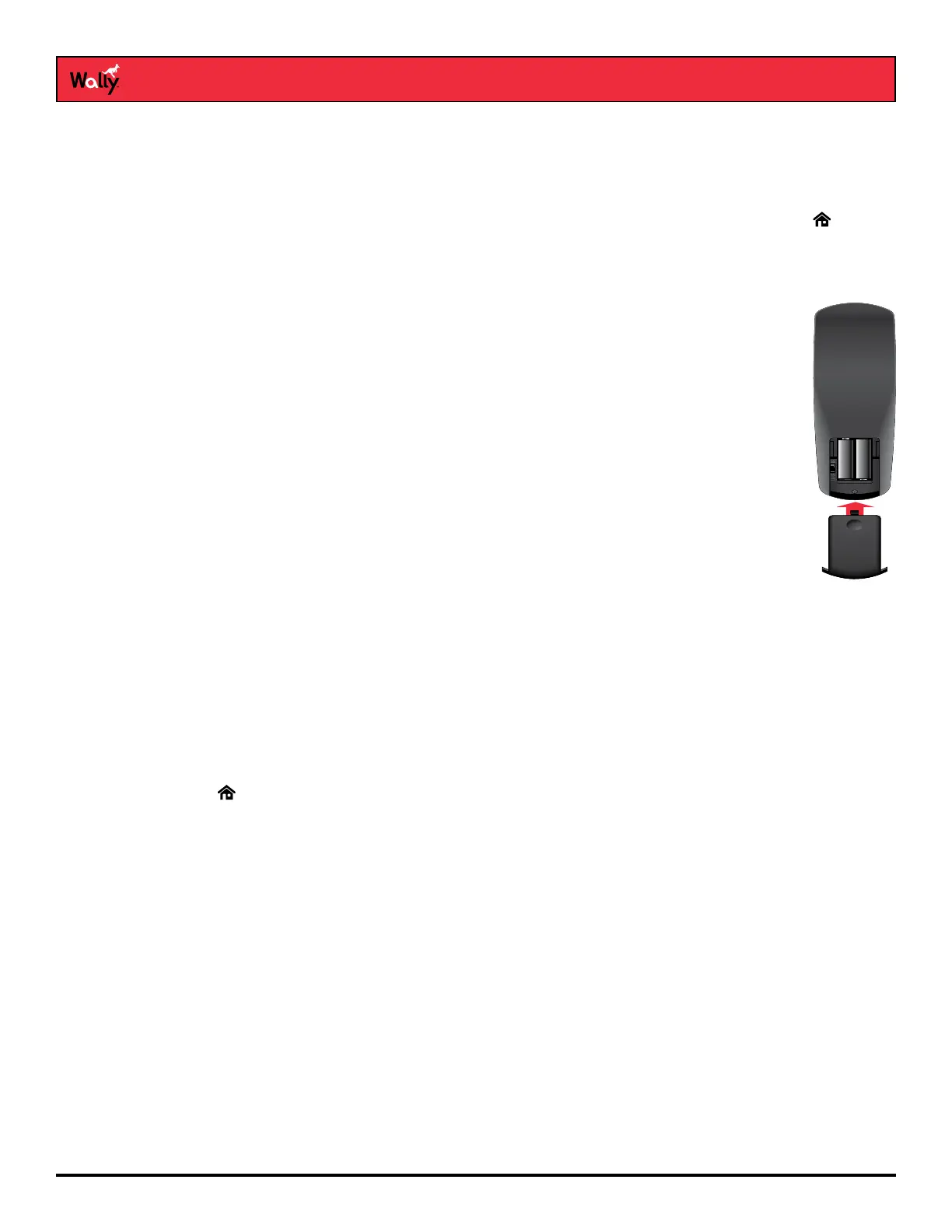
Follow this procedure to replace the batteries:
1 On the back of the remote, push the tab toward the top of the remote to release the battery door
latch, then lift the battery door from the remote.
2 Remove the old batteries.
3 Put in two new AA batteries. Make sure that you match the plus (“+”) ends with the plus markings
on the battery case.
4 Reattach the battery door.
Controlling an Auxiliary Device
The remote contains manufacturer codes for controlling up to two other devices, including your TV, DVD/Blu-ray
player or VCR, and audio receiver, tuner, or amplier. However, the remote can control more devices through IR
learning.
Note: Every attempt has been made to include all manufacturer device codes. If your device brand isn’t listed or if
the codes listed don’t work, then the DISH remote may not control your specic device. Not all of the buttons may
work with some codes.
Follow this procedure to program your remote to control an auxiliary device:
1 Turn on the auxiliary device that you want to control.
2 Double-press on the remote to display the Menu screen.
3 Select Settings, then Remote Control.
4 On the Remote Control Settings screen that displays, select Auxiliary Device.
5 Select the type of device that you want to control and select Next.
6 Select how you want to program the remote using one of the following options:
• Auxiliary Device Pairing Wizard (recommended) – Select the brand of your auxiliary device, select Next,
and follow the on-screen instructions.
• Teach Commands – Follow the on-screen instructions. Note that the learning sequence will end when:
– No button on either remote is pressed for at least 30 seconds.
– The Wally remote runs out of memory for learned commands, whereupon it saves the commands it has
learned for equipment in this mode, exits learning, and returns to normal remote control operation. At this
point, the remote cannot learn any more commands.
– All the mode buttons on the Wally remote blink quickly eight times, indicating that the batteries are too
low for learning. Learning ends with no learned commands saved, and the remote returns to its normal
operation.
• Enter Pairing Code – Follow the on-screen instructions.







 To Next Page