8860 Installation and Programming Guide | Digital Monitoring Products 10
Program Keypad Options
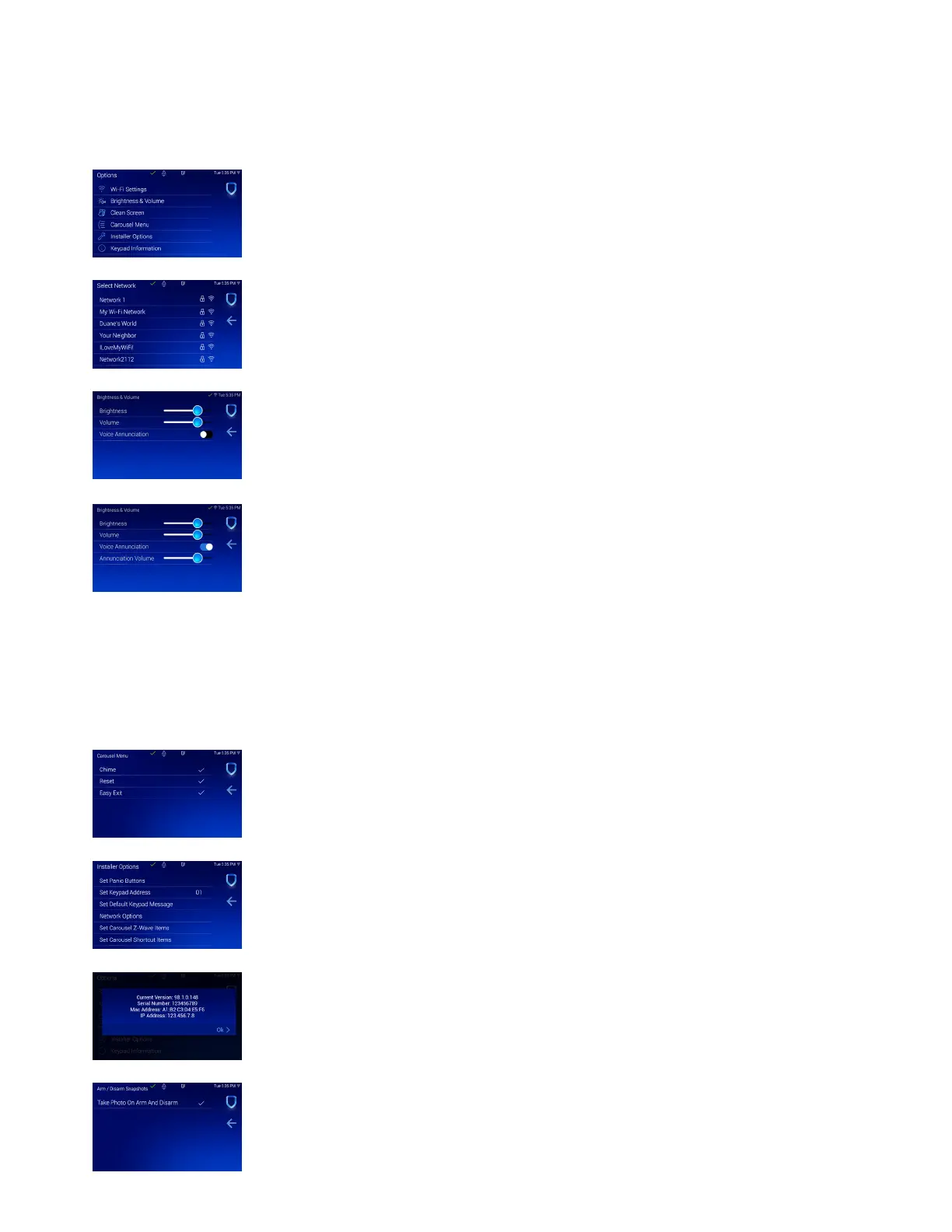
The Keypad Options menu allows the user to view and change their keypad settings. Press Options in the Carousel
menu. Tap the Installer Options wrench icon, enter 3577 (INST), then press CMD. Tap each option to configure their
settings.
Keypad Options Menu
The keypad options menu allows the user to view and change their keypad settings.
These options include Wi-Fi Settings, Brightness & Volume, Clean Screen, Carousel
Menu, Installer Options, and Keypad Information.
Wi-Fi Settings
The keypad needs to be connected to the Wi-Fi network to access remote updates and
video features. Tap the network you want the keypad to connect to. Enter the Wi-Fi
network password and press CMD.
Brightness & Volume
Use the Brightness slider bar to make the keypad display brighter or dimmer. Use the
Volume slider bar to increase or decrease the volume of the keypad button press sound
and the keypad chime sound.
To enable Voice Annunciation, XT Series Version 231 and XR Series Version 231
is required. Use the Voice Annunciation toggle to have the keypad annunciate
that a pre-defined zone name has been opened when the zone is tripped. Use the
Annunciation Volume slider bar to increase or decrease the volume of the keypad
annunciation.
If a zone name does not match one of the pre-defined zone names, the keypad will
annunciate the zone number and appropriate message. For a list of pre-defined zone
names, refer to the Pre-Defined Zone Names List. Press the back arrow to go back to
the keypad options menu.
Carousel Menu
Press each option in this menu to display the option in the Carousel menu. A check
mark will display next to the option if it is selected to display in the Carousel menu. The
options include Chime, Reset, and Easy Exit.
Installer Options
Select this option to open the Installer Options menu. This menu allows you set keypad
options.
Keypad Information
Select this option to see the keypad model number and current firmware version. Press
Ok to return to the previous menu.
Set Arm/Disarm Snapshot
Select this option to enable or disable Snapshot Verification Events at the keypad during
an Arming or Disarming event. Default is On.



 To Next Page