8860 Installation and Programming Guide | Digital Monitoring Products 14
Bluetooth Disarming
A device can be paired to the keypad to automatically disarm the system via Bluetooth. The
system needs to be armed in ALL or AWAY. When the user returns and trips an exit zone, the
entry delay will initiate and the keypad will begin scanning for Bluetooth devices. If the keypad
discovers a previously paired device and connects to it, the system will disarm.
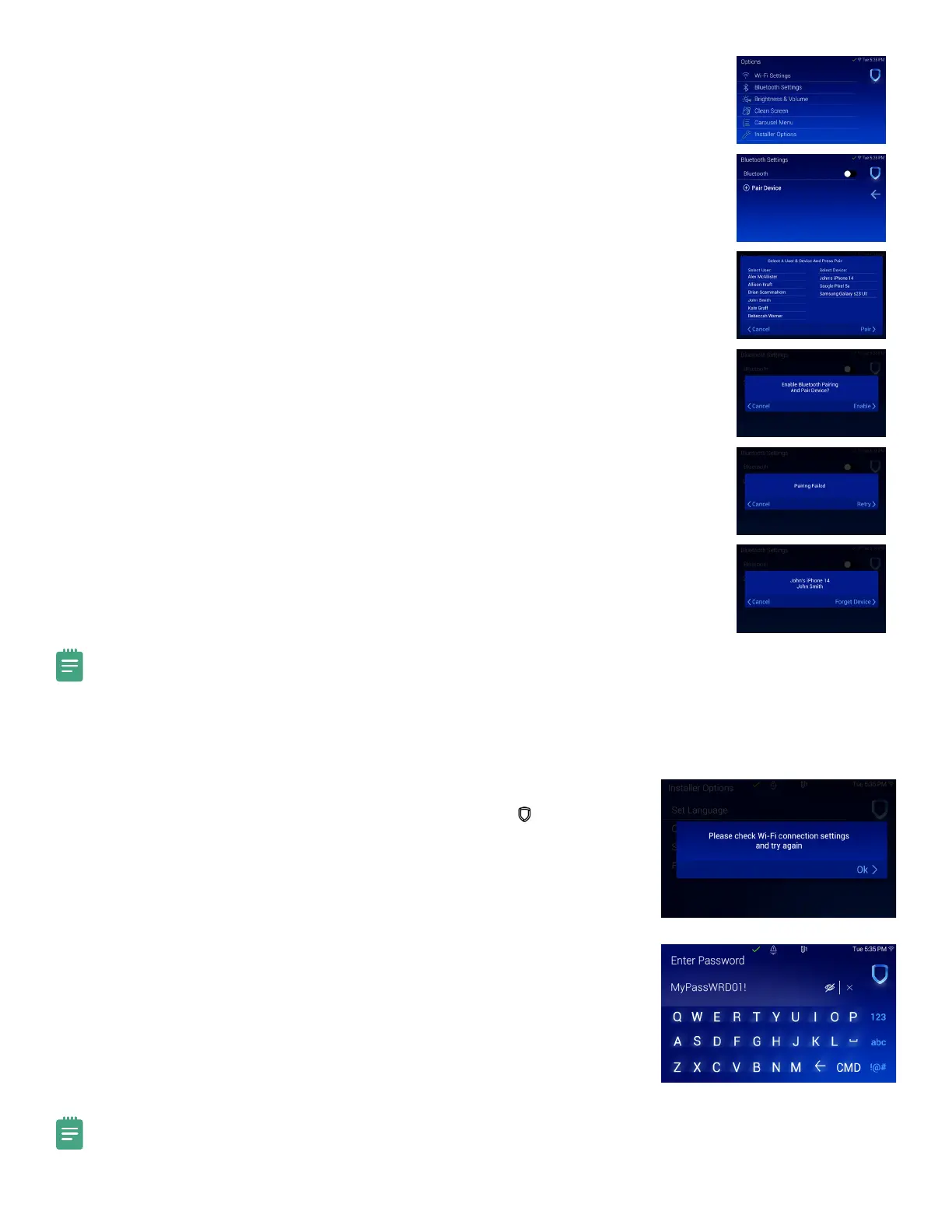
1. In Options, press Bluetooth Settings.
2. Enter your User Code. Only Master level user codes can access the Bluetooth Settings
menu.
3. Press the Bluetooth toggle to enable the keypad’s Bluetooth capability.
4. Press + Pair Device.
5. Select a user from the list and select the device you would like to attach the user to.
6. Press Pair in the bottom right corner.
7. The keypad pop-up will display Pairing. This will last for 20 seconds or less.
▶ If devices were paired, the keypad will display Pairing Success. When the Enable
Bluetooth Pairing and Pair Device pop-up displays, press Enable. This will bring you
back to the Bluetooth Settings menu. The name of the device will be listed under
Paired Devices.
▶ If devices were not paired, the keypad will display Pairing Failed. Press Retry to pair
the devices again. Press Cancel to go back to the Bluetooth Settings menu.
8. To unpair a device, press the Information icon next to the device name. The keypad will
display Forget Device?. Press Forget to unpair the device from the keypad. Press Cancel
to go back to the Bluetooth Settings menu.
Note: Up to 6 devices can be paired to the keypad. This feature is a per keypad operation. To use Bluetooth
disarming at multiple keypads on a system, you will need to individually pair the device at each keypad you want to
automatically disarm.
Change System Wi-Fi Password
When you change your network’s Wi-Fi password, the system detects that the
password has changed and asks you to update it. To close the Incorrect Wi-Fi
Password dialog and return to the main menu, tap Ok and tap the Shield icon.
To change your password and re-establish communication, complete the following
steps.
1. Tap Ok.
2. Use the on screen keyboard to enter your password:
▶ Press ABC to enter uppercase letters
▶ Press abc to enter lowercase letters
▶ Press !@# to enter special characters
▶ Press 123 to enter numbers
3. Tap CMD.
Note: This notification refers to the panel Wi-Fi network only. The 8860 Wi-Fi settings can be found in Options.



 To Next Page