8860 Installation and Programming Guide | Digital Monitoring Products 19
Upload a Logo and Dealer Information
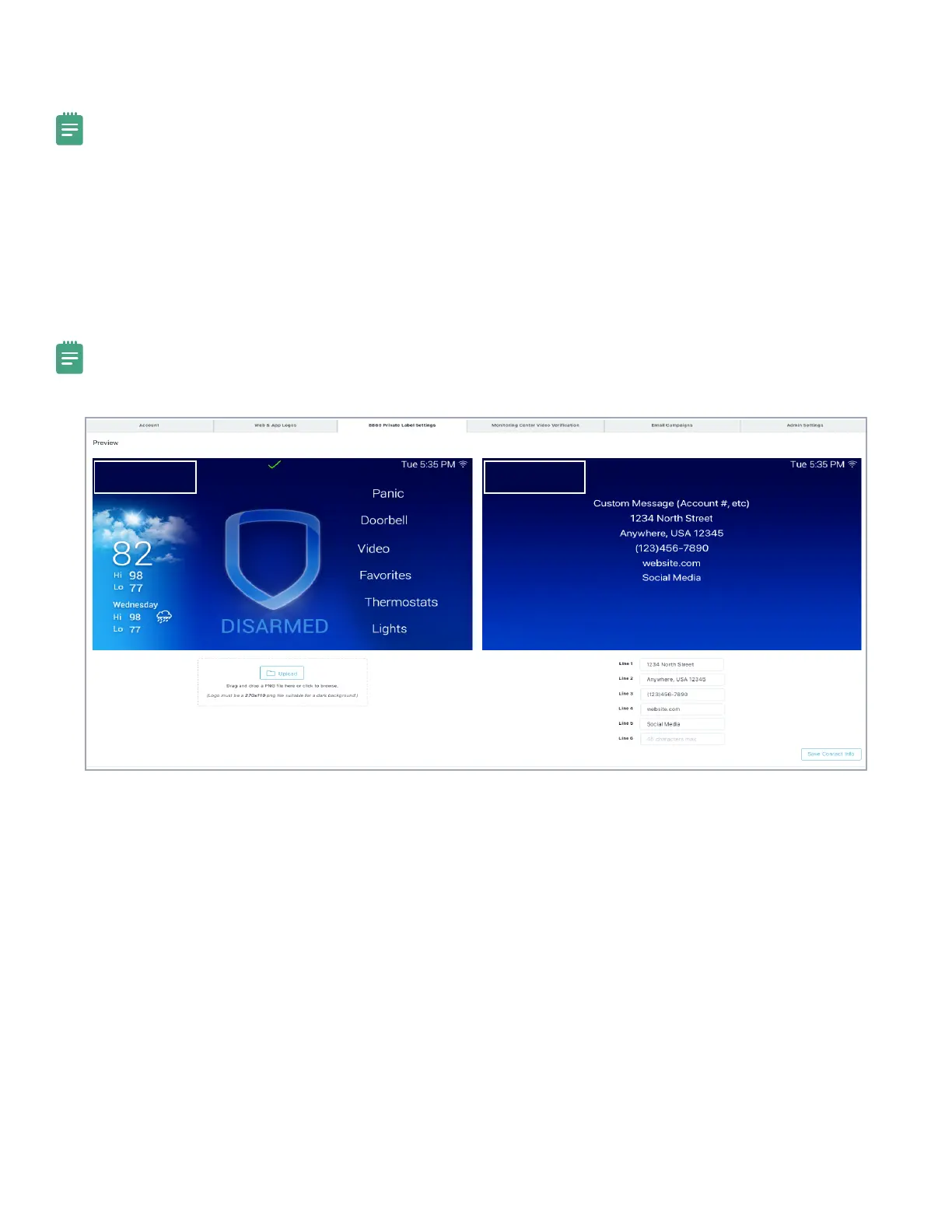
To upload a logo to your 8860, complete the following steps in Dealer Admin.
Note: For best results, logos should be a 270 x 110 pixel PNG file with a transparent background.
1. In the menu, go to Settings > Dealer.
2. Select the 8860 Private Label Settings tab.
3. Select the Upload button.
4. A file upload dialog opens. Select the logo that you want to upload and select Open.
5. Type in the dealer information you want to display on the keypad.
6. Select Save Contact Info.
Note: If the logo is not downloading to the keypad, confirm that the panel date and time are correct, then press the
DMP logo on the 8860 keypad. This will trigger the keypad to reach out to Dealer Admin for the new logo.
Your Logo Here Your Logo Here



 To Next Page