8860 Installation and Programming Guide | Digital Monitoring Products 17
WI-FI ENABLED VIDEO FEATURES
This section explains how to use the dierent video features available on the 8860 Series keypad when it is connected to
a Wi-Fi network. Video clips will be saved in Virtual Keypad and not stored locally on the keypad.
Live View
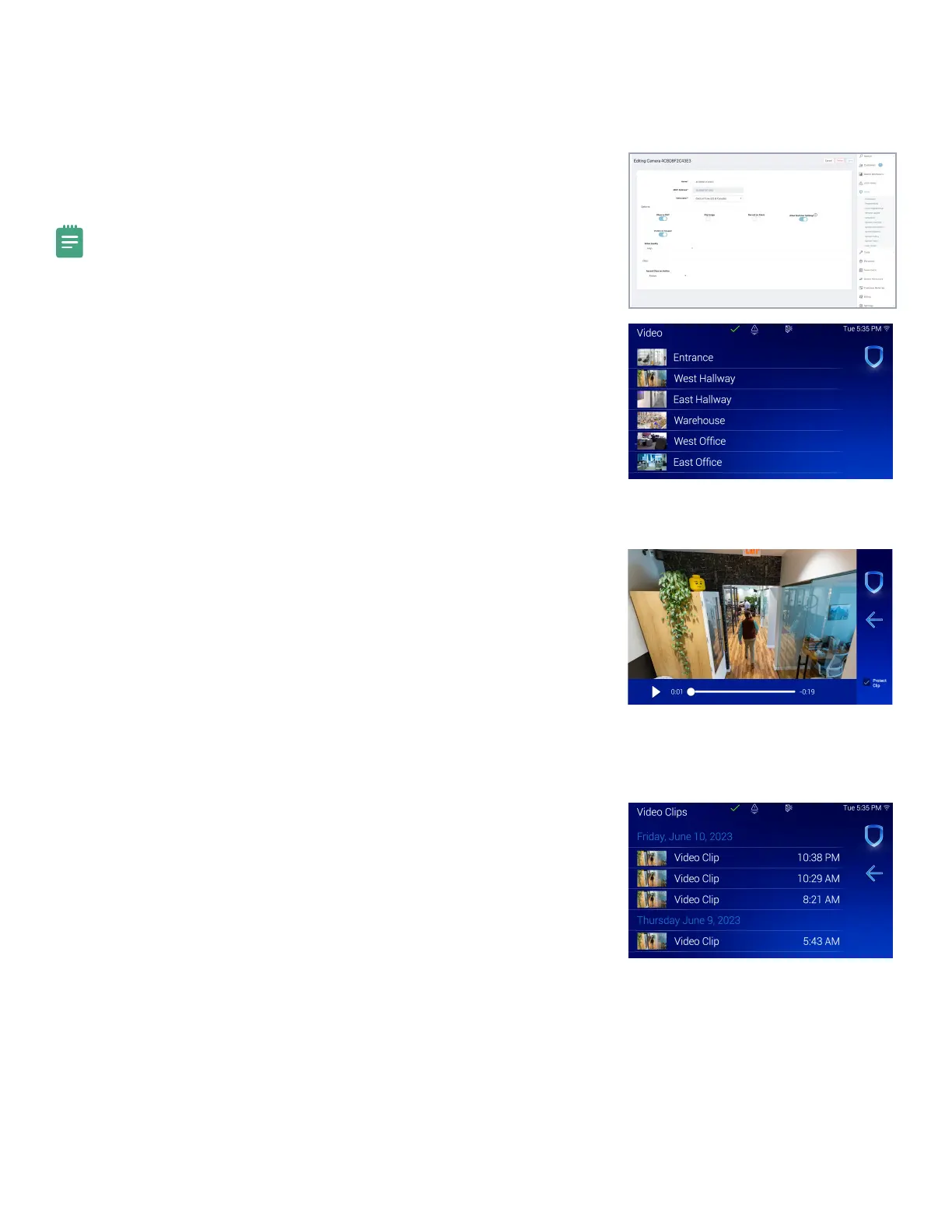
This function allows you to see all system cameras added in Dealer Admin.
Note: In Dealer Admin, the Visible on Keypad option needs to be toggled
On for each camera to be added to the Camera List.
1. In the Carousel menu, tap Video.
2. Select a camera to display on the keypad.
3. Swipe the screen left to go to the next camera. Swipe the screen right to
go to the previous camera. Pinch to zoom.
Recorded View
This function allows you to access recorded video events through the events list
on the keypad.
1. In the Carousel menu, tap Video.
2. Select a camera to display on the keypad.
3. Press the Video Clips button in the bottom right corner of the keypad
screen.
4. Toggle the play/pause button to play or pause the clip. Press the speaker
button and drag the bar up and down to increase or decrease the volume.
5. Swipe the screen left to go to the next clip. Swipe the screen right to go
to the previous clip. Pinch to zoom.
6. Press Protect Clip in the bottom right corner of the keypad screen to
prevent the clip from being erased.
Recorded Clips
This function allows you to access recorded video events through the events list
on the keypad.
1. In the Carousel menu, tap Events.
2. Tap a row to select an event.
3. Swipe the screen left to go to the next event. Swipe the screen right to go
to the previous event. Pinch to zoom.



 To Next Page