12
Workstation.
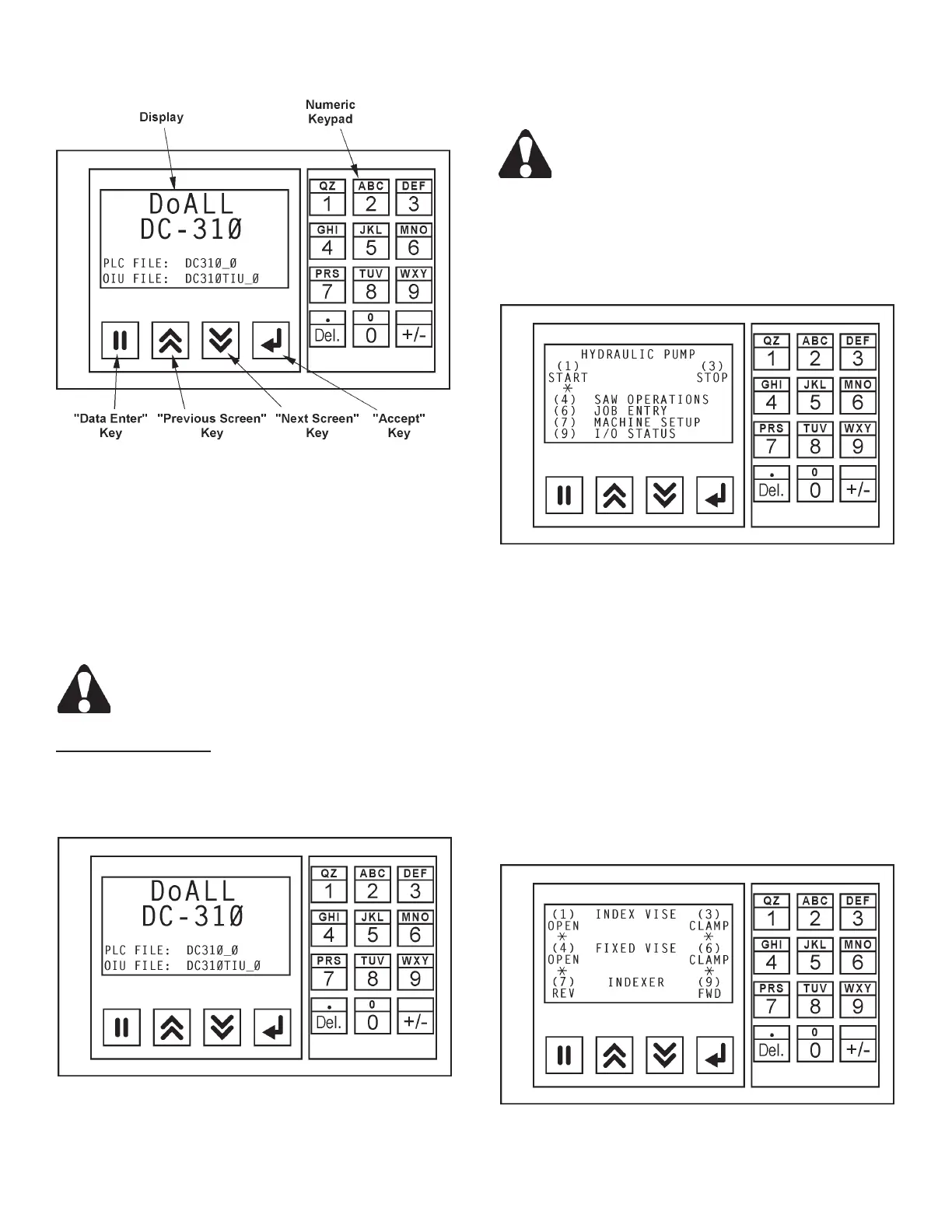
• NextScreen. This key allows the operator to scroll
"forward" to the next screen. Pressing the key
again will continue to scroll "forward" to the next
screen. It will continuously scroll "forward" through
all screens.
• Accept. After entering data, press this key will ac-
cept data into memory.
If you make an error in entering data, just press
the Data Enter key again, change your entry
and then press the Accept key.
Workstation Screens
1. Start-Up Screen. This screen is the "Start-up"
screen that appears every time power is turned
"on".
Screen at "Start-Up".
2. Press the Next Screen key to scroll to the next
screen which will show a series of screens to set
up the parameters for the sawing operation.
It is recommended that the data entered and
procedures follow the order in which the
screens appear.
3. Notice under certain controls, there is a blinking
star symbol. This indicates that this control is in
operation. For example, if the blinking star symbol
is under the "manual" control, it means the manual
mode is selected.
Hydraulic Pump and Operations Choices Screen.
4. This screen shows the controls for the HYDRAULIC
PUMP and a choice of four (4) screens to set-up
machine jobs and parameters.
• To start the hydraulic pump, press the "1" key on
the numeric keypad; to stop the hydraulic pump,
press the "3" key.
• The four (4) selections for machine set-up and
data entry are detailed later in this section of the
manual.
5. Press the Next Screen key to scroll to the next
screen or by pressing the "4" key .
Vise Controls Screen.
MACHINE CONTROLS (Continued....)



 To Next Page