NOTE:
Be sure to use the factory-provided USB
cable that came with your phone, as after-
market cables may not work.
3. Once the device is connected and recog-
nized, Android Auto should automatically
launch, but you can also launch it by touch-
ing the Android Auto icon on the touch-
screen, located under Apps.
Once Android Auto is up and running on your
Uconnect system, the following features can be
utilized using your smartphone’ s data plan:
• Google Maps for navigation
• Google Play Music, Spotify, iHeart Radio, etc.
for music
• Handsfree Calling, and Texting for communi-
cation
• Hundred of compatible apps, and many more!
NOTE:
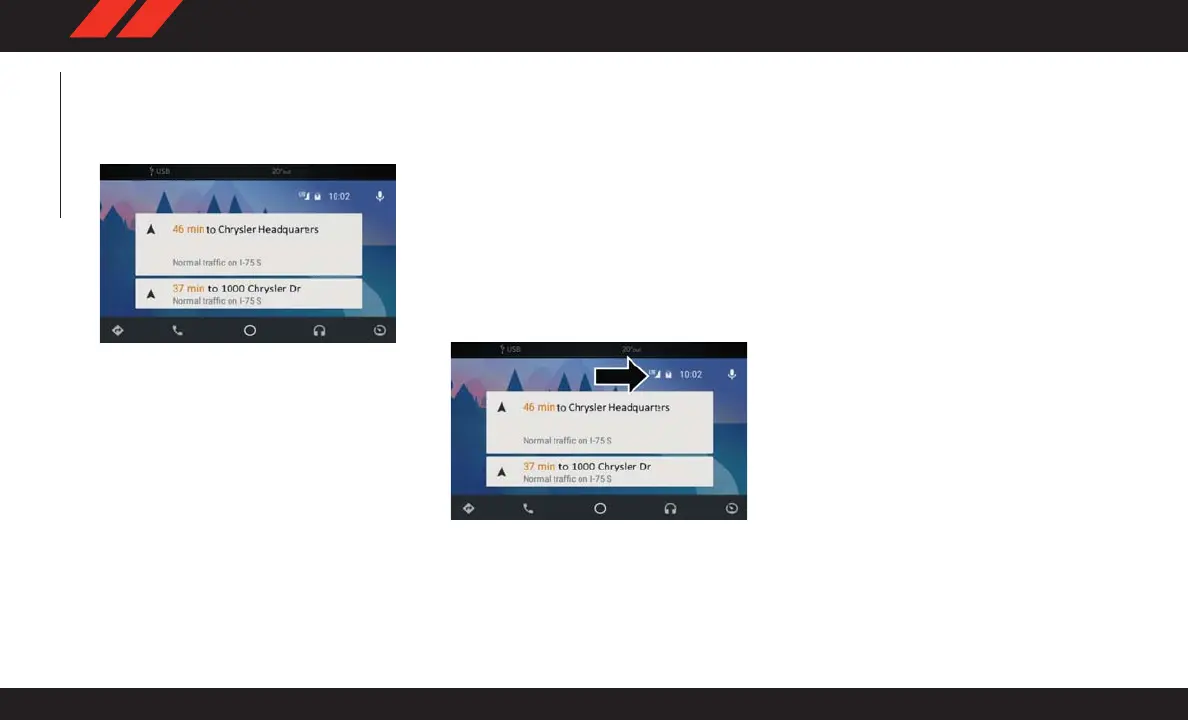
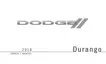
To use Android Auto, make sure you are in an
area with cellular coverage. Android Auto may
use cellular data and your cellular coverage is
shown in the upper right corner of the radio
screen. Once Android Auto has made a connec-
tion through USB, Android Auto will also con-
nect via Bluetooth.
Apple CarPlay Integration — If Equipped
Uconnect works seamlessly with Apple CarPlay,
the smarter, more secure way to use your iPhone
in the car, and stay focused on the road. Use
your Uconnect Touchscreen display, the vehi-
cle's knobs and controls, and your voice with
Siri to get access to Apple Music, Maps, Mes-
sages, and more.
To use CarPlay, make sure you are using iPhone
5 or later , have Siri enabled in Settings, that
your iPhone is unlocked for the very first con-
nection only, and then use the following proce-
dure:
1. Connect your iPhone to one of the media
USB ports in your vehicle.
NOTE:
Be sure to use the factory-provided Light-
ning cable that came with your phone, as
aftermarket cables may not work.
Android Auto
Google Maps Data And Cellular Coverage
MULTIMEDIA
244






 To Next Page