Android Auto app to your smartphone before
plugging in the device for the first time, the
app begins to download.
NOTE:
Be sure to use the factory-provided USB
cable that came with your phone, as after-
market cables may not work.
3. Once the device is connected, the system
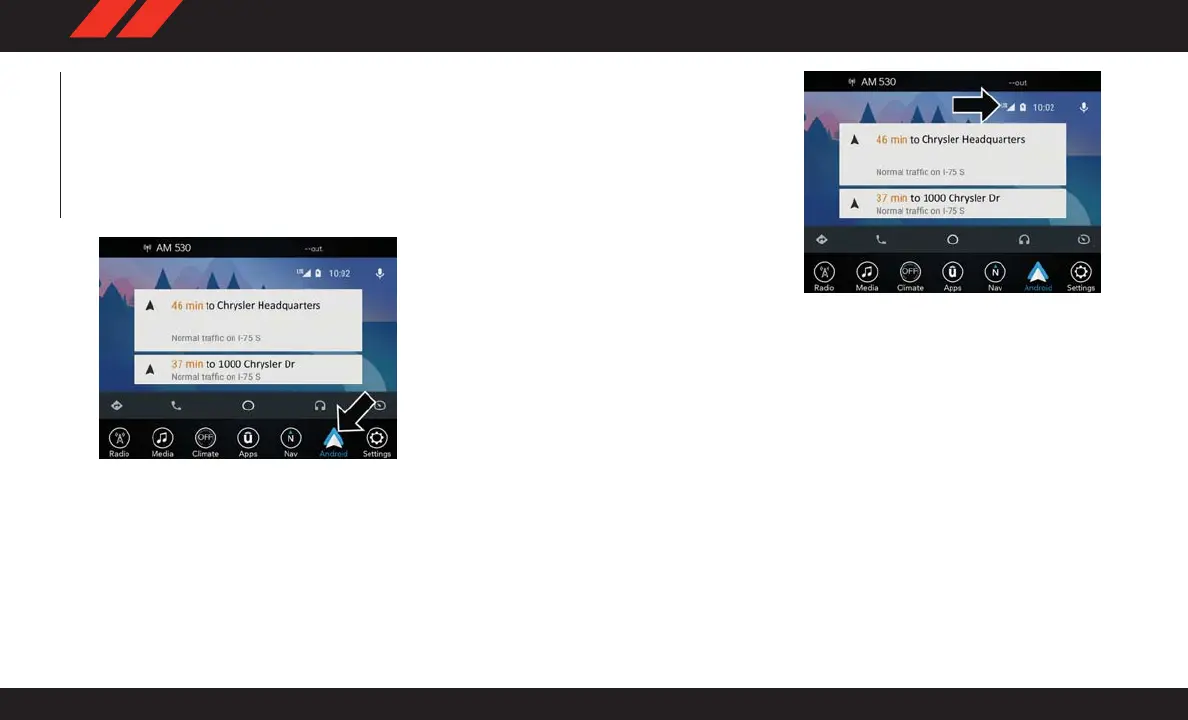
displays the Android Auto home screen.
Android Auto automatically launches, but if
it does not, refer to the Uconnect Owner’ s
Manual Supplement for the procedure to
enable the feature “AutoShow.” Y ou can
also launch it by pressing Android Auto lo-
cated in the “Apps” menu. If you use
Android Auto frequently you can move the
app to the menu bar at the bottom of the
touchscreen. Press the “Apps” button and
locate the Android Auto app; then drag the
selected App to replace an existing shortcut
in the main menu bar .
Once Android Auto is up and running on your
Uconnect system, the following features can be
utilized using your smartphone’ s data plan:
• Google Maps for navigation
• Google Play Music, Spotify, iHeart Radio, etc.
for music
• Handsfree Calling, and Texting for communi-
cation
• Hundred of compatible apps, and many more!
NOTE:
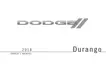
To use Android Auto, make sure you are in an area
with cellular coverage. Android Auto may use
cellular data and your cellular coverage is shown
in the upper right corner of the radio screen.
Maps
Push and hold the VR button on the steering
wheel or tap the microphone icon to ask Google
to take you to a desired destination by voice. Y ou
can also touch the Navigation icon in Android
Auto to access Google Maps.
NOTE:
If the VR button is not held, and is only pushed,
the built-in Uconnect VR prompts you and any
spoken navigation command launches the
built-in Uconnect navigation system.
Android Auto
Google Maps Data And Cellular Coverage
MULTIMEDIA
250






 To Next Page