DRAMIŃSKI iScan mini – user guide
18
9.1.5. Gamma
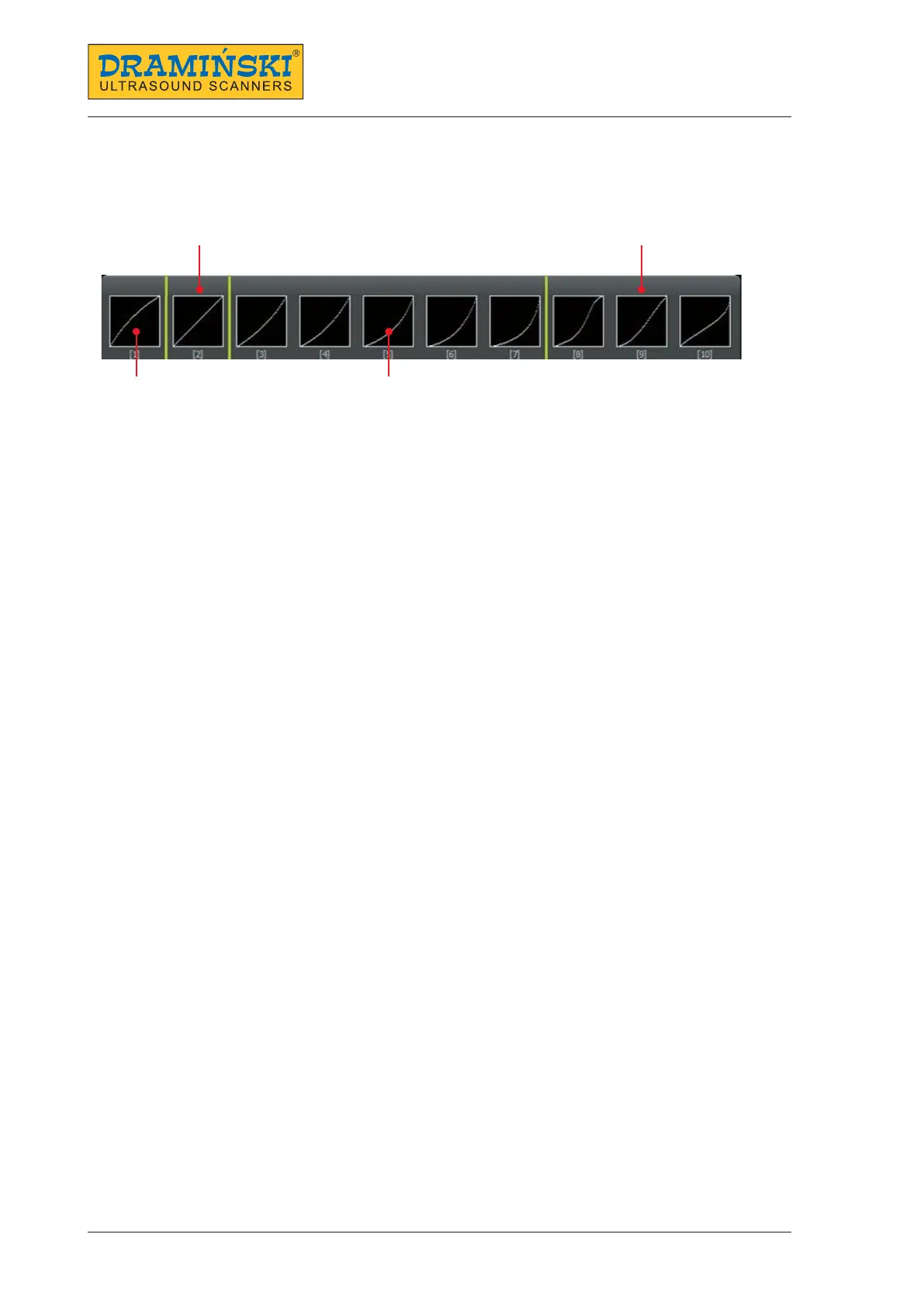
Gamma adjustment changes the way the grayscale is displayed on the screen.
In order to change Gamma settings:
1. Open Menu and choose Gamma.
2. Using the arrows, select a proper setting.
3. Conrm with the OK button.
9.1.6. Dynamics
Dynamics is the setting which adjusts the image contrast.
The higher the setting, the higher the contrast.
In order to change dynamics settings:
1. Enter the Menu and choose Dynamics.
2. Using the arrows, select a proper setting.
3. Conrm with the OK button.
9.1.7. Zoom
Zooming can be adjusted at 20% increments, in the range: 100–160%
In order to change Zoom:
1. Enter the Menu.
2. Select Zoom.
3. Using the arrows, select a proper setting.
4. Conrm with the OK button.
9.2. Presets
This option enables saving your favourite imaging parameters with a selected name.
9.2.1. Creating a preset
In order to create a preset:
1. Optimise the parameters of the examination: gain, TGC, frequency, scanning depth, focus, zoom and gam-
ma.
2. Open the Menu and select Presets.
3. Select New preset.
4. Name the preset.
5. Conrm with the OK button.
Uniform display of all shades
Predominant
light shades
Predominant
dark shades
High / low contrast


 To Next Page