Vigor2920 Series User’s Guide
231
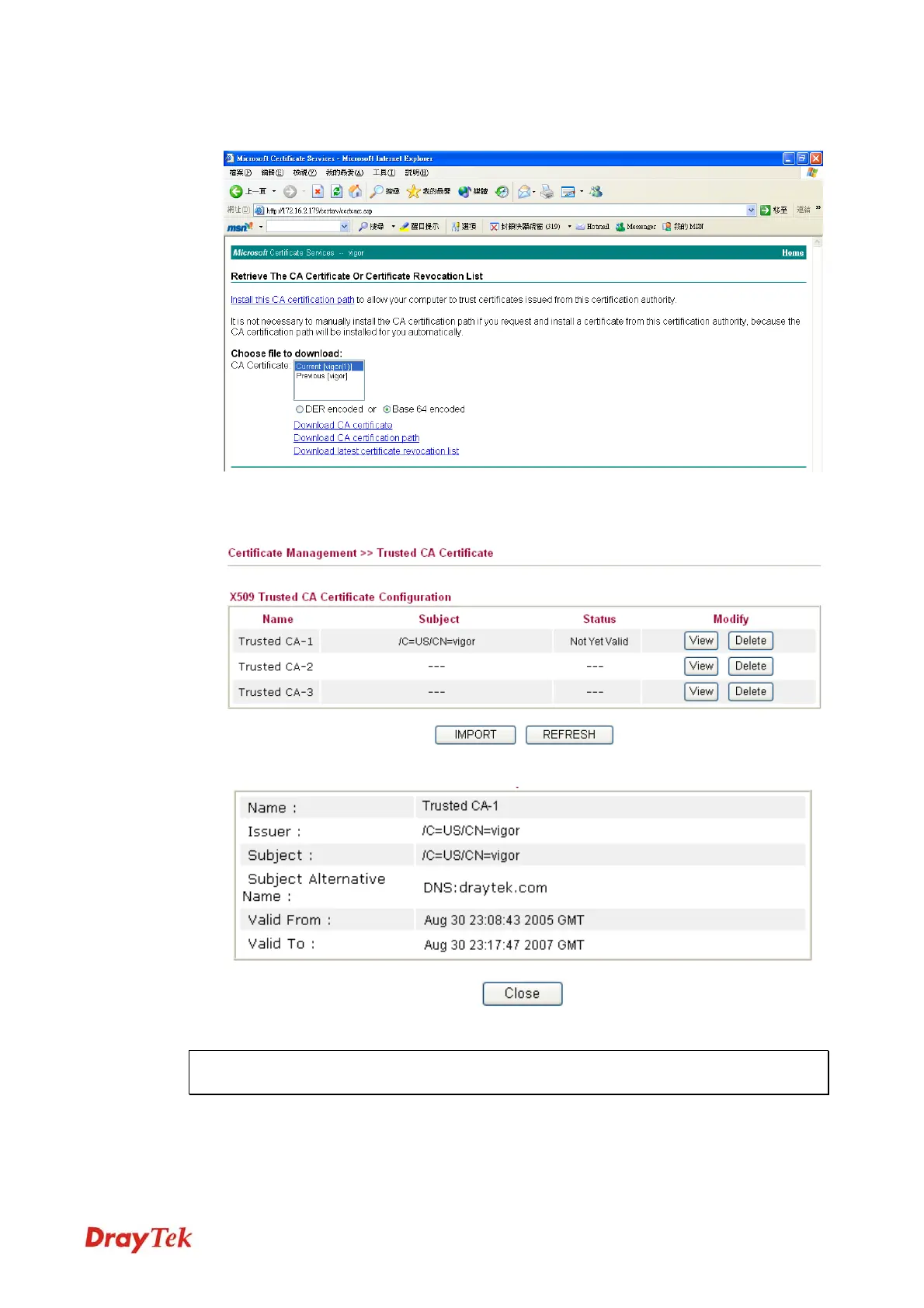
2. In Choose file to download, click CA Certificate Current and Base 64 encoded, and
Download CA certificate to save the .cer. file.
3. Back to Vigor router, go to Trusted CA Certificate. Click IMPORT button and browse
the file to import the certificate (.cer file) into Vigor router. When finished, click refresh
and you will find the below illustration.
4. You may review the detail information of the certificate by clicking View button.
Note: Before setting certificate configuration, please go to System Maintenance >> Time
and Date to reset current time of the router first.
VoIPon www.voipon.co.uk sales@voipon.co.uk Tel: +44 (0)1245 808195 Fax: +44 (0)1245 808299







 To Next Page