Vigor2920 Series User’s Guide
212
User Name
This field is used to authenticate for connection when
you select PPTP or L2TP with or without IPSec policy
above.
Password
This field is used to authenticate for connection when
you select PPTP or L2TP with or without IPSec policy
above.
Remote Network IP
Please type one LAN IP address (according to the real
location of the remote host) for building VPN
connection.
Remote Network Mask
Please type the network mask (according to the real
location of the remote host) for building VPN
connection.
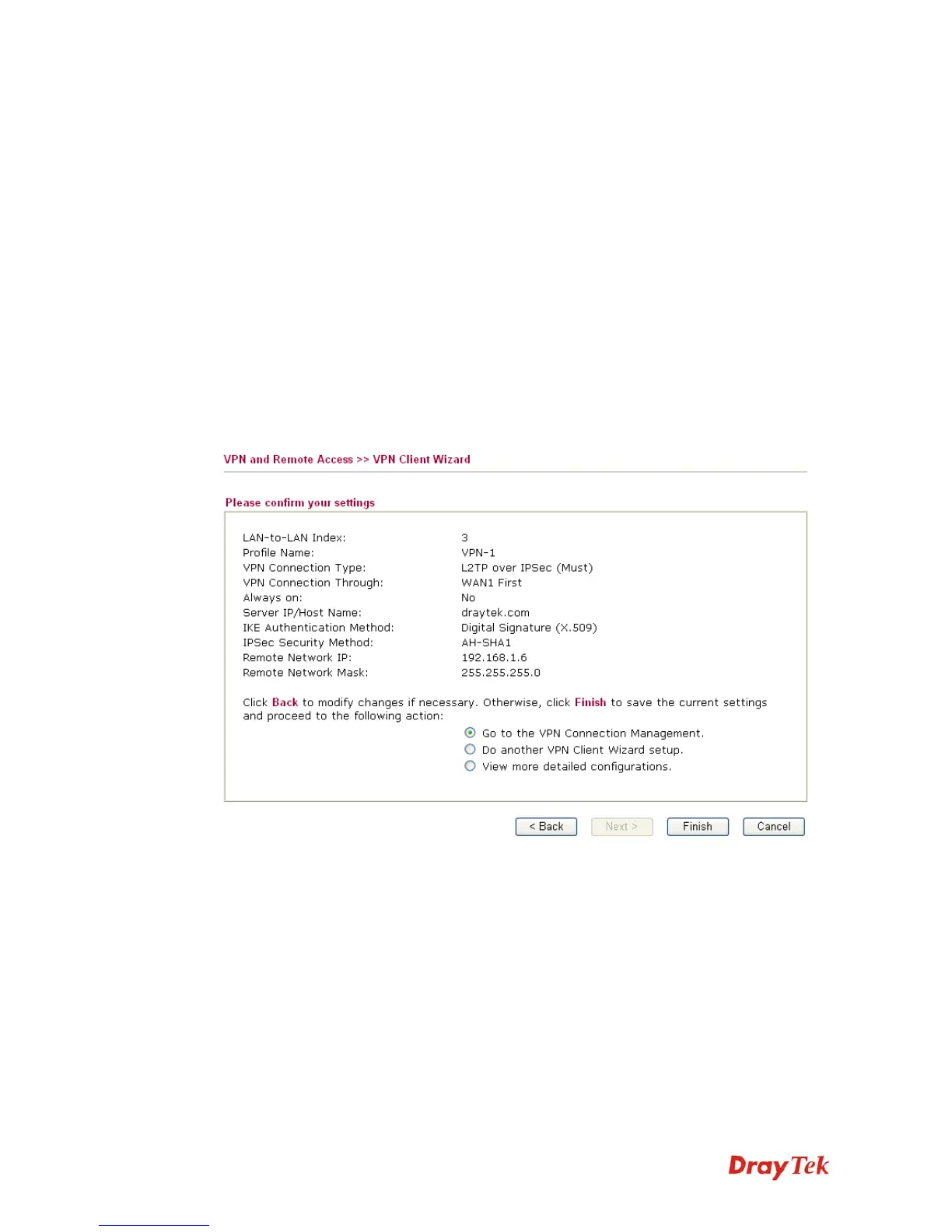
After finishing the configuration, please click Next. The confirmation page will be shown as
follows. If there is no problem, you can click one of the radio buttons listed on the page and
click Finish to execute the next action.
Go to the VPN Connection
Management
Click this radio button to access VPN and Remote
Access>>Connection Management for viewing VPN
Connection status.
Do another VPN Server
Wizard Setup
Click this radio button to set another profile of VPN Server
through VPN Server Wizard.
View more detailed
configuration
Click this radio button to access VPN and Remote
Access>>LAN to LAN for viewing detailed configuration.






 To Next Page