VigorAP 710 User’s Guide
82
VigorAP 710 will blink fast when WPS is in progress. It will
return to normal condition after two minutes. (You need to
setup WPS within two minutes).
3
3
.
.
7
7
.
.
5
5
A
A
d
d
v
v
a
a
n
n
c
c
e
e
d
d
S
S
e
e
t
t
t
t
i
i
n
n
g
g
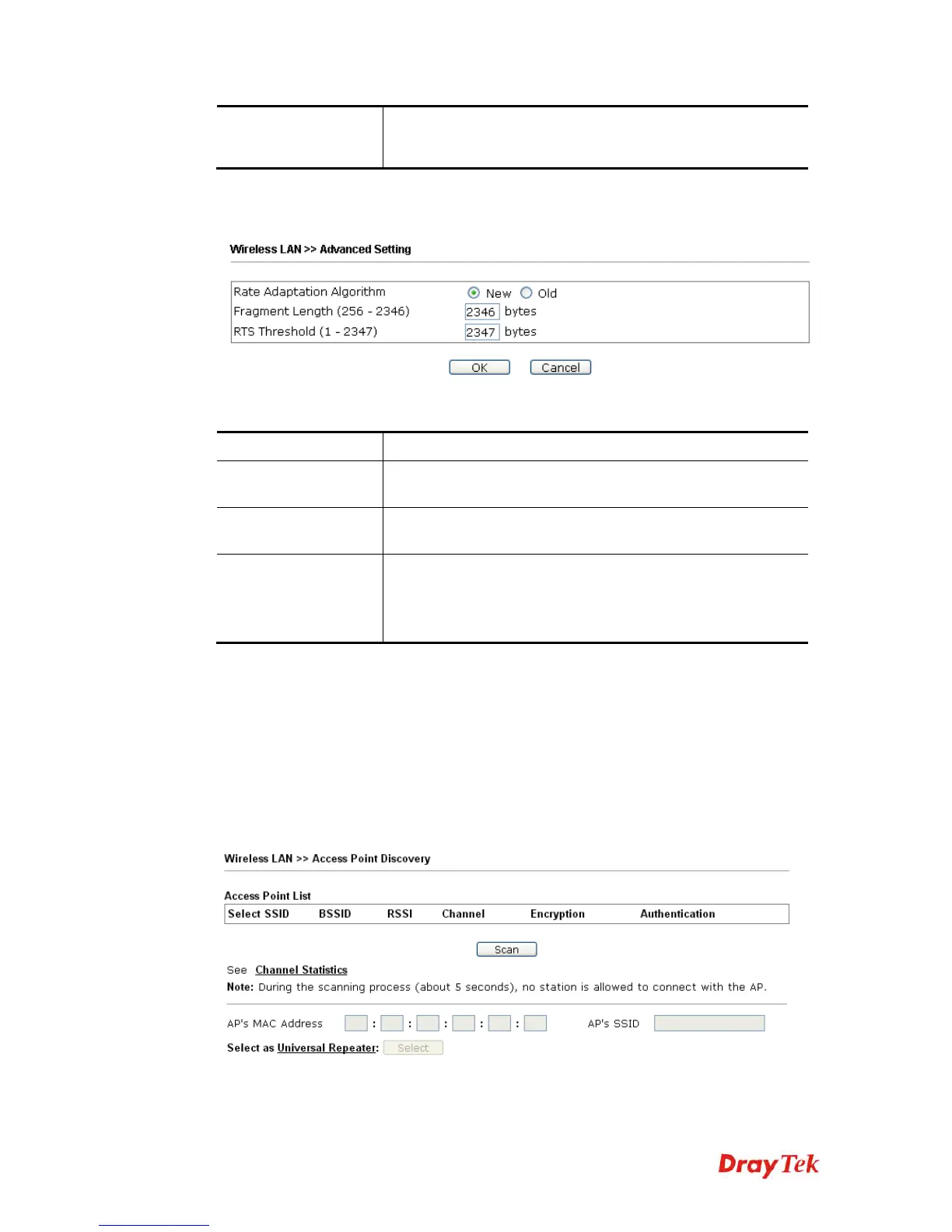
This page is to determine which algorithm will be selected for wireless transmission rate.
Available settings are explained as follows:
Item Description
Rate Adaptation
Algorithm
Wireless transmission rate is adapted dynamically. Usually,
performance of “new” algorithm is better than “old”.
Fragment Length
Set the Fragment threshold of wireless radio. Do not modify
default value if you don’t know what it is, default value is
2346.
RTS Threshold
Minimize the collision (unit is bytes) between hidden stations
to improve wireless performance.
Set the RTS threshold of wireless radio. Do not modify default
value if you don’t know what it is, default value is 2347.
3
3
.
.
7
7
.
.
6
6
A
A
P
P
D
D
i
i
s
s
c
c
o
o
v
v
e
e
r
r
y
y
VigorAP 710 can scan all regulatory channels and find working APs in the neighborhood.
Based on the scanning result, users will know which channel is clean for usage. Also, it can
be used to facilitate finding an AP for a WDS link. Notice that during the scanning process
(about 5 seconds), no client is allowed to connect to Vigor.
This page is used to scan the existence of the APs on the wireless LAN. Yet, only the AP
which is in the same channel of VigorAP 710 can be found. Please click Scan to discover all
the connected APs.
Each item is explained as follows:








 To Next Page