VigorAP 810 User’s Guide
68
Enable Limit Client
Check the box to set the maximum number of wireless stations
which try to connect Internet through Vigor router. The
number you can set is from 3 to 64.
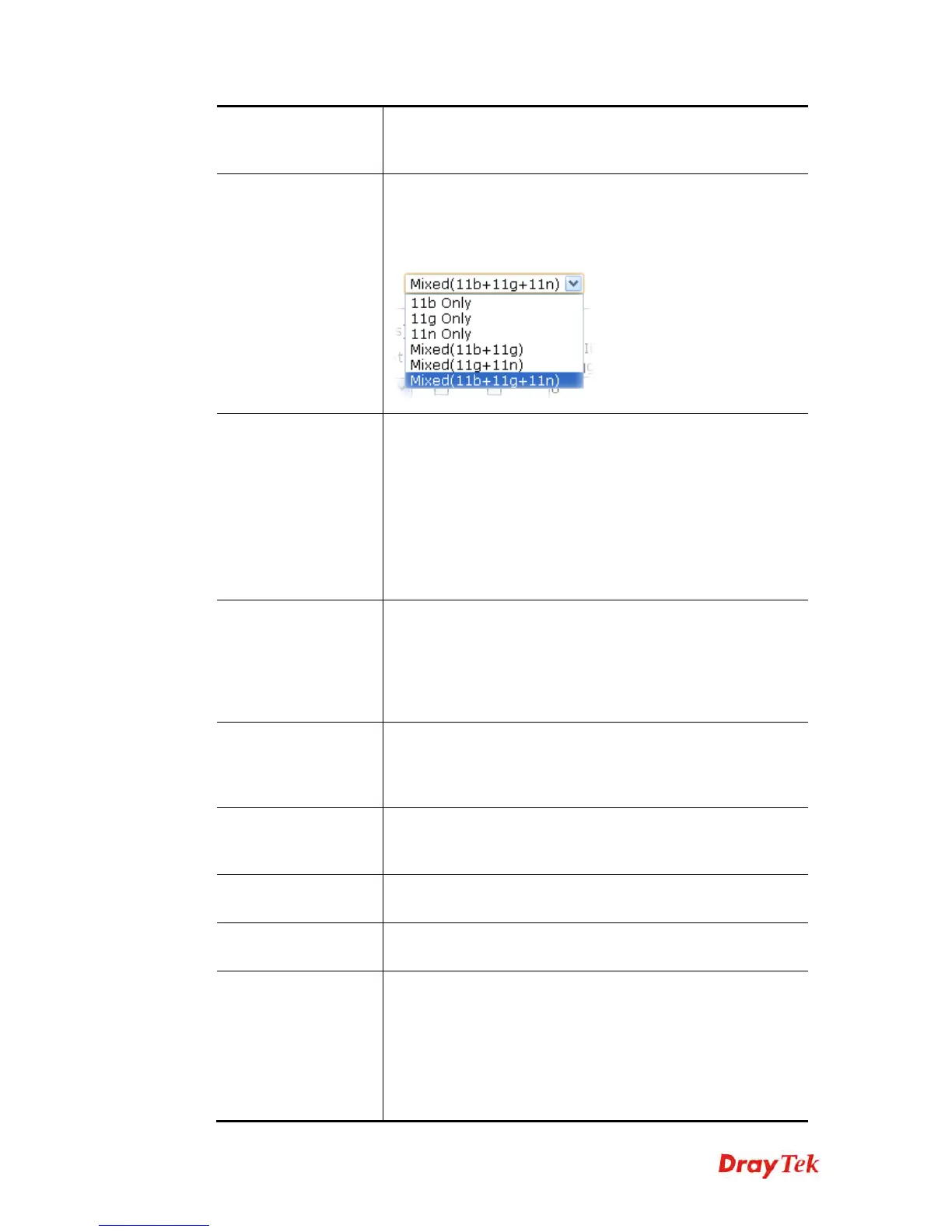
Mode
At present, VigorAP 810 can connect to 11b only, 11g only,
11n only, Mixed (11b+11g), Mixed (11g+11n) and Mixed
(11b+11g+11n) stations simultaneously. Simply choose Mixed
(11b+11g+11n) mode.
Enable 2 Subnet
(Simulate 2 APs)
Check the box to enable the function for two independent
subnets. Once you enable this function, LAN-A and LAN-B
would be independent. Next, you can connect one router in
LAN-A, and another router in LAN-B. Such mechanism can
make you feeling that you have two independent AP/subnet
functions in one VigorAP 810.
If you disable this function, LAN-A and LAN-B ports are in
the same domain. You could only connect one router (no
matter connecting to LAN-A or LAN-B) in this environment.
Hide SSID
Check it to prevent from wireless sniffing and make it harder
for unauthorized clients or STAs to join your wireless LAN.
Depending on the wireless utility, the user may only see the
information except SSID or just cannot see any thing about
VigorAP 810 while site surveying. The system allows you to
set three sets of SSID for different usage.
SSID
Set a name for VigorAP 810 to be identified. Default settings
are DrayTek-LAN-A and DrayTek-LAN-B. When Enable 2
Subnet is enabled, you can specify subnet interface (LAN-A
or LAN-B) for each SSID by using the drop down menu.
Subnet
Choose LAN-A or LAN-B for each SSID. If you choose
LAN-A, the wireless clients connecting to this SSID could
only communicate with LAN-A.
Isolate LAN
Check this box to make the wireless clients (stations) with the
same SSID not accessing for wired PC in LAN.
Isolate Member
Check this box to make the wireless clients (stations) with the
same SSID not accessing for each other.
VLAN ID
Type the value for such SSID. Packets transferred from such
SSID to LAN will be tagged with the number.
If your network uses VLANs, you can assign the SSID to a
VLAN on your network. Client devices that associate using the
SSID are grouped into this VLAN. The VLAN ID range is
from 3 to 4095. The VLAN ID is 0 by default, it means
disabling the VLAN function for the SSID.








 To Next Page