Getting Started
EN-26
Toggles the keyboard backlight to on/off (only for backlit
keyboard).
Press to display the Start menu. This action is the same
as clicking the Start icon.
Press the Num Lk key to activate the numeric keypad.
Press the keys on the numeric keypad to enter numbers or
operands as you would on a calculator.
Press to display an application shortcut menu. This action
is the same as right-clicking a mouse button.
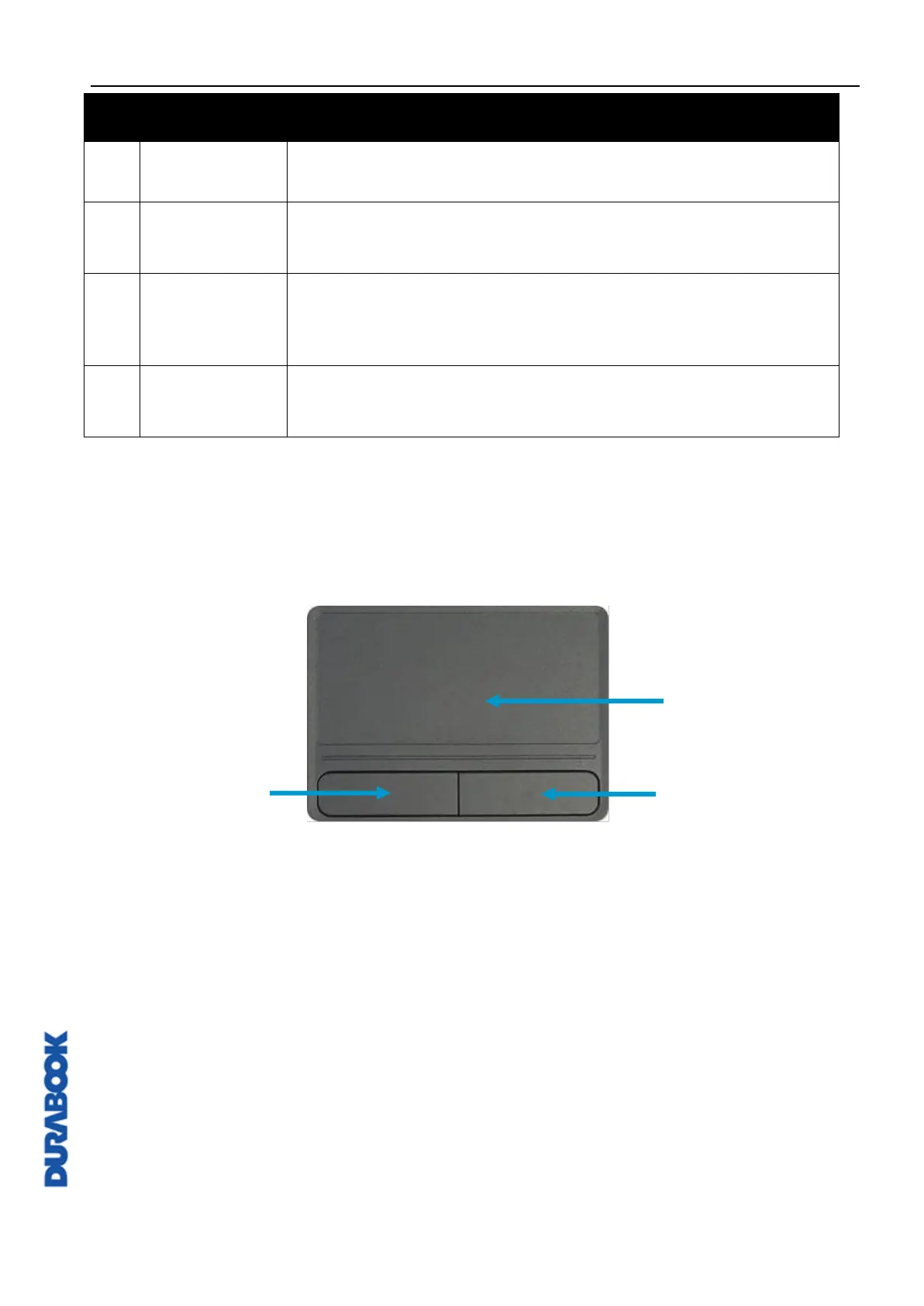
Using the Touch Pad
The touch pad is a cursor-pointing device that provides all the features of a two-
button mouse. Its primary function is to move the cursor around the screen. You
can also point, select, or drag items or objects on the screen.
Point
Slide your finger on the touch pad to point the cursor to an item or object on the
screen.
Click
To left-click, move the cursor to the item or object on the screen, then lightly tap
the touch pad or press the left button.
To right-click, move the cursor to the item or object on the screen, then press the
right button.


 To Next Page