Making Connections
EN-42
Connecting to Wireless Connections
You can connect your notebook to a Bluetooth device, wireless local area
network (WLAN), or WWAN.
NOTE
Make sure to slide the RF Signal switch to enable the RF functions.
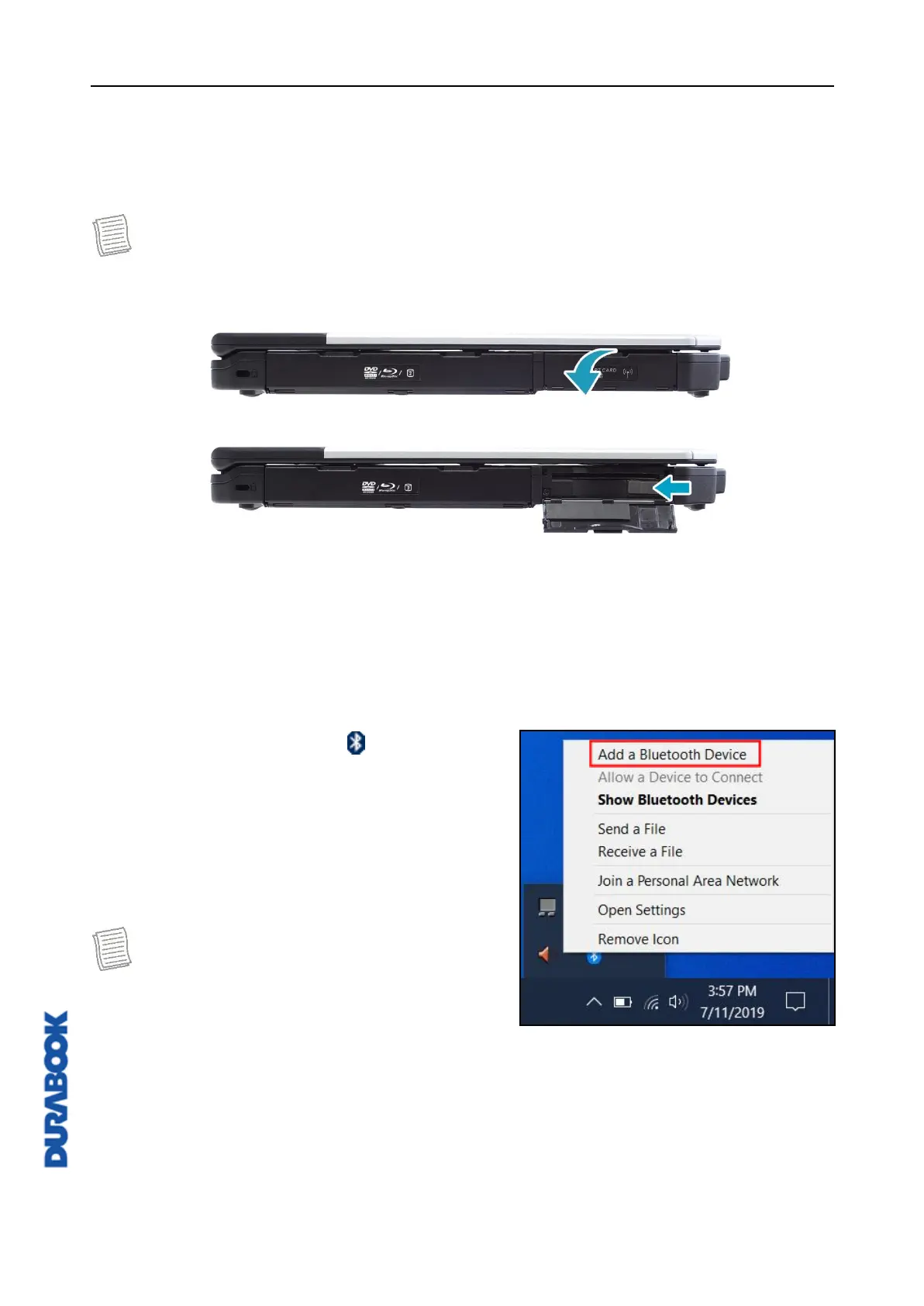
1. Open the I/O cover.
2. Slide the RF switch to the left to enable the wireless function.
Connecting to a Bluetooth Device
Your notebook can connect and communicate with other Bluetooth-enabled
devices. By default, the Bluetooth function is disabled.
To add a device, follow the steps below:
1. Press both Fn and F1 keys to turn on the Bluetooth function.
2. Click the Bluetooth icon ( ) on the
system tray.
3. Click Add a Bluetooth Device. The
system starts scanning for Bluetooth
devices and displays the available devices.
NOTE
If the device that you want to add does
not appear on the screen, please check if
the device is turned on and discoverable.



 To Next Page