Making Connections
EN-44
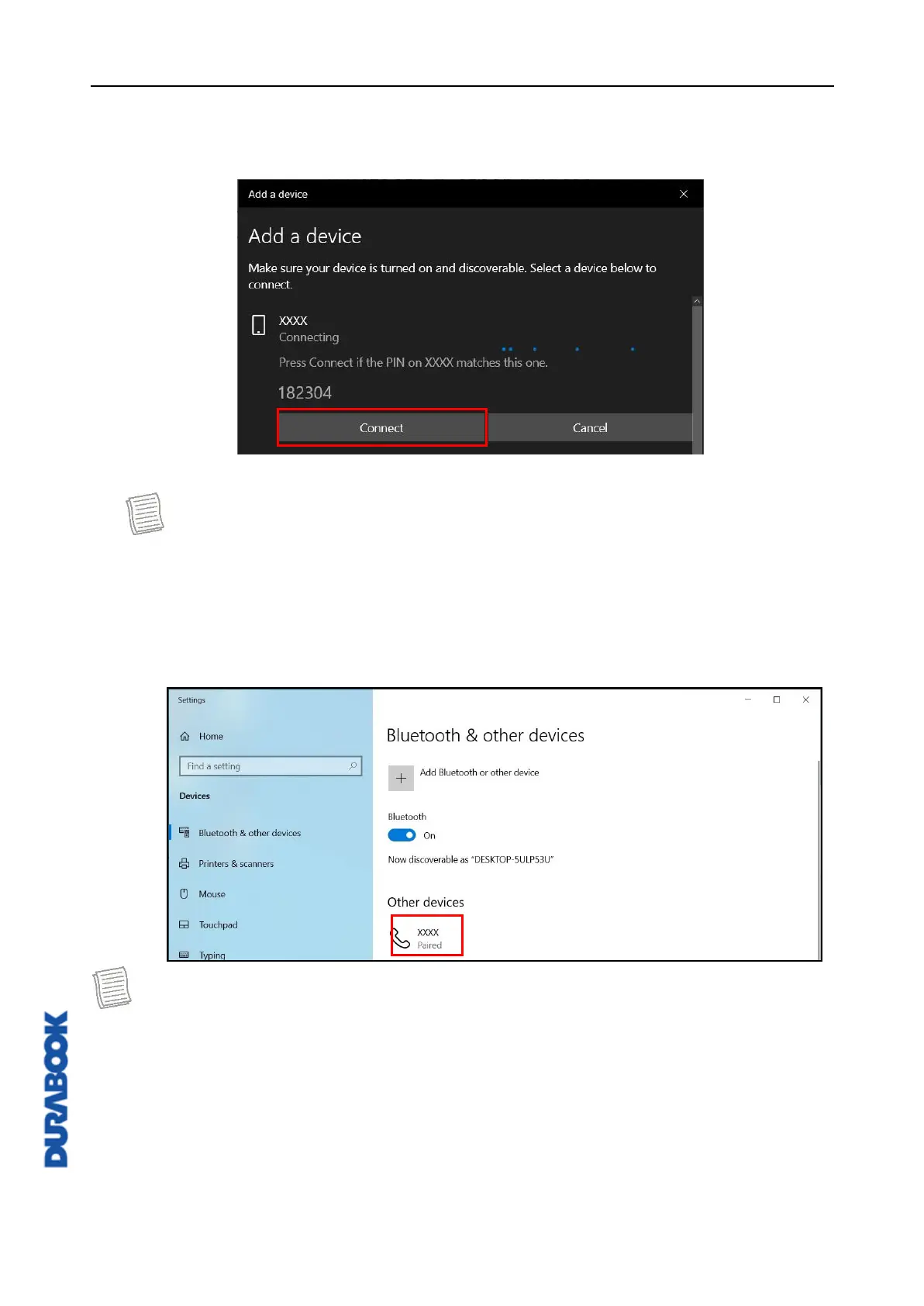
6. Select the desired device to pair and then click Connect to confirm the
pairing code (PIN). Confirm the pairing code also in the other Bluetooth
device to establish the connection.
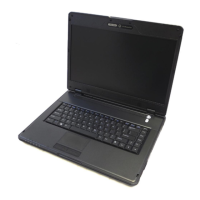
7. After pairing is complete, click Done.
NOTE
The pairing method varies depending the type of device you are pairing
with. You may be prompted to enter the pairing code, confirm the pairing
code, or the device will pair automatically.
8. When the pairing process is complete, the connection status will show
“Connected”.
NOTE
Most Bluetooth-enabled devices need to be paired with your notebook. The
PIN you enter on the notebook must be the same PIN to be entered on the
other Bluetooth device.
Once a partnership has been created, connecting to that device again will no
longer require entering the PIN.
To disconnect from the Bluetooth-enabled device, select the device in the
Bluetooth menu and click Remove device.


 To Next Page