10
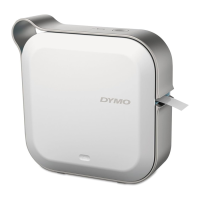
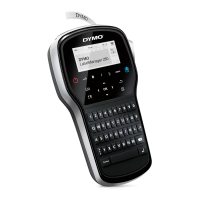
DYMO MobileLabeler
User Guide
Printing Labels from a Mobile Device
You can design and print labels from the MobileLabeler label maker using the
DYMO Connect mobile app.
DYMO Connect is recommended for use with recently released versions of
Android and iOS mobile devices.
Pairing the Label Maker to your Mobile Device
Pair the label maker to your mobile device using Bluetooth settings on your device.
The label maker displays in your list of Bluetooth devices with the name
DYMO ML xxxx where xxxx is unique for every label maker.
If you are asked for a pairing code, use 0000.
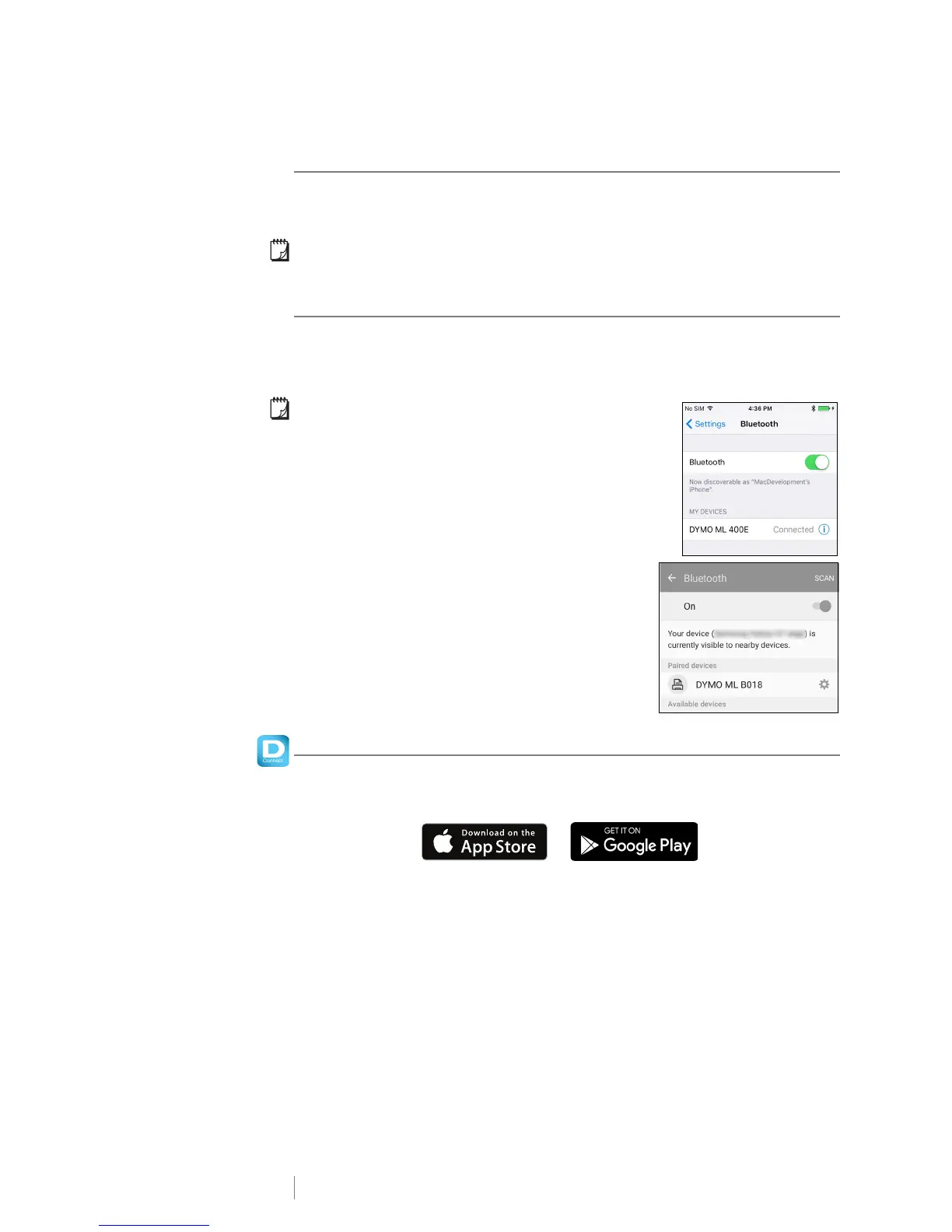
Pairing with an iOS device
1 In Settings, turn on the Bluetooth setting.
2 Tap DYMO ML xxxx under MY DEVICES to
connect the label maker.
After a few seconds, Connected is displayed
when paring is complete.
Pairing with an Android device
1 In Settings, turn on the Bluetooth setting.
2 Tap DYMO ML xxxx under Available devices to
pair the label maker.
After a few seconds, is listed under Paired
devices when paring is complete.
Downloading the DYMO Connect App
The DYMO MobileLabeler label maker works wirelessly with the DYMO Connect
mobile app available on the Apple
®
App store or the Google Play
™
store.








 To Next Page