12
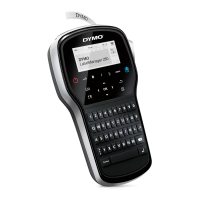
DYMO MobileLabeler
User Guide
Printing Labels from your Computer
The label maker can connect to your computer using Bluetooth wireless
technology or the USB cable supplied with the label maker.
Downloading and Installing DYMO Label Software
You can print to the label maker from DYMO Label software.
To install the software on a Windows
®
system
1 Download the latest version of DYMO Label software from the Support
section of the DYMO Web site at support.dymo.com.
2 Close all open Microsoft Office applications.
3 Double-click the installer icon.
After a few seconds, the installation screen appears.
4 Click Install and follow the instructions in the installer.
To install the software on a Mac
1 Download the latest version of DYMO Label software from the Support
section of the DYMO Web site at support.dymo.com.
2 Double-click the installer icon and follow the on-screen instructions.
Connecting your Label Maker to your Computer
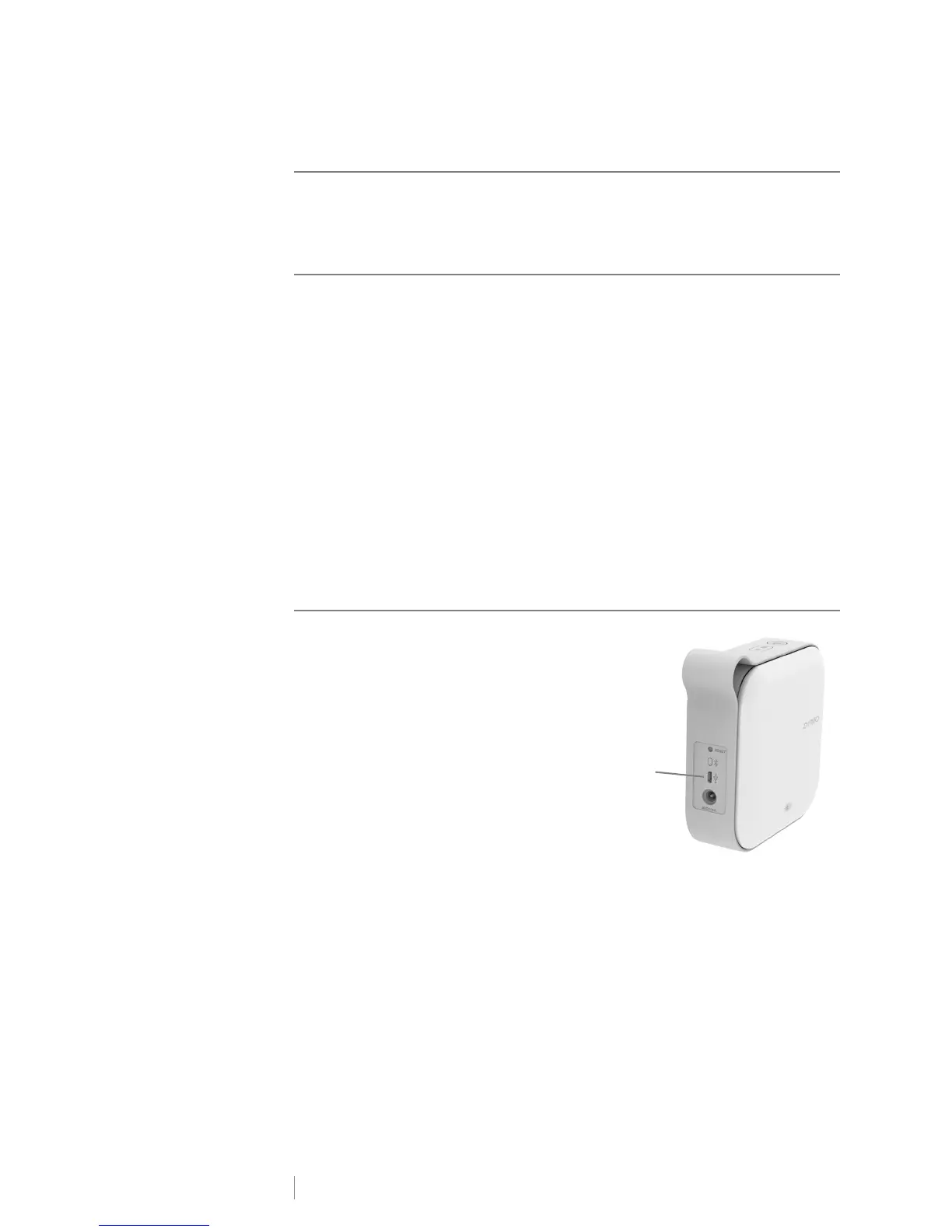
The label maker connects to your computer
using the USB connection located on the
back of the label maker.
Use only the USB cable included with your
label maker.
To connect the label maker to your
computer
1 Plug the USB cable into the USB port on
the back of the label maker.
2 Plug the other end of the USB cable into
a USB port on your computer.








 To Next Page