Leaders in Pipeline Survey Systems
2 - 16
OPERATING MANUAL
PART 1 – OPERATION
AVW 150203 – 2010O&MPt1-Sec2.DOC
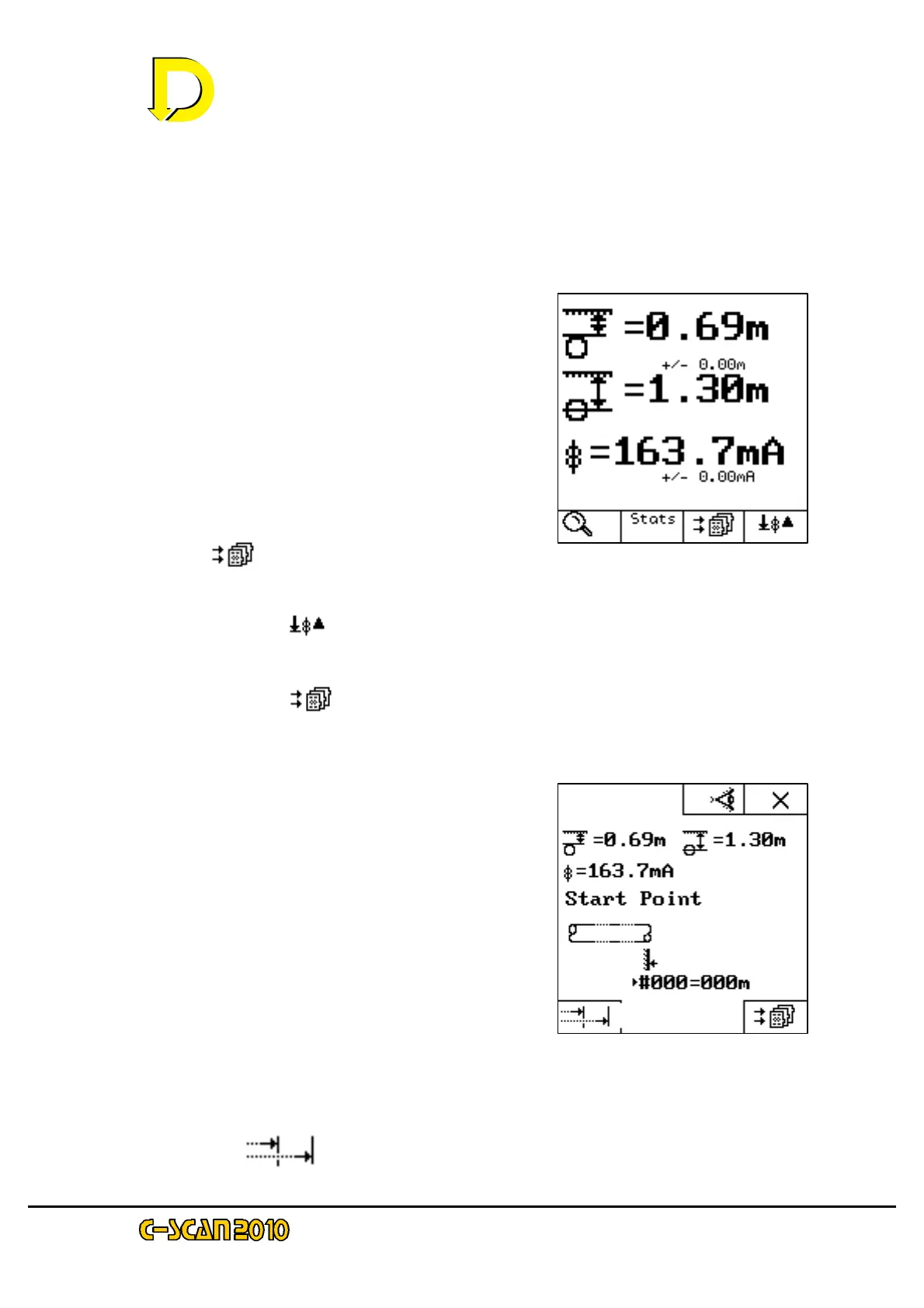
2.3.4 Calculate
After a small delay (indicated by the hour-glass
symbol with a count to 300) the screen will display
the calculated
figures – see Fig. 16 right. Statistical analysis
shows the error function for depth and current
(shown as +/- 0.00 in this example).
Three newly available keys are now displayed:
STATS – this gives the statistical breakdown
of the samples taken.
STORE [ ]- this stores the data and
continues to the next screen – see Fig. 17 below
RE-CALCULATE [ ]- this re-takes the
sample and re-calculates the data.
Press the STORE [ ]key now.
2.3.5 Store Data
As this was the first point of the survey there
is no other point of reference to calculate
attenuation, conductance and resistance, so
this point is designated the START POINT.
NOTE: pressing X the key returns to the SEARCH
mode, and data stored by pressing the STORE key
is removed.
Two newly available keys are now displayed:
VISIBLE FEATURE [the key above the
Eye symbol next to the X box] – this enables
a graphic icon representing a landscape feature
to be noted and tagged on to the data. The icons
are self-evident – for a full list see page 2-9 above.
CHAINAGE [ ] – this allows absolute distance to be entered – e.g: a pipeline
Fig. 16 – the Calculate screen
Fig. 17 – the Store Data screen



 To Next Page