61
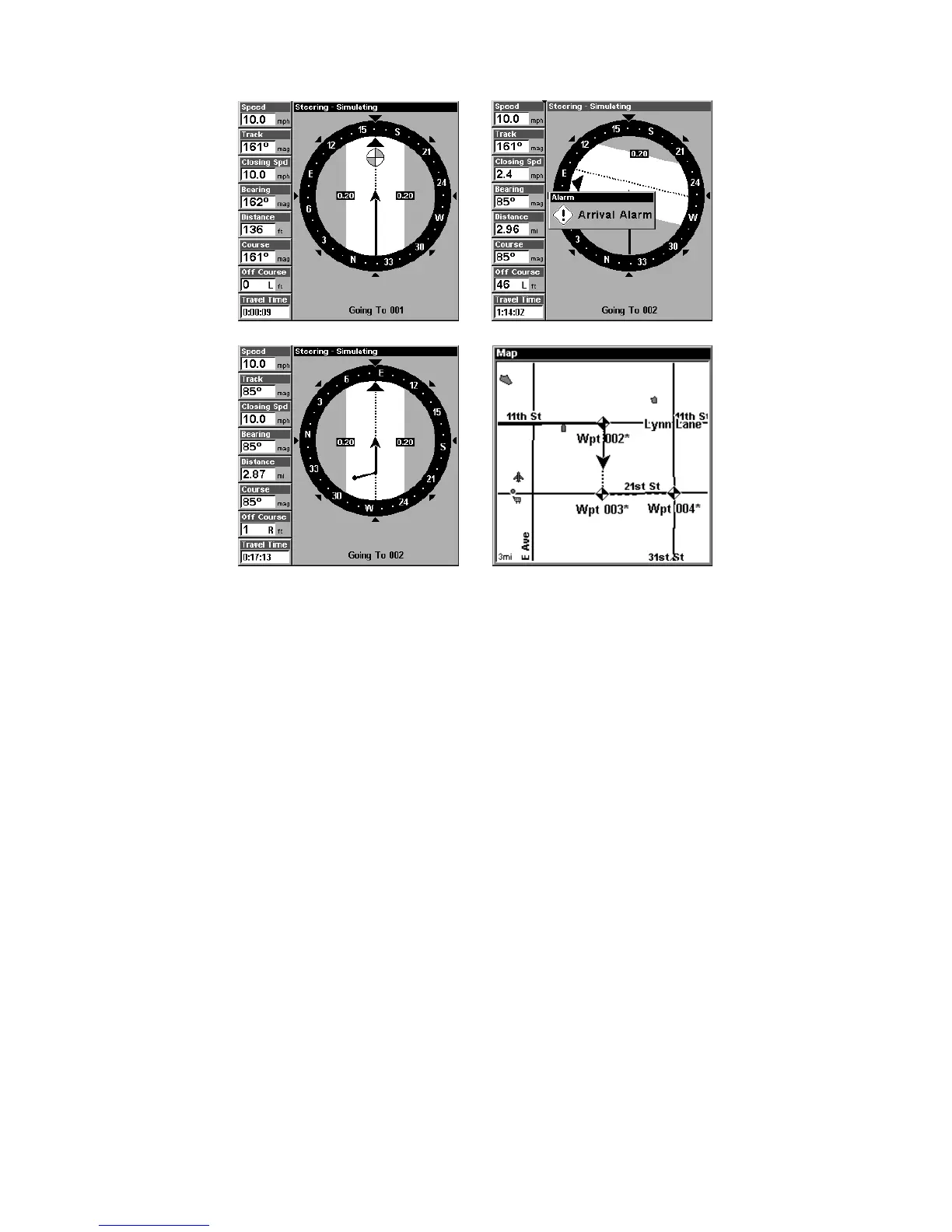
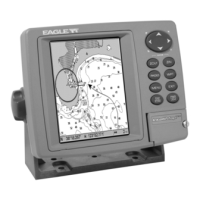
Navigating along a route: Fig. 1 shows the Navigation Page at the start
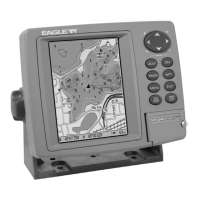
of a route, heading straight for the first waypoint (Wpt 1). In Fig. 2, the
traveler has arrived at Wpt 1; the arrival alarm has been triggered and
the bearing arrow on the compass rose has turned to point toward Wpt
2, off to the east. In Fig. 3 the traveler has turned east on his new
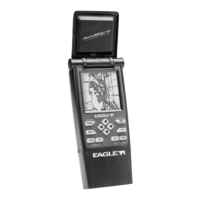
course and is heading straight for Wpt 2, which is 2.87 miles away. Fig.
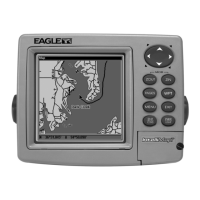
4 shows route navigation on the Map Page. In this figure, the traveler
has reached Wpt 2 and is half-way along the leg between Wpts 2 and 3.
Trails
Delete a Trail
This is the command used to erase or delete a trail:
Press
MENU
|
MENU
|↓ to
M
Y
T
RAILS
|
ENT
|↓ to trail name|
ENT
|→ to
D
ELETE
T
RAIL
|
ENT
|← to
Y
ES
|
ENT
.
Tip:
You can also delete all trails at once:
1. Press
MENU
|
MENU
|↓ to
M
Y
T
RAILS
|
ENT
.
2. Press → to
D
ELETE
A
LL
|
ENT
|← to
Y
ES
|
ENT
.
Edit a Trail Name
To edit a trail name: press
MENU
|
MENU
|↓ to
M
Y
T
RAILS
|
ENT
|↓ to trail
name|
ENT
|
ENT
. Press ↑ or↓ to change the first character, then press
→ to the next character and repeat until the name is correct. Press
ENT
then
EXIT
|
EXIT
|
EXIT
|
EXIT
to return to the previous page display.
Figure 4.
Figure 3.
Figure 2.
Figure 1.



 To Next Page