86
rate plot trail if you are moving around in a relatively small area. If you
want to experiment with Position Pinning, the same instructions are
used to turn the feature on (checked) and off (unchecked.)
1. Press
MENU
|
MENU
|↓ to
GPS S
ETUP
|
ENT
|↓ to
P
OSITION
P
INNING
|
ENT
.
2. Press
EXIT
|
EXIT
to return to the previous page.
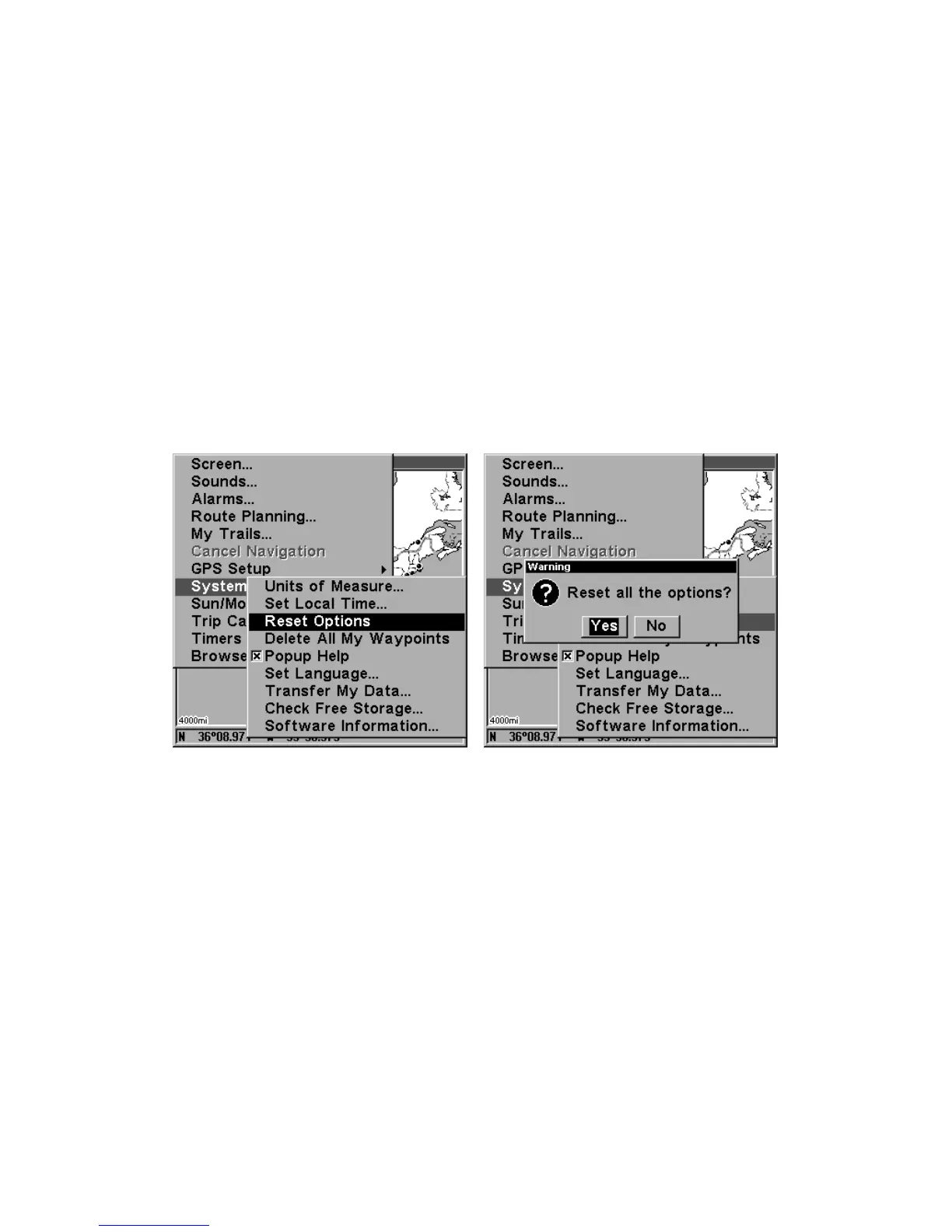
Reset Options
To reset all features to their factory defaults:
1. Press
MENU
|
MENU
|↓ to
S
YSTEM
S
ETUP
|
ENT
|↓ to
R
ESET
O
PTIONS
|
ENT
|←
to
Y
ES
|
ENT
.
NOTE:
Reset Options does not erase any waypoints, routes, icons, plot trails or
sonar logs.
Reset Options command, left,
and the Reset Options Menu, right.
Screen Contrast and Brightness
To access the Screen menu, press
MENU
|
MENU
|
ENT
.
Once in the Screen menu:
To adjust the display's contrast:
The
C
ONTRAST
slider bar is already selected. Press → or ← to move the
bar. The left end of the scale is minimum contrast; the right end is
maximum contrast.



 To Next Page