73
lighted and flashing, press
ENT
to open a list of options. Scroll ↑ and ↓
to select a different display option, then press
ENT
. After all options are
set, press
EXIT
to return to the page display.
Customize Map Page
While on the Map Page, press
PAGES
|↓ or ↑ to select Option Name|
ENT
.
DGPS Status
The DGPS Status screen shows whether DGPS is off or on, and it de-
scribes the quality of the DGPS signal. This screen is useful if you have
to diagnose a DGPS problem.
1. Press
MENU
|
MENU
|↓ to
GPS S
ETUP
|
ENT
|↓ to
DGPS S
TATUS
|
ENT
.
2. The DGPS Status screen is displayed. To return to the previous page,
press
EXIT
|
EXIT
|
EXIT
.
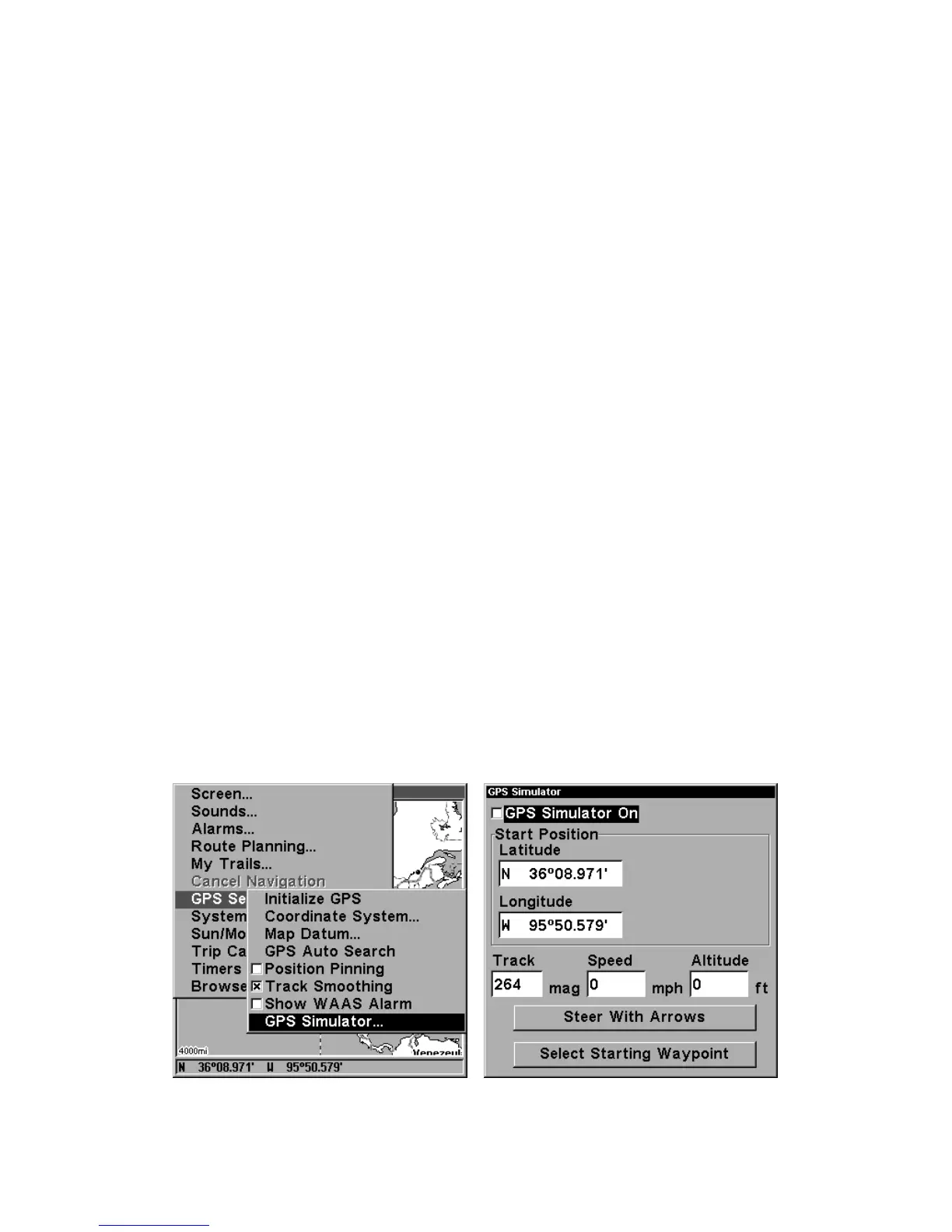
GPS Simulator
The GPS simulator lets you use the IntelliMap 320 as if you were out-
doors navigating somewhere. It's a great way to practice using your unit.
You can set the starting location by entering latitude/longitude (Starting
Position) or from a stored waypoint, map place or POI location (
C
HOOSE
S
TART
command). You can steer your position and change speed on the
map by using the arrow keys (
S
TEER WITH
A
RROWS
command) or by setting
the track and speed in the dialog boxes provided on the simulator menu
screen.
To get to the GPS Simulator:
1. Press
MENU
|
MENU
|↓ to
GPS S
ETUP
|
ENT
.
2. Press ↓ to
GPS S
IMULATOR
|
ENT
. The GPS Simulator Menu appears.
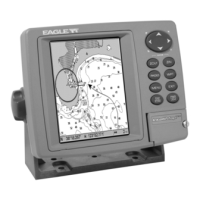
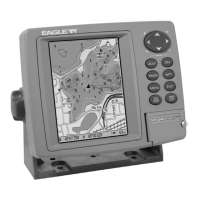
GPS Setup Menu, left; GPS Simulator menu, right.



 To Next Page