80
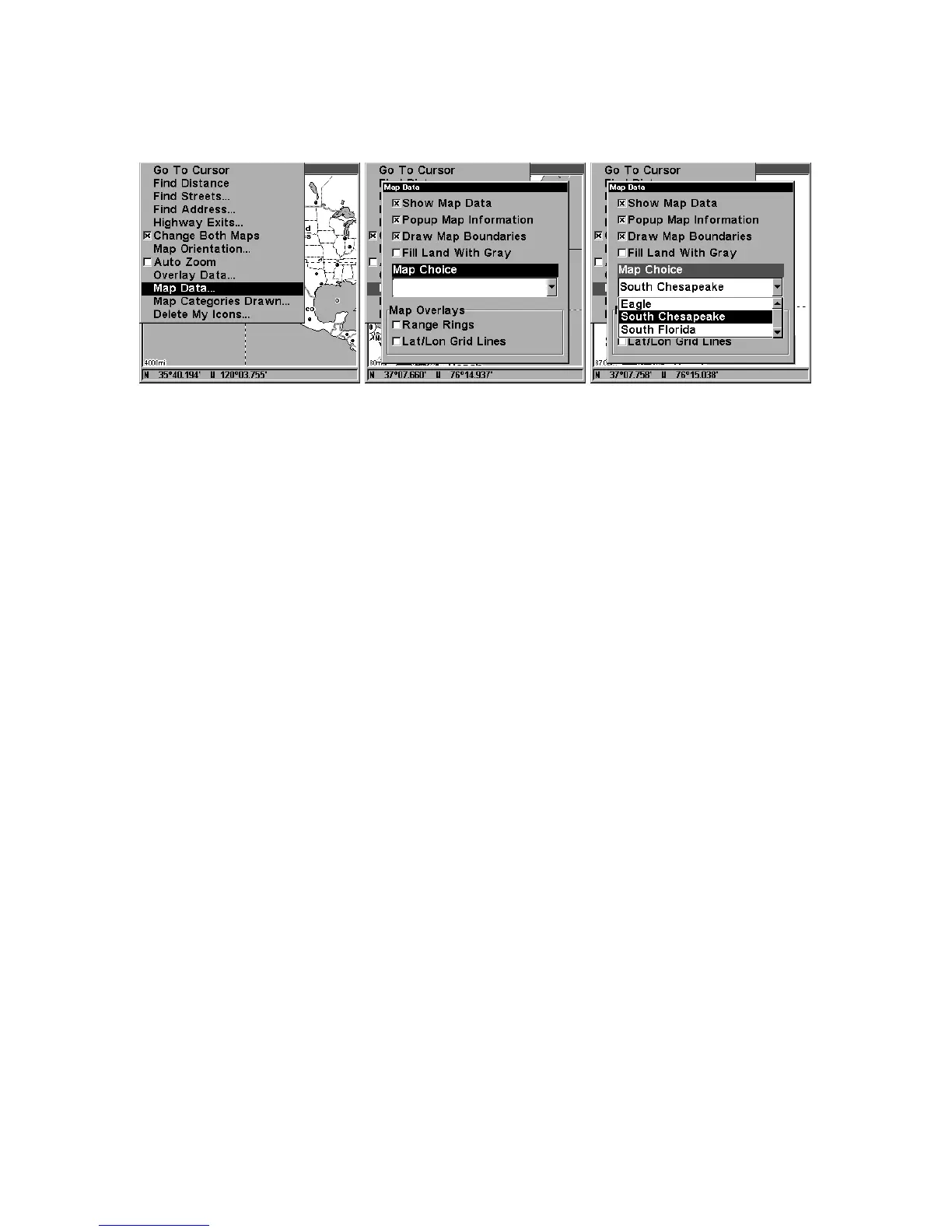
2. From the Map Page, press
MENU
|↓ to
M
AP
D
ATA
|
ENT
|↓ to
M
AP
C
HOICE
|
ENT
. Use ↑ or ↓ to select the Map Name, then press
ENT
|
EXIT
|
EXIT
.
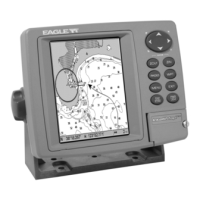
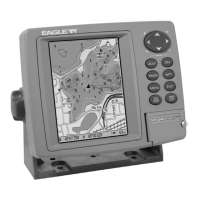
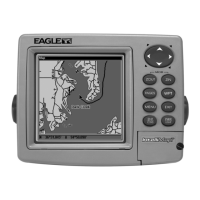
These figures show menu sequence (from left to right) for selecting a
Navionics chart for the South Chesapeake Bay area.
3. To turn off a Navionics chart, From the Map Page, press
MENU
|↓ to
M
AP
D
ATA
|
ENT
|↓ to
M
AP
C
HOICE
|
ENT
. Use ↑ or ↓ to select
E
AGLE
, then
press
ENT
|
EXIT
|
EXIT
.
Port Information
Navionics charts contain Port Services information, represented by an-
chor icons on the map display. An example is displayed in the following
figure.
To view Port Services information:
1. Use the arrow keys to move the cursor over a Port Services icon.
When selected, a pop-up name box appears.
2. Press
WPT
to display the Port Services Information screen.
The Port Services information screen has two windows. The top window
lists the various service categories. The lower window lists the detailed
services available in each basic category.
Eagle




 To Next Page