EC-PM-80320 User's Manual
- 37 -
Chapter 3 Control Panel
3.1 Control Panel
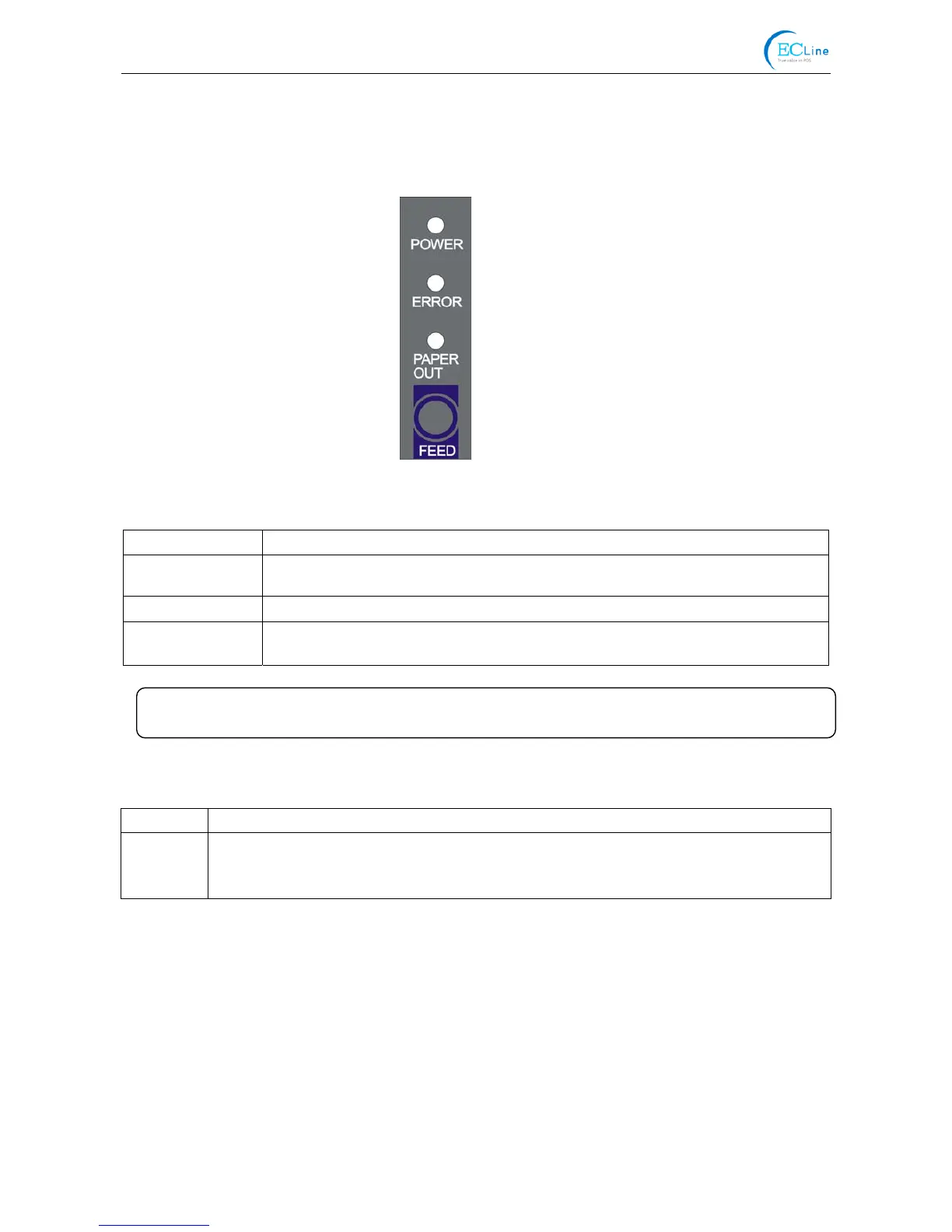
There are three LEDs and one key on the control panel shown as Figure 3-1.
3.1.1 LED
LED Description
POWER (Green)
Denotes whether the printer’s power supply is connected or not. The LED is on
when the power is connected.
ERROR (Red) Denotes printer’s status. The LED is on when the malfunction appears.
PAPER OUT (Red) Denotes printer’s paper status. The LED is on when paper out or is about to end.
3.1.2 Key
Key Function
【FEED】
【FEED】controls paper feeding, you can enable or disable the button’s function with a
command. When enable, the paper will be fed continuously if you hold on pressing it, or
stop if you loosen it.
3.2 Self-test Printing
Self-printing lets you know if the printer is working properly. If the printer printouts the self-test content
normally, it denotes that there is nothing wrong with the printer except for the interface which
connecting to the computer. Otherwise, the printer should be repaired.
Hold on pressing the FEED key and turn on the power switch while the printer cover is closed, the
ERROR LED blinks once with two beeps (if beeper is installed in the printer), loosen the key, then the
printer will print out self-test information such as the software version, update date and interface etc.
Figure 3-1 Control panel
Refer to chapter 6.2 Error message on the control panel for detailed information about LED
malfunctions.



 To Next Page