EC-PM-80320 User's Manual
- 16 -
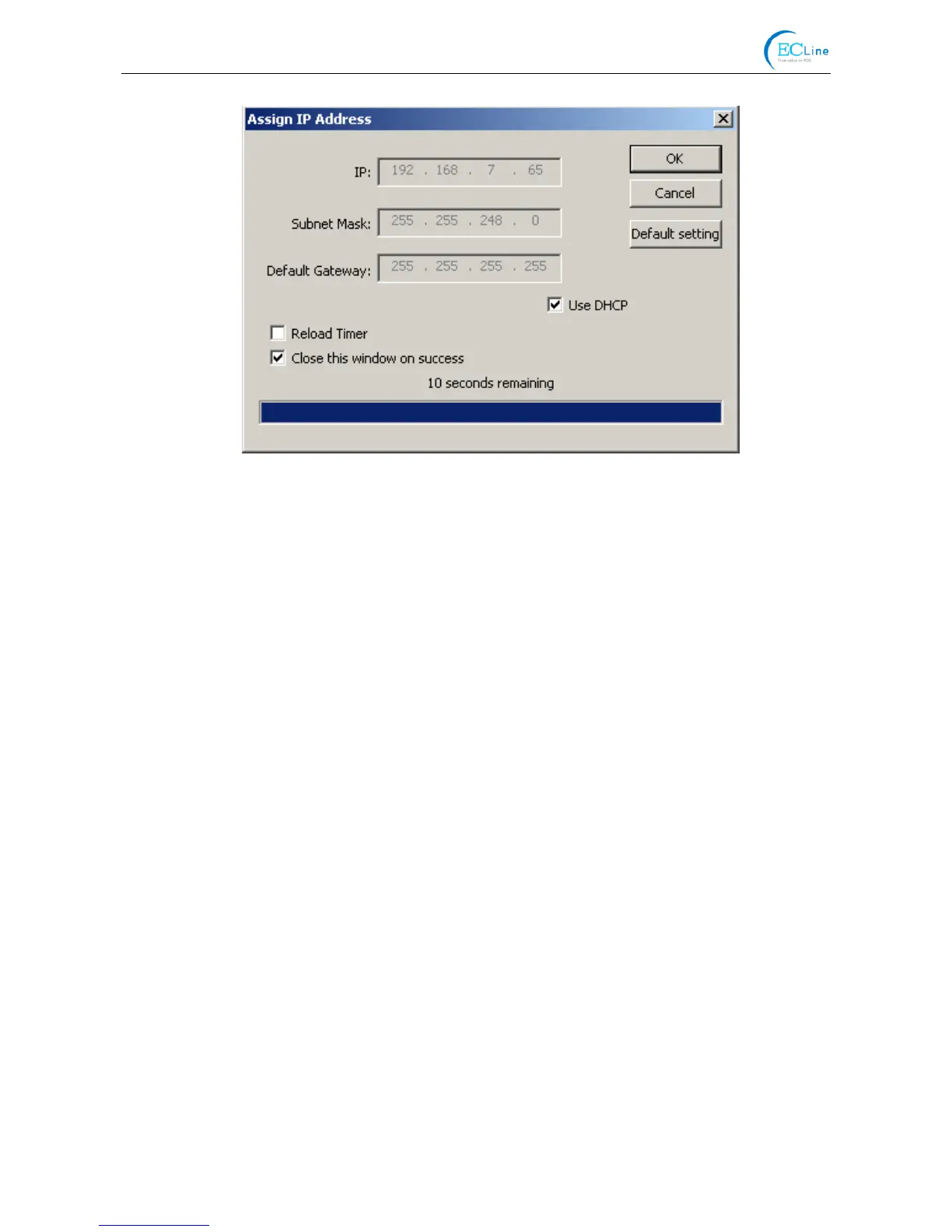
Check the “Use DHCP” if needed to assign dynamic address, the settings above will be disabled
automatically. Please make sure there is a DHCP server in the network, or the printer can not
receive an effective IP address.
When to specify static address, uncheck “Use DHCP” and fill in “IP address”, “Subnet Mask” and
“Default Gateway”. If there is no gateway in the network, fill 255.255.255.255 in the “Default
gateway”. “IP address” and “Subnet Mask” should obey the assigning rules of local LAN
(Ethernet), please enquire the administrator of networks which the printer connects to for more
details.
Click “OK” to send address setting information to the specified printer. The printer takes response
after “Close this window on success” is checked, and then this dialogue is closed automatically.
Select “Reload Timer” then the software will wait for the printer’s response. Generally, printer will
take response in a circle time if network connection is correct.
Click “Cancel” if you abandon the modification.
Click “Search” in the main interface again to update printer information after modifying the
printer’s IP address.
3) Report printer’s IP address
Report the printer’s IP address, which will be used in the section “Newly-install printer network
driver” or “Upgrade-install printer network driver (setting driver’s network port)”.
2.9 Wi-Fi Setting of EC Printer
2.9.1 Connecting the Printer
TP830 is taken as an example to respectively describe the connection of Windows, Android and
iOS operation systems. Please make the connection according to the operating guide of the
current system, and skip to the next chapter “Wi-Fi Parameters Description” when the
connection is successful.
(1) Connecting to the equipment in Windows
Take Windows XP operating system as an example to show how to connect the printer with the
equipment in Windows system.
1. Turn on the printer and make sure the printer is in normal working condition. Start the operation
30 seconds after the printer is on.
2. Right click “My Network Places”, and then click “Properties” to find the “Local Area Connection



 To Next Page