EC-PM-80320 User's Manual
- 30 -
2.9.3 Wi-Fi Interface Status Display and Parameters Reset
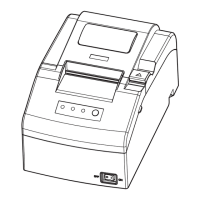
Wi-Fi interface is equipped with the “RESET button (Wi-Fi RESET)” and “LED indicator”.
Turn on the printer, the Wi-Fi LED blinks fast, which denotes the interface is on the ON status. 30
seconds later, the Wi-Fi LED blinks slowly, which denotes the Wi-Fi interface is in normal working
condition.
If user needs to restore the Wi-Fi parameters to factory default setting; just press the Wi-Fi RESET
button to do it in a quick way. The method is as below:
1. Turn on the printer, wait for a few seconds until the Wi-Fi LED blinks slowly, and then press down
the Wi-Fi RESET button for 2 seconds. Loosen the button and the LED blinks twice fast then
blinks slowly again.
2. Reboot the printer and the factory default settings have been restored.
2.10 Installing Printer Network Driver
The ways of installing network driver are classified into Newly-install way and Upgrade-install way
according to whether the PC is installed the printer driver or not.
If the printer driver hasn’t been installed on the PC, adopt newly-install way whose steps are shown
in “Newly-install printer network driver”.
If the printer driver has been installed on the PC, adopt Upgrade-install way whose steps are shown
in “Upgrade-install printer network driver”.
1. Newly-install printer network driver
1) Click “Start” → “Settings” → “Select Printers”.
2) Click “Add printer”, then a window of “Add Printer Wizard” pops up, click “Next”.
3) A window of “Add Printer Wizard” pops up, select “Local printer” in the “Local or Network Printer”
window, and then click “Next”.
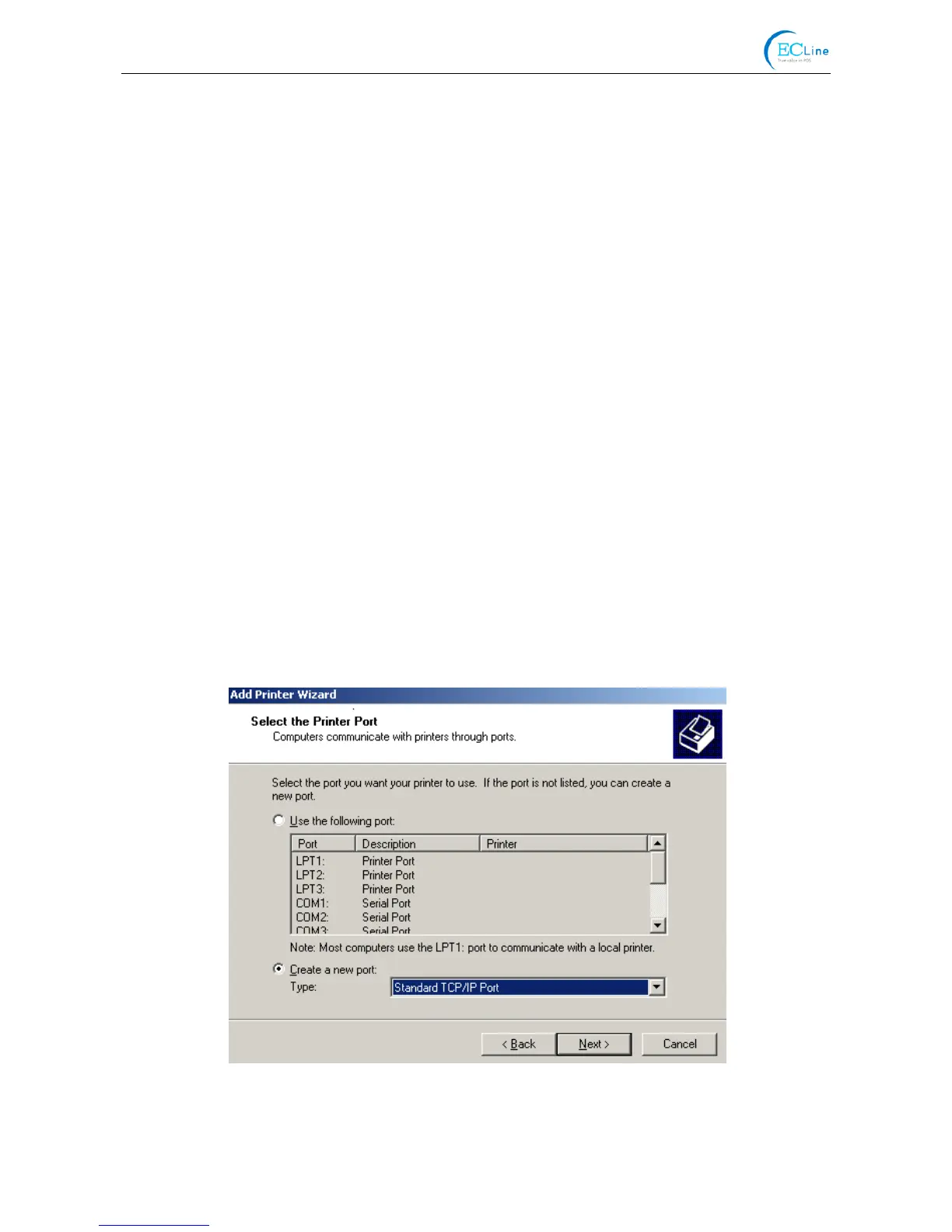
4) A window of “Select the Printer port” pops up, select “Create a new port”, and then select
“Standard TCP/IP Port” in the port and click “Next”.
5) A window of “Add standard TCP/IP Printer Port Wizard” pops up, click “Next”.
6) A window of “Add Port” pops up, enter the IP address reported by the “Setting printer’s IP



 To Next Page