EC-PM-80320 User's Manual
- 49 -
Chapter 6 Troubleshooting and Maintenance
6.1 Maintenance
To prolong the printer’s life, make sure that the printer is well away from heaters and other sources
of extreme heat, and the surrounding area is clean, dry, and free of dust.
Cleaning paper holder and thermal print head periodically is the only necessary task of maintaining
the printer. We will talk with this problem in this section. It is noted that make sure to turn off the
printer before maintenance.
Cleaning the Printer:
Printer is damaged mostly by dust and dirt. Wiping off the wasted paper in the printer and cleaning
the accumulated dirt in the thermal head despite the outer case of the printer prevents greater part
of dust from invading.
Cleaning the Printer Case:
Remove the dirt in the printer case with clean, soft cloth, and take out the wasted paper with a
nipper.
Clean the printer periodically according to the prescription as follows.
Periodical cleaning: Every 6 months or 300 working hours once
Cleaning tool: Dry cloth (Soft cloth if metal parts)
6.2 Error Message on the Control Panel
When the malfunction occurs, the printer will be off-line and give an alarm through LEDs. You can
make out different malfunctions through Table A-4 as shown below.
Table A-4: Error message on the control panel
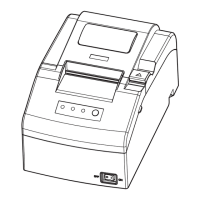
6.3 Auto-Cutter Jammed or Error
When the auto-cutter is jammed by paper, please open the upper cover of the printer and remove
the jammed paper. If the upper cover can not be opened, as well as the auto-cutter still can not
return to the normal position after the printer is restarted, please pull out the front cover which
locates above the auto-cutter to expose the auto-cutter. Then turn the gear in the arrow direction. If
the gear can’t be moved in the arrow direction, don’t force it, please turn it in the reverse direction
until the auto-cutter returns to the normal position. As shown in Figure 6-1.
Error LED
PAPER OUT
LED
Malfunction Solution
BLINK FAST OFF Cutter error Reposit the cutter
ON OFF Upper cover is open Close the upper cover tightly
OFF BLINK Paper is about to end Load paper again
ON ON Paper out Load paper again
BLINK OFF Print head overheated Recover automatically after cooling
Attention: Be careful not to scratch the printer parts when cleaning.



 To Next Page