Creating Your Weekly Schedule
Your heating and cooling needs change
depending on the time of day and day of the
week. For example, if there’s no one in the house
during the workday you might want to let the
temperature go up in the summer, to reduce
energy used by the air conditioning system, and
down in the winter, to reduce heating energy.
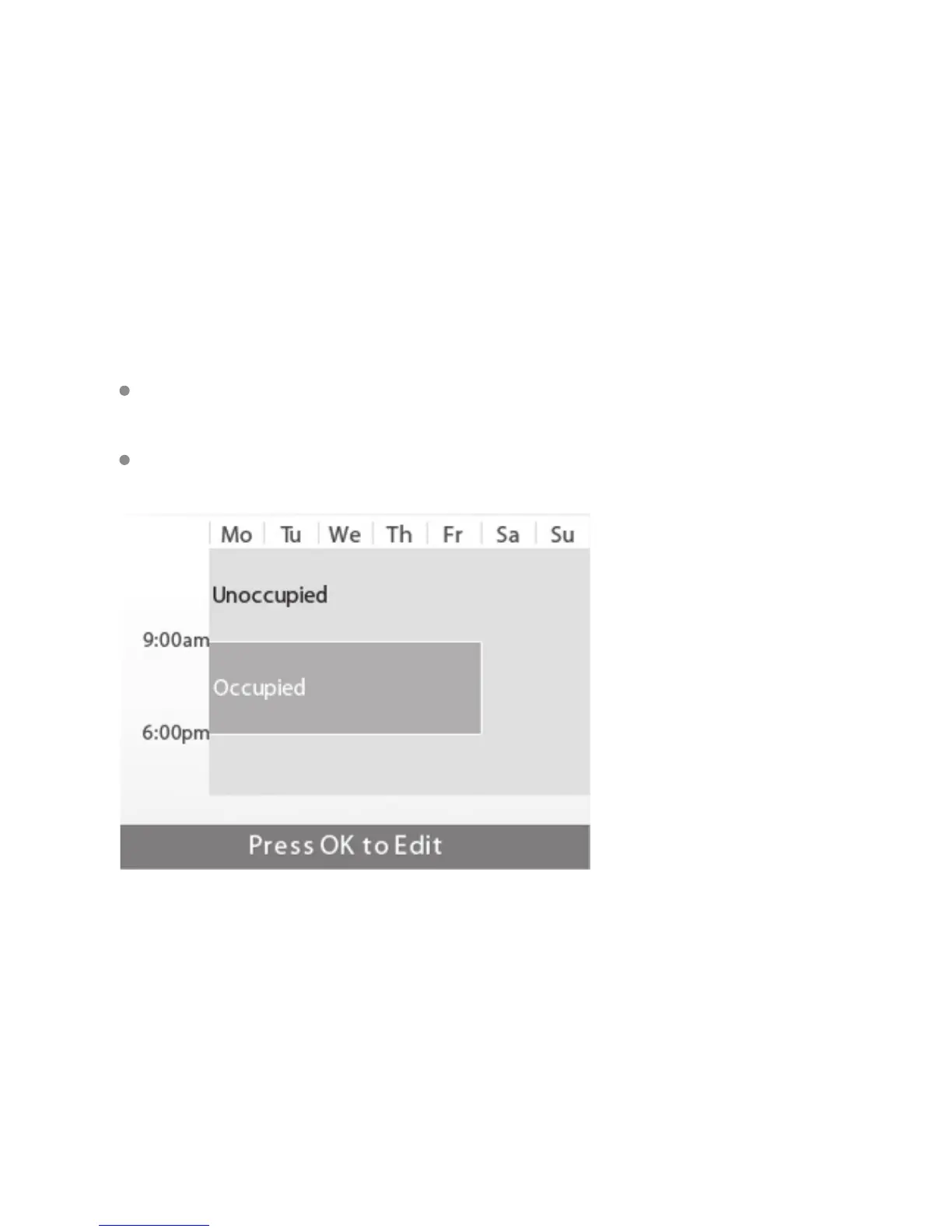
By default, the EMS Si includes two congurable
periods:
Occupied Represents the period when the
building or area is occupied.
Unoccupied Represents the period when the
building or area is unoccupied.
The EMS Si learns how your building’s heating
and cooling equipment perform. Intelligent
algorithms combine weather data, your HVAC
equipment run times and occupancy schedules
to optimize performance and maximize energy
savings.
To view your weekly
schedule:
From the Home screen,
press MENU.
Select Weekly Schedule.
Your weekly schedule is
shown on the screen.
53
To edit your weekly
schedule:
Display your Weekly
Schedule.
Press OK.
Select the Day.
Select the Time, Heat or
Cool Setting.
Press
▲ or ▼ to adjust the
the value. Press
◀ or ▶ to
toggle between columns.
Press OK.
Select Save and Continue.
Select any other days of
the week that will also use
the new settings. Use the
navigation keys to switch
between days and press OK
to select a day.
Select Continue. The new
schedule is displayed on the
screen.











 To Next Page