CTC-1132 868AM 2007.07.18
32
Step 5C. Press “OK”, the display returns to
“Alarm off”.
<
<
N
N
O
O
T
T
E
E
>
>
) When an alarm (other than Panic Alarm)
is raised, press the “Disarm” button
on the Remote Controller will also
stop the alarm (Optional).
) Panic Alarm must be silenced at the
Control Panel. This is to prevent the
Remote Controller from being
snatched from the user and silence
the alarm using the Disarm button.
2. Alarm memory
If an alarm was raised without being silenced
during your absence, and the alarm reporting
has been carried out; the screen will stay on
the ”Alarm warning” display.
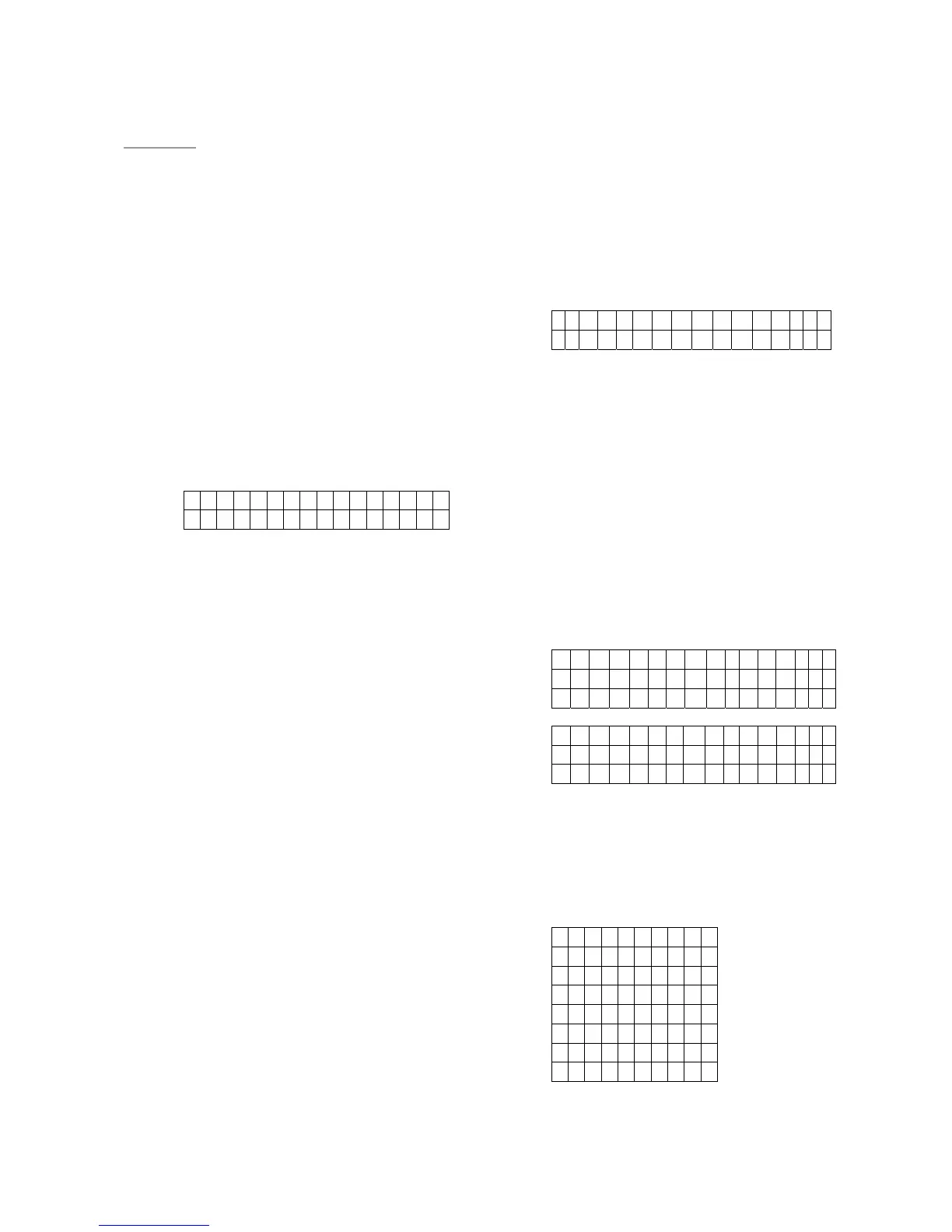
A L A R M ! A L A R M !
A L A R M ! A L A R M !
z When you come back and disarm the
system by pressing the DISARM button on
the Remote controller, the “Alarm
warning” display still remains unchanged.
z To clear the display, follow the same steps
as “Stopping the Alarm“ described above,
you can see the source of the alarm.
z If more than one alarm events including
“Device Tampered” have occurred,
repeated pressing further keys, the alarm
events will be displayed one by one
sequentially until all events have been
displayed, then the screen returns to
“Alarm off”.
IX. Event Log
The alarm log memorises the last 20 system
events including
9 All Alarm Events with Device ID
9 All Fault Warning Events
9 All Arming And Disarming Events
9 Remote Control Event
z The logged events are displayed in
reversed chorological order, (most recent
event first).
z The log is marked with a “Start” label
before the most recent entry and “End”
after the oldest entry.
z To View Log:
Step 1. Key in the user code and press “OK”
while in Disarm mode to access
User’s Menu.
Step 2. Press the “T” key repeatedly to select
“Log” and then press “OK” and the
start of the log will be displayed.
S T A R T
0 8 : 0 2 1 6 D e c
Step 3. The log can now be scrolled up and
down and viewed with the “S”, “T”
keys; the most recent event will be at
the start.
Step 4. An example of logged event is given
below; where the first line tells the
time and date of the event, the second
line tells the type of event and the
third line either states the User or the
device that caused the event.
Abbreviation as “DC” stands for Door
Contact, “LB” is short for low battery,
“Tamp” means Tamper where “Rest”.
is short for restore.
0 2 : 3 8 0 1 J a n
Di sar m
User 1
0 2 : 4 0 0 2 J a n
Pa n i c
D A V I D R C
X. Power Switch “Home Matic”
Step 1. Select the funtion of “Power switch”
then the following screen will be
displayed.
Cha nne l 1
Cha nne l 2
Cha nne l 3
Cha nne l 4
Cha nne l 5
Cha nne l 6
Cha nne l 7
Cha nne l 8
Step 2. Select the desired Power Switch
(Channel number) and then press
“OK” .



 To Next Page