1. Install Chitu Box
Select the right version of slicing software on the USB flash drive and install it on your computer.
2. How to Use Chitu Box
After the installation is complete, run the Chitu Box software. Click "File-Open File", then open
your 3D model file (.stl type). By left-clicking on the model and using the options on the left menu,
you can control and change the viewing angle, size, and position of the model.
Other Operations:
1) Long press the left button and drag the model to the position you want.
2) Scroll the mouse wheel to zoom in or zoom out the model.
3) Long press the right mouse button to view the different perspectives of the model.
3. Chitu Box Setting
3.1 Machine Configuration Parameters
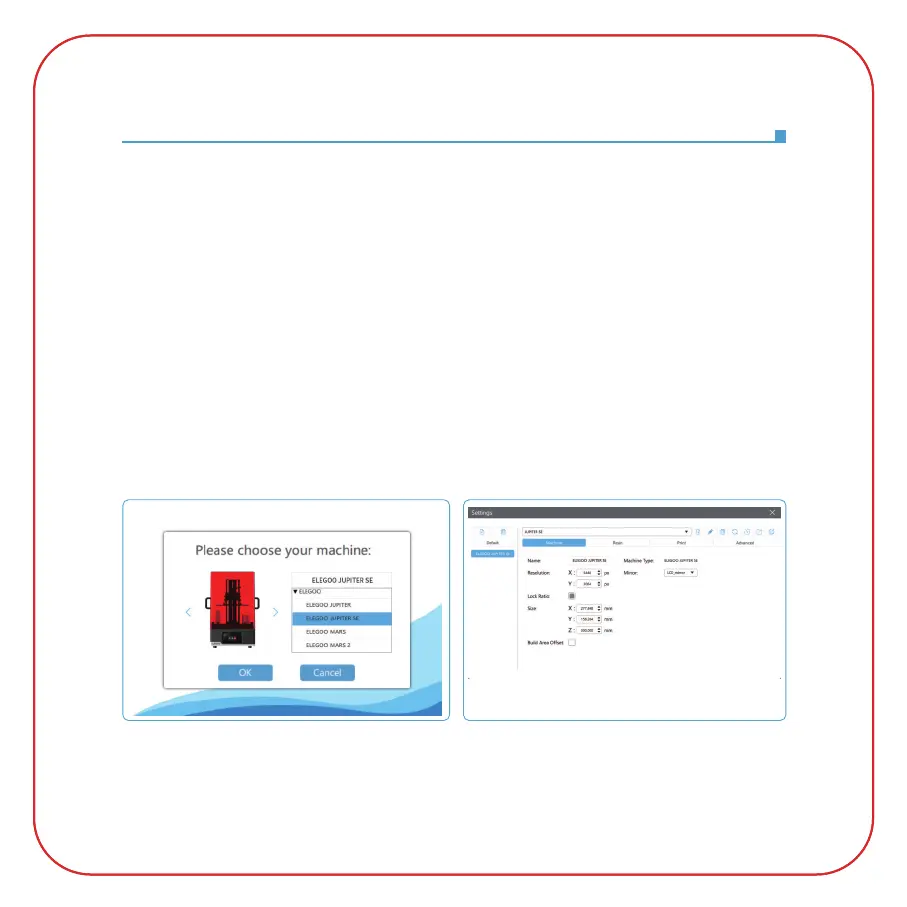
Click "Parameter Settings" and select ELEGOO JUPITER SE as your default printer. (See Picture 15)
Software Installation and Setup
3.2 Build Volume
You don't need to change the default parameters (See Picture 16), and X indicates the maximum
print size in the X-axis direction, and so on.
(Picture 16)(Picture 15)



 To Next Page