105U-G Wireless Gateway User Manual
Page 73 © August 2003
4.10
Uploading and Downloading
To upload or download a configuration file, the 105G must be connected to the PC via a
RS232 cable. For Modbus/DF1 units, the host device must be disconnected, even if it is
connected to the RS485 port. Other units do not need to disconnect the data bus. When the
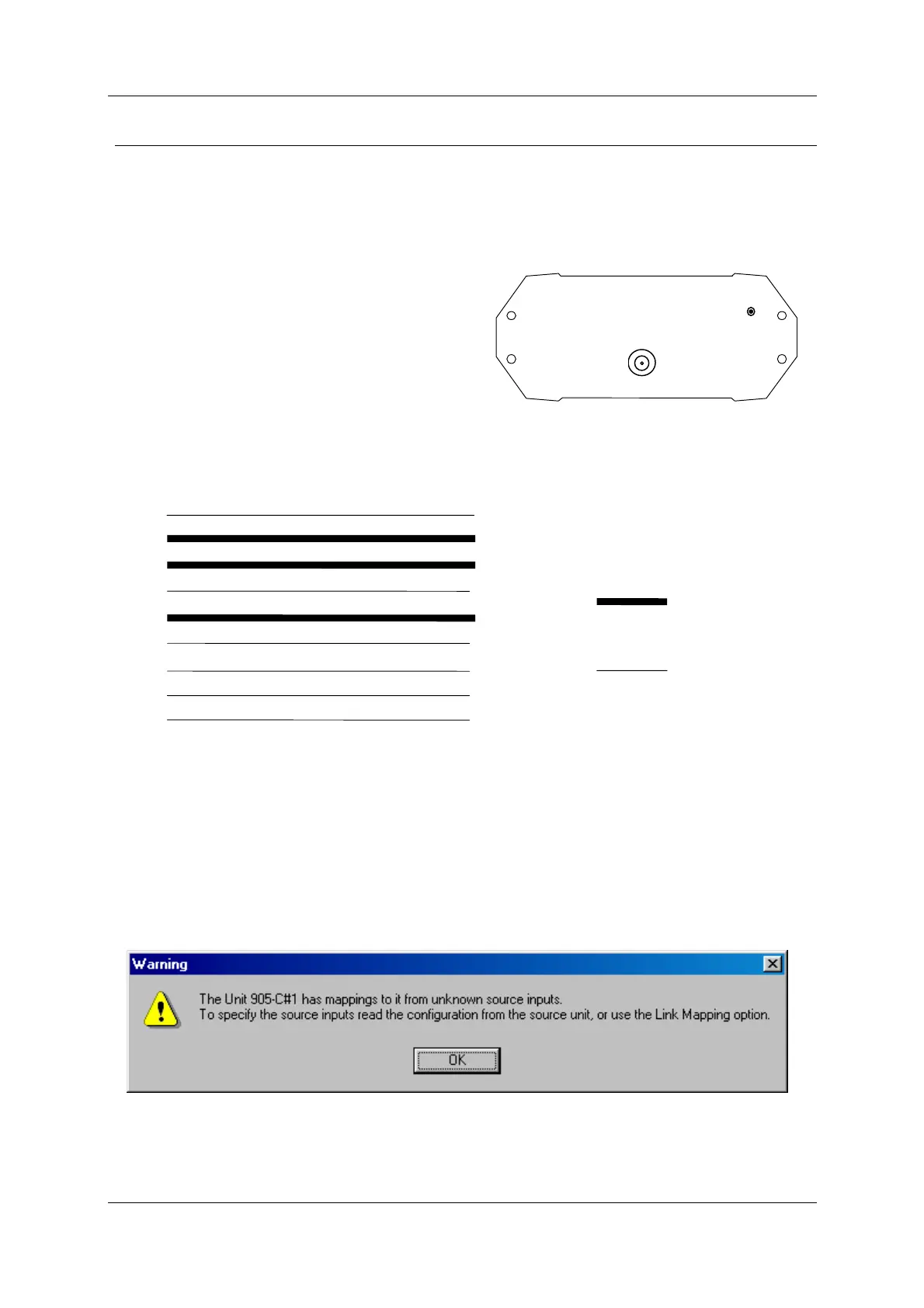
PC is connected, put the 105G into configuration mode by pressing the small pushbutton
switch in the end plate of the module. Hold the pushbutton in for 5 seconds until the ACT
LED starts flashing.
In configuration mode, the 105G will stop its
normal functions.
Make sure the correct communications port is
selected on the PC - if necessary, change the
selection from the Utilities menu. Connect the
PC to the module using the configuration cable.
The configuration may be programmed into a 105G, or a configuration may be loaded from a
105G. After programming or loading is complete, disconnect the PC from the 105G. Reset
the 105G by removing power and re-connecting power. The 105G will start up normally and
the OK led will be on. The serial port will have its original set-up.
4.10.1 Loading from a 105G
If you load a configuration from a 105G into a “blank” or new project, then the program will
not be able to display the mappings from remote modules (as the program does not know
what the remote modules are). You will get a warning message like this:
If you open the archived project first, and load into the archived project, then all mappings
will display as normal - any mappings to/from the 105C will be over-written on the PC
display by the loading process.
ANTENNA
CONNECTION
CONFIGURATION
ENABLE
Required
Optional
105G PC
DB9 Male DB9 Female


 To Next Page