displayed by repeatedly pressing “Search”).
9. Enter the Encryption settings and the WPA-PSK key of the wireless network
10. Click “Apply”.
11. Disconnect the Ethernet cable to connect to the wireless network.
2.5 Mounting the camera on the wall
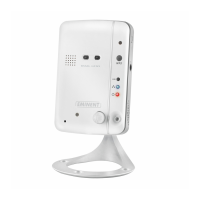
1. Once the camera is connected correctly with your computer, you can mount the
camera on a wall or ceiling.
2. Use the mounting stand to mark the holes at the location where you want to mount
the camera.
3. Drill the holes and fill the holes with the supplied plugs.
4. Mount the bracket stand to the wall or ceiling using the supplied screws.
5. Connect the power and data cable as described in chapter 2.1.1 or 2.1.2
3.0 Viewing images
You can view the images both on your computer and on your smartphone screen, as
we explain in the sections below.
Optionally, you can install the supplied software so you can find the camera directly
with your computer and make recordings with your computer.
3.1 On your smartphone/tablet (Android, iPhone, iPad)
Start the App CamLine Pro, press the camera view of the camera you wish to
view/control from the 4-camera view. The device will start connecting with the camera
and will show live images of the camera including the camera control buttons. If the
smartphone is rotated to landscape the video stream will be displayed in Full-screen
(rotation feature of the smartphone needs to be enabled).
3.2 On your PC (Windows) in a remote location.
After CamLine Pro software is installed, it’s very easy to add a camera into the camera
list of the CamLine Pro software, press the “+” button, key in the CAM ID and
password (from the ID/Password Card) and press “OK”. The camera will be added to
the camera list. To view the stream select and drag and drop the camera in the screen
you wish to display the stream of the camera. You will then see the video stream
immediately. No further NAT/router setting modifications are needed. The camera can
be controlled remotely as well.



 To Next Page